












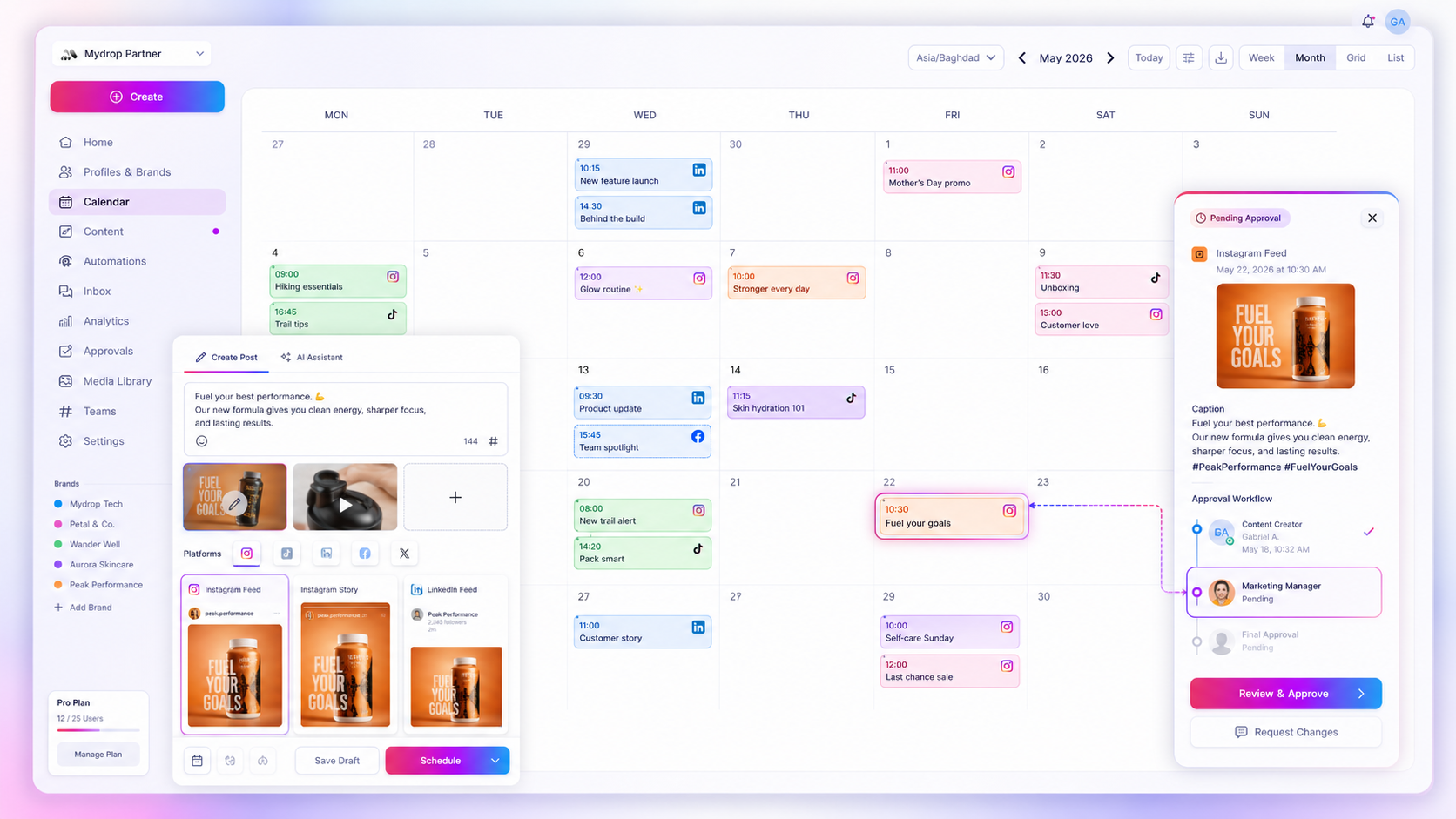
Google Drive and Google Calendar connect in two separate ways, and for social posting you want both. Drive holds the files you post. Calendar shows when they go out. Google links the two natively through event attachments, and a scheduler like Mydrop joins up both ends: assets flow into posts, and posts flow onto your calendar.
TLDR: In Google Calendar, attach a Drive file to an event (Add attachment). For social posting, connect Google Drive to import files into your media library, and connect Google Calendar to mirror scheduled posts as events, both ways. Drive imports are copies, so re-import a file if it changes.
What Google does natively
Inside Google Workspace, Calendar and Drive work together in one useful way: you can attach a Drive file to a calendar event. Open an event, choose Add attachment and pick a file from Drive. Everyone invited can open it from the event.
That's fine for meetings and shoots. It doesn't publish anything. A post scheduled in a social tool won't appear on your calendar by itself, and a file in Drive isn't a post asset until someone moves it into the tool where posts get built.
The three-step flow for social posting
| Step | Where | What happens |
|---|---|---|
| 1. Store | Google Drive | Designers upload approved files to a shared folder |
| 2. Import | Mydrop gallery or composer | Pick files in Google's own picker and they land in your media library |
| 3. Mirror | Google Calendar | Every scheduled post shows as an event, and moving the event moves the post |
Connect Google Drive
- Open the Profiles page in Mydrop and add Google Drive as a connected service.
- Sign in on Google's own screen and authorise access to the files you choose.
- Open the picker from the gallery or the post composer, browse your real folders, select as many files as you like and import them.
Files arrive in whichever gallery folder you have open, so pick the right brand or campaign folder first. If a file is sitting on your laptop, the picker has an Upload tab too. The Google Drive integration page has the details.
One limit to plan around: imported files are copies in your media library. If a designer later updates the original in Drive, import it again so the post uses the new version. Think of Drive as the master and the library as the place you post from.
Connect Google Calendar
- On the Profiles page, add Google Calendar as a connected service.
- Authorise it on Google's screen.
- Open its settings, turn on sync and choose all saved posts or selected profiles.
Each event carries the status, caption, target profiles and a link back to the post. Posts are colour-coded too, so the calendar reads at a glance. You'll find more on the Google Calendar integration page.
How the two-way sync behaves
| You do this in Google Calendar | Result in Mydrop |
|---|---|
| Move an event to a future time | The post reschedules |
| Move it to now | The post publishes |
| Delete the event | It unlinks, but the post stays |
| Create, edit or publish a post in Mydrop | The event updates to match |
Moving an event to "now" publishes the post, so tell your team before you switch this on. Anyone with calendar access can drag a post live.
Reminders can ride along on the same calendar as well. All-day and recurring reminders are supported, and ticking one off clears its pop-up.
Setup choices that save trouble
- Sync selected profiles for client work. If you run several brands, mirror only the ones each person needs, so your own calendar doesn't fill up with every client's posts.
- Use a shared calendar for team-wide visibility, and keep personal calendars for the people who approve.
- Name Drive folders to match your gallery folders, so you always know what you're importing and where it will land. Our guide to building a media taxonomy has a naming pattern you can copy.
A five-minute test
- Upload a test image to Drive and import it into the gallery.
- Schedule a post with it for tomorrow.
- Check that the event appears on your Google Calendar.
- Drag it an hour later, then confirm the post time has changed in Mydrop.
If all four steps work, you're done. For a wider look at calendar sync for agencies, read our review of Google Calendar sync tools.
Next step: run the five-minute test with one real asset. To connect both services, start free with Mydrop.
 Google review
 Trustpilot review
 Product Hunt comment