













To stop chasing notifications, sort every alert by asking one question: does it have a time attached? Alerts with a time (approvals, deadlines, scheduled posts) go on your calendar. Alerts that need a reply get checked in fixed windows. The rest becomes a digest.
TLDR: Turn off live app alerts and use three buckets: dated work on the calendar, replies in two or three daily windows, and everything else in a digest. In Mydrop's data on posts that went through client approval, the median time to approval was 6 hours, so approvals deserve a dated reminder, not a ping.
Step 1: sort your alerts into three buckets
List every notification you got last week. Put each one into a bucket.
| Bucket | Examples | Where it goes |
|---|---|---|
| Needs a time | Client approval due, launch day, scheduled post, report send | Your calendar |
| Needs a reply | Comments, DMs, mentions | A fixed inbox window |
| Good to know | Likes, follower counts, platform updates | A daily or weekly digest |
In our experience, the third bucket is the biggest. That's the noise to switch off first.
Step 2: put the dated bucket on the calendar your team already opens
An alert inside a scheduling app only works when someone opens the app. A calendar event works because everyone already looks at it.
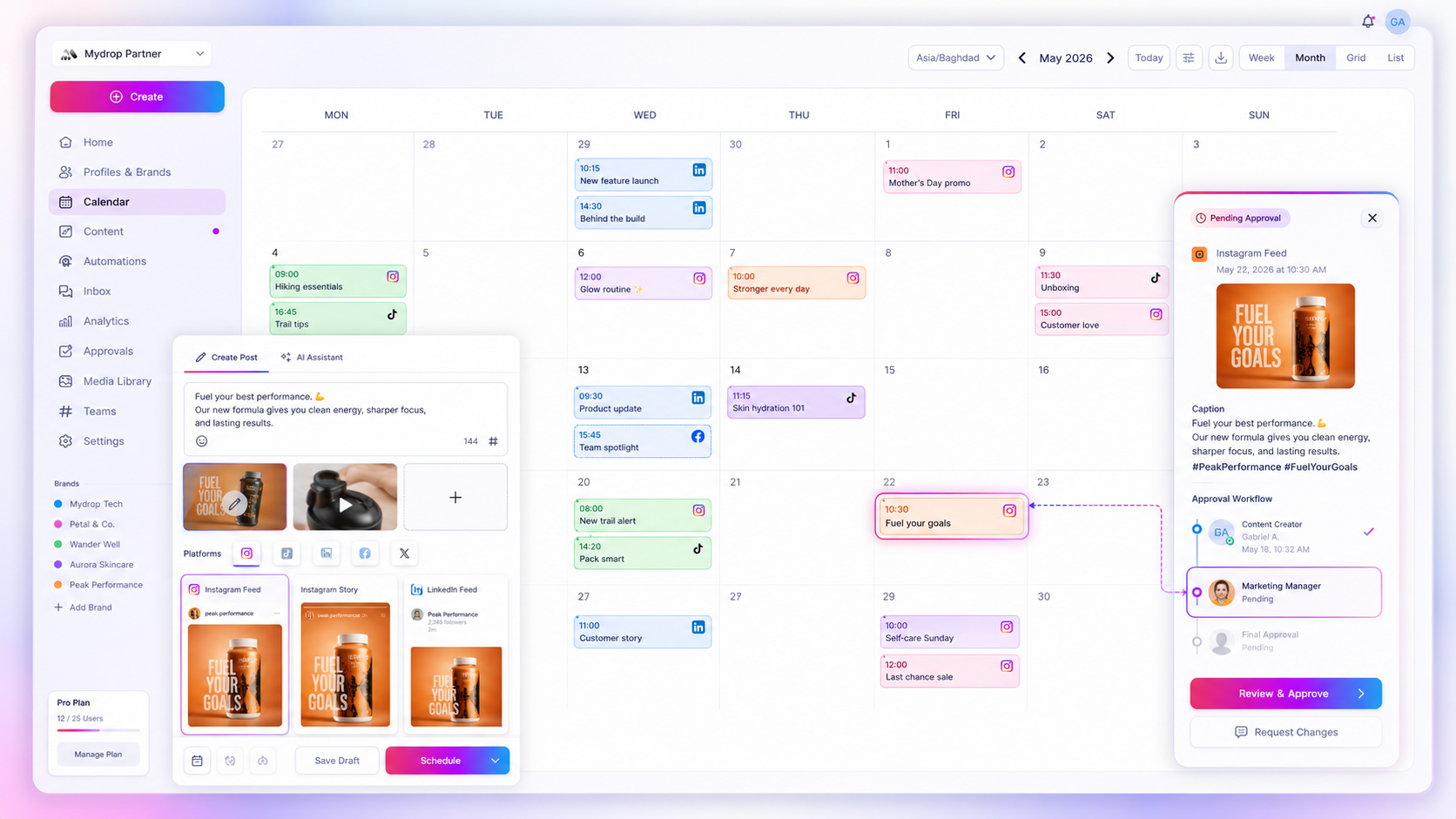
Mydrop's Google Calendar integration brings scheduled posts and reminders onto the shared calendar, so a Friday approval deadline sits next to the Friday client call. Keep the sync scoped, though: sync only the profiles whose dates matter to the people viewing the calendar, or you'll bury leadership in post events.
Our guide on syncing a Google Calendar workflow lists what to check in any tool.
Step 3: handle replies in windows, not in real time
Replies feel urgent and rarely are. Set two or three windows a day, for example mid-morning and late afternoon, and clear the inbox then.
The social inbox puts comments and messages from every connected account in one list, so each window is one stop instead of nine apps. Work the list top to bottom, then close it.
For repeated questions, automations can reply to a trigger word in a comment, which gets rid of the most repetitive replies altogether.
Step 4: give approvals a reminder, not a live alert
Approvals are where chasing hurts most. A pending post blocks everything behind it.
In Mydrop's data on posts that went through client approval, the median time from submission to approval was 6 hours, and 66% were approved within 24. The slow tail is usually a post nobody was reminded about.
So set a rule:
- A reminder at submission.
- A second one at 24 hours, to the approver only.
- After 48 hours, a person (not a bot) follows up.
Our approval reminder schedule has the wording.
Step 5: turn off what you no longer need
Now switch off the app-level alerts for the third bucket on each platform. Leave only the platform alerts that signal danger: a security warning, a policy notice, a broken connection.
If a team member says they missed something, don't turn alerts back on. Ask which bucket it belonged in and fix that bucket's rule. Our checklist for when team members miss notifications walks through it.
The two exceptions that should still interrupt you
Windows work for ordinary replies. Two things should not wait for the next one:
- A complaint from a client or a customer in public. Agree in advance who gets pinged and who answers.
- A connection or security warning. An expired login stops every scheduled post behind it, so treat it as a live alert.
Write both exceptions down in one line each, so a quiet inbox never leaves a real problem unseen.
What this looks like on a normal day
- 9:30: open the calendar. Dated work is visible at a glance.
- 10:30 and 4:00: inbox windows.
- Anytime: nothing pings except a security warning.
Next step: do the three-bucket sort on last week's alerts today. Then connect Google Calendar in Mydrop so the first bucket stops living in a separate app.
 Google review
 Trustpilot review
 Product Hunt comment