








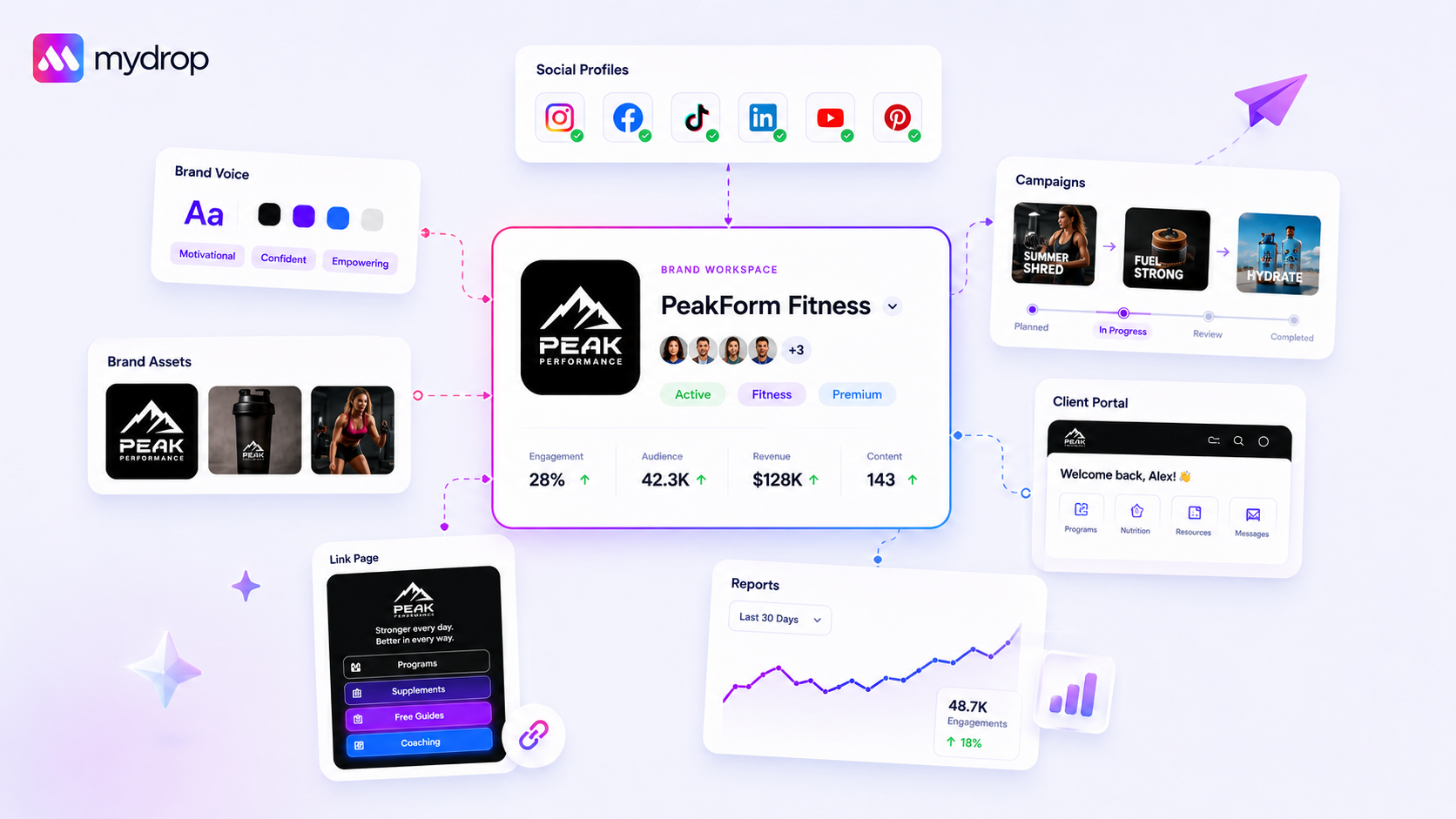
Use Brand Lock when you're doing deep work on one brand for a set stretch: a launch sprint, a month-end report, a client call. Leave it off when your job is to compare brands. That's the whole rule.
TLDR: Brand Lock is a workspace-wide focus mode. The sidebar brand selector sets one brand, and profile selectors, reports and schedule pages hide everything else. Turn it on for sprints, reports, calls and handovers. Turn it off for portfolio reviews.
What Brand Lock does and doesn't do
Switch it on in Settings and a sidebar brand selector sets a single brand context across the app. Every profile picker, report and schedule view then shows only that brand.
It does not pause, move or delete anything. The other brands keep publishing on schedule. All it changes is what you see, so the risk it removes is human: posting to the wrong brand's profile, or pulling the wrong brand's numbers into a client report.
Four situations where it earns its place
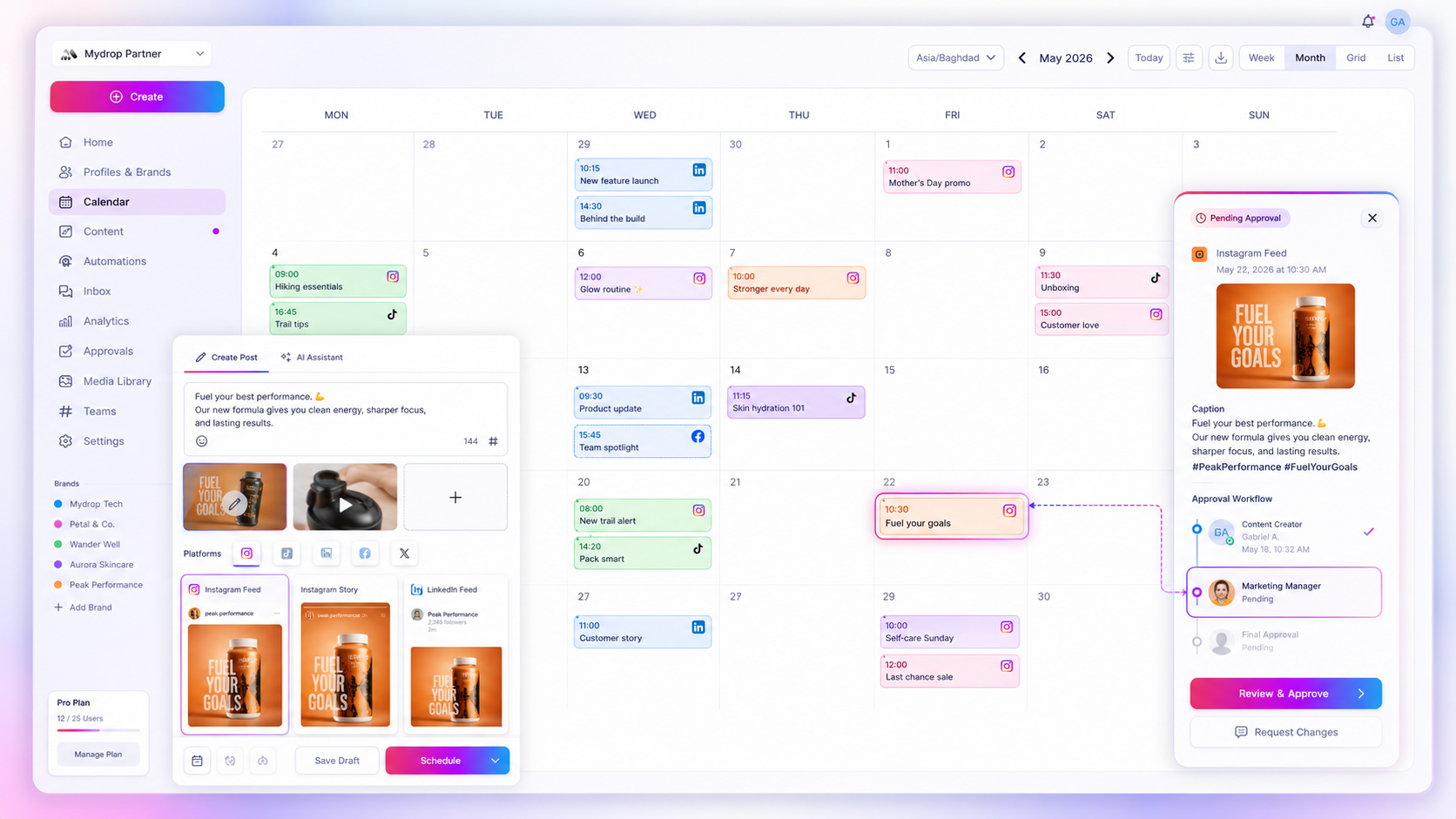
- A launch sprint. For two weeks the brand has twenty posts in flight. With the lock on, the calendar shows only those posts, so gaps and overlaps are obvious.
- Preparing a client report. The analytics filter matches the brand you're writing for, so no other client's numbers can slip into the PDF. See reports.
- Handing a brand to a new teammate. They see one brand and learn it before they see the rest of the portfolio.
- A live client call. You share your screen and nothing from another client appears in a profile list or a sidebar.
Three situations where you should leave it off
- Weekly portfolio review. You're comparing brands, so you need all of them in view.
- Cross-brand reporting. You can't build a benchmark across brands from one brand's data.
- Shared inbox triage. Replies from every brand land in one queue. Locking hides the ones you're meant to catch.
Match the lock to the question you're answering
| Your question | Lock on? | What to do |
|---|---|---|
| What's going out for Brand A this week? | Yes | Lock to A, open the calendar |
| Which brand is slipping? | No | Open reports across all brands |
| Did I schedule this to the right profile? | Yes | Lock before you pick profiles |
| Who owes me an approval? | No | Check approvals across brands |
| Prepare Brand B's monthly report | Yes | Lock to B, then export |
Pair the lock with a clear end date
The failure mode is leaving it on. Someone forgets, then wonders where Brand C went and starts rebuilding a calendar that was never deleted. Fix it with a habit: write the lock into the sprint plan with the date it ends, and clear it in the same review meeting that closes the sprint.
If several people share one login context, agree who's allowed to change it. In a team using workspaces and roles, give the lock to the person leading the sprint and let everyone else work inside it.
Three habits that make the lock safe for a whole team
- Say it out loud. At kickoff, write "locked to Brand A until 14 Oct" in the sprint channel, so nobody's surprised by a missing brand.
- Check the selector before you publish. The sidebar brand selector shows which brand you're in. Make a glance at it the last step before you hit schedule.
- Clear the lock before approvals. If you're approving work for several brands in one sitting, clear the lock first, or you'll only see one brand's queue and think the rest is done.
These habits take a minute and prevent most of the confusion a focus mode can cause.
A one-week trial that will tell you if it fits
Pick your busiest brand. Lock it on Monday. By Friday, count two things: wrong-profile near misses (target: zero) and minutes spent hunting for the right calendar view. If both improve, make locking part of every sprint kickoff. If nothing changes, you probably manage one or two brands and don't need it yet. More on setting up multi-brand work.

 Google review
 Trustpilot review
 Product Hunt comment