





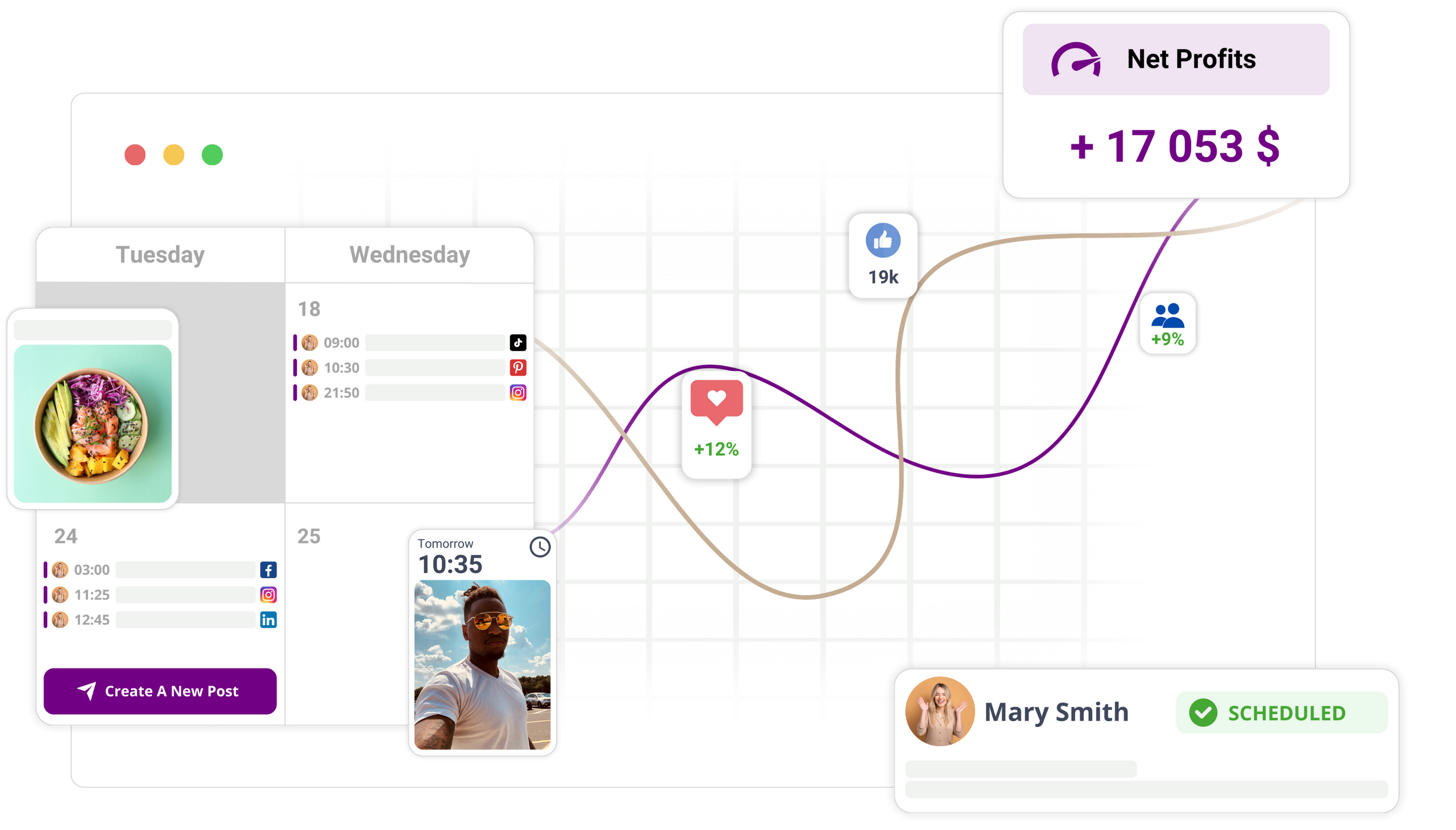
By following these steps, you'll create and track social operation tasks, such as filming, asset collection or community management, right inside your Mydrop calendar. By the end of this tutorial you'll have a set of scheduled reminders that help you manage your social media workload and make sure you never miss a critical deadline.
Mydrop data, September 2026: how posting frequency lines up with engagement, across accounts connected to Mydrop with at least 8 posts in the rolling 180 days.
| Posts per week | Median engagement rate |
|---|---|
| Under 1 | 7.03% |
| 1 to 3 | 3.08% |
| 3 to 7 | 1.46% |
| 7 or more | 0.68% |
This is a correlation between accounts, not a cause: smaller accounts post less and carry higher rates, so cutting your own output will not raise your number. What it does show is that a beginner publishing once or twice a week is not behind.
Before you start
Before you set up your first reminder, check the following so your schedule stays accurate:
- Make sure your workspace timezone is set correctly in your account settings. That way every reminder fires at the local time you intended and syncs properly with your operational schedule.
- Make sure you can get to any external media files, project templates or service links you plan to attach to the reminder.
- Check that you're working in the right workspace if you manage several brands or client accounts.
Step 1: Set up the reminder
Start by heading to the main Calendar view in Mydrop. Find the 'Reminder' button or option in the calendar interface to open the new reminder setup window. This modal is where you enter the specific details of your social operation task. Once it's open, you're ready to define the parameters for your commitment.
Step 2: Set the time and frequency
In the setup window, choose the date and start time for your task. Set the duration so you block off the time you need on your calendar. If this is a recurring job, such as daily community reply sessions or weekly content planning, use the recurrence settings to set a pattern. Picking the right frequency means the task automatically fills in your calendar for future dates, so you don't have to recreate the same reminder over and over. Make sure the time and duration are accurate before you move on to the next part of the setup.
Step 3: Attach content and link resources
Social operation tasks often need specific assets or references. In the content section of the reminder, use the attachment tools to link relevant media files or documents straight to the reminder. That gives you quick access to your creative assets when it's time to work. And if your task involves using a specific Mydrop template or connecting to an external service link, add those details in the fields provided. Including these links in the reminder means you don't have to go hunting for your files when the alert comes through.
Step 4: Finalise and check the reminder
Once you've added all the necessary details, review your settings. Check that the preview reflects what you entered. Save the reminder to add it to your calendar. Go back to the main calendar view to confirm the reminder shows up correctly on the right day. You should see a reminder chip or indicator for your task.
If you've connected Mydrop to Google Calendar, check your external calendar app to make sure the event has synced properly. Mydrop lets you see the reminder status right there in the app. You can track your progress by updating the reminder status as you work. When you finish the task, mark it as done. That visibility helps you manage your workflow through the week and makes sure every operational task is accounted for, so you can keep a steady pace with filming, asset prep and community engagement.
Step 1: Open the feature
To start tracking a social operations task, head to the Mydrop calendar view. You can get there from the main navigation menu. Once you're in the calendar interface, you'll start the reminder process by using the scheduling tools provided.
- Find the 'Reminder' button or option in the calendar navigation menu.
- Click it to open the new reminder modal.
- Once the modal appears, make sure you're in the right workspace. You can check your current workspace by looking at the indicator in the top corner of your screen. If you manage several brands or teams, confirming your workspace here stops the reminder landing in the wrong schedule.
- If you have filters applied to your calendar view, make sure they aren't hiding the current date. Mydrop shows reminders based on your workspace settings and your current view constraints.
Opening the feature successfully brings up the main setup window. You'll see fields for the task title, time and date. If the modal closes unexpectedly, just click the 'Reminder' button again to pick up where you left off.
Step 2: Set up the basics
Once the reminder is set up, define the specific timing and frequency for your task. Getting this right means your social commitments, such as community replies or filming sessions, show up exactly when you need them.
- Enter a clear, descriptive title for the task in the main field. For example, use titles like "Asset collection for campaign X" or "Community comment review."
- Set the 'Start Time' and 'End Time' for the task. The duration helps you block out enough time for operational jobs.
- Decide on the 'Recurrence' settings if this task is a repeating responsibility. You can choose options like daily, weekly or custom intervals. This matters for tasks like analytics review or routine community engagement.
- Check the calendar grid behind the modal if you're unsure about existing clashes. Mydrop lets you see where other scheduled posts or reminders sit while the modal stays open.
- If you need alerts outside the Mydrop app, look for the 'Google Calendar' sync option in the modal. If this integration is active, turning it on will push the reminder to your external calendar.
- Check the timezone setting for the reminder. By default it's usually inherited from your workspace settings. If you work with a distributed team or manage a brand in another region, confirm that the time shown in the modal matches that workspace's local operating time.
Once these basic fields are set, you're ready to move on to attaching media or service links. You'll notice the preview in the modal updates as you adjust the time. The system confirms the task is in the right slot before you commit to saving. If the time or date looks wrong, adjust the fields before you carry on, because these are what drive the reminder notification. You'll know the setup is going well when the date and time fields line up with your intended schedule in the calendar grid behind. Don't close the modal yet, as you still need to add your specific resources or documentation for the task.
Step 3: Add the content or settings
To make your reminder genuinely useful, attach the resources you need to complete the social task without hopping between browser tabs. This step means that when your reminder fires, your assets and documentation are right there.
- Find the attachment area in the reminder window. You can pick files from your local storage to add as reference materials.
- Click the icon to open the gallery attachments if you already have content stored in the workspace. This is handy for gathering raw video files for filming or product photos for upcoming posts.
- If your task needs a specific template, add the link or text content in the notes field provided.
- If you use external tools for task management or service documentation, paste the relevant service links into the reminder notes. That way you can click straight through to the source material when you start work.
- Check the preview if you've attached mockups or visual assets. This helps you confirm the right versions of your assets are linked to the calendar entry before you finish.
- Check that all the necessary media and links are visible in the list before you click to save or close the window.
Attaching these items when you create the reminder saves you from the common mistake of hunting for files later. Keeping your assets linked to the calendar entry cuts down the time you spend prepping for tasks like filming or editing. If you realise an attachment is missing after saving, you can select the reminder straight from the calendar view to edit it and add the missing information.
Step 4: Review the workflow
Once your reminder is saved, check where it sits and make sure it works properly in your Mydrop calendar view. This step confirms your task will fire at the expected time and stays visible to your team.
- Head back to your main calendar view. Look for the reminder chip that matches the time and date you chose during setup.
- In the monthly calendar view, check for the reminder chip. These show up as distinct elements. If you can't see your reminder, confirm that your current workspace filter matches the workspace where you created the item.
- If you've turned on integration, look for the option to see the item on Google Calendar. Click this link to confirm the task is syncing properly to your external schedule if your workflow needs outside notifications.
- When you finish the task linked to the reminder, find the status section in the reminder modal. Update the status to show the work is done.
- Watch how the reminder looks after you change the status. It should show the done state, which helps you tell completed operations apart from upcoming work.
- Check that recurring tasks, such as weekly community replies, show up correctly on future dates in your calendar.
A successful setup gives you a visible calendar commitment showing the right duration and status. If the reminder doesn't appear as expected, check the time settings in your workspace preferences. Mistakes at this stage, such as a missing external calendar sync, are usually fixed by opening the reminder and making sure the integration settings are switched on. Updating the status of these reminders as you go keeps your calendar an accurate record of the social operations you've completed. Use this feature regularly and your calendar stops being just a scheduling tool and becomes a working checklist for your whole social media workload. Follow this checking process and every planned asset collection, filming session or community interaction stays on schedule.
Troubleshooting and next steps
Now and then a reminder might not show up as expected, or an external sync might fail. Sorting these out straight away keeps your social operations on track.
If you can't find a scheduled reminder in your monthly calendar view, work through these steps to find the cause:
- Check the active workspace. If you manage several brands or clients, make sure you've selected the right workspace in the main navigation menu. Reminders belong to a specific workspace and don't show up across global views.
- Check your calendar filter settings. If you've hidden certain event types, your reminder might be filtered out of the display.
- Review your workspace timezone settings. If your local time doesn't match your workspace timezone, reminders may show up on the wrong date or at an unexpected hour.
- Confirm your Google Calendar integration. If you rely on external alerts, go to the reminder settings and check the Google Calendar sync status. You can use the See on Google Calendar link inside the individual reminder modal to confirm the event has pushed to your external account.
If you run into trouble attaching files or opening links, try these common fixes:
- Refresh the browser page to make sure the current session state is active.
- If a link won't open, check that the URL was entered with the full protocol prefix.
- If an attachment won't upload, check that the file size and format meet the platform's standard limits. You can reopen the gallery attachments area in the reminder modal to confirm whether the media is properly linked to the task.
Once you've got the hang of creating basic reminders, you can expand your workflow by folding these tasks into wider social operations. Here are some next steps to boost your efficiency:
- Set up recurring reminders for your weekly analytics review. A recurring schedule means you always set aside time to look at performance data without recreating the task by hand.
- Use the reminder notes section to build checklists for filming days. For example, when you create a reminder for product filming, list all the props and camera settings you need in the notes area. Then you can open the reminder the moment you start and your list is ready to go.
- Link your creative templates straight to your planning reminders. Attaching these links takes the friction out of searching for files in your cloud storage, so you can go straight from planning to doing.
- Audit your completed reminders at the end of each month. Reviewing which tasks were marked as done helps you fine-tune next month's schedule to better match your actual workload and the time you really have.
Conclusion
Creating and tracking social operations with calendar reminders in Mydrop gives you one central place to manage your daily tasks. Turning vague to-dos into concrete calendar commitments lowers the risk of missing critical deadlines for asset collection, filming and community management. The reminder system keeps your workflow organised, makes sure essential resources are always to hand, and gives you a clear view of your team's progress. Use it consistently and you'll hold a disciplined publishing schedule, which ultimately means more predictable, reliable social media operations across every profile you manage.


 Google review
 Trustpilot review
 Product Hunt comment