

















The short answer: social media operations, often shortened to "social ops" or "content ops", is the mix of systems, rules and tools that turn a marketing strategy into reliable posts, approvals and reports. For a solo social manager, good ops means fewer late nights, fewer mistakes and publishing you can count on.
Mydrop data, 30 days to 16 September 2026: what happened to scheduled posts when their time came, across posts published through Mydrop.
| Outcome | Share of posts |
|---|---|
| Live, no issue | 89.9% |
| Live, with a warning | 8.5% |
| Failed | 1.5% |
| Stuck in the queue | 0% |
That is 98.5% live at the first attempt. The most common warning was a YouTube custom thumbnail skipped because the channel was not phone-verified; the most common failure was an expired platform connection. Both can be fixed before the post is due, which is what a pre-publish check is for.
This guide explains what social media operations actually covers, why it matters for one-person teams, a step-by-step starter plan you can put in place this week, the tools worth considering, and a practical launch checklist you can copy and adapt.
What it is
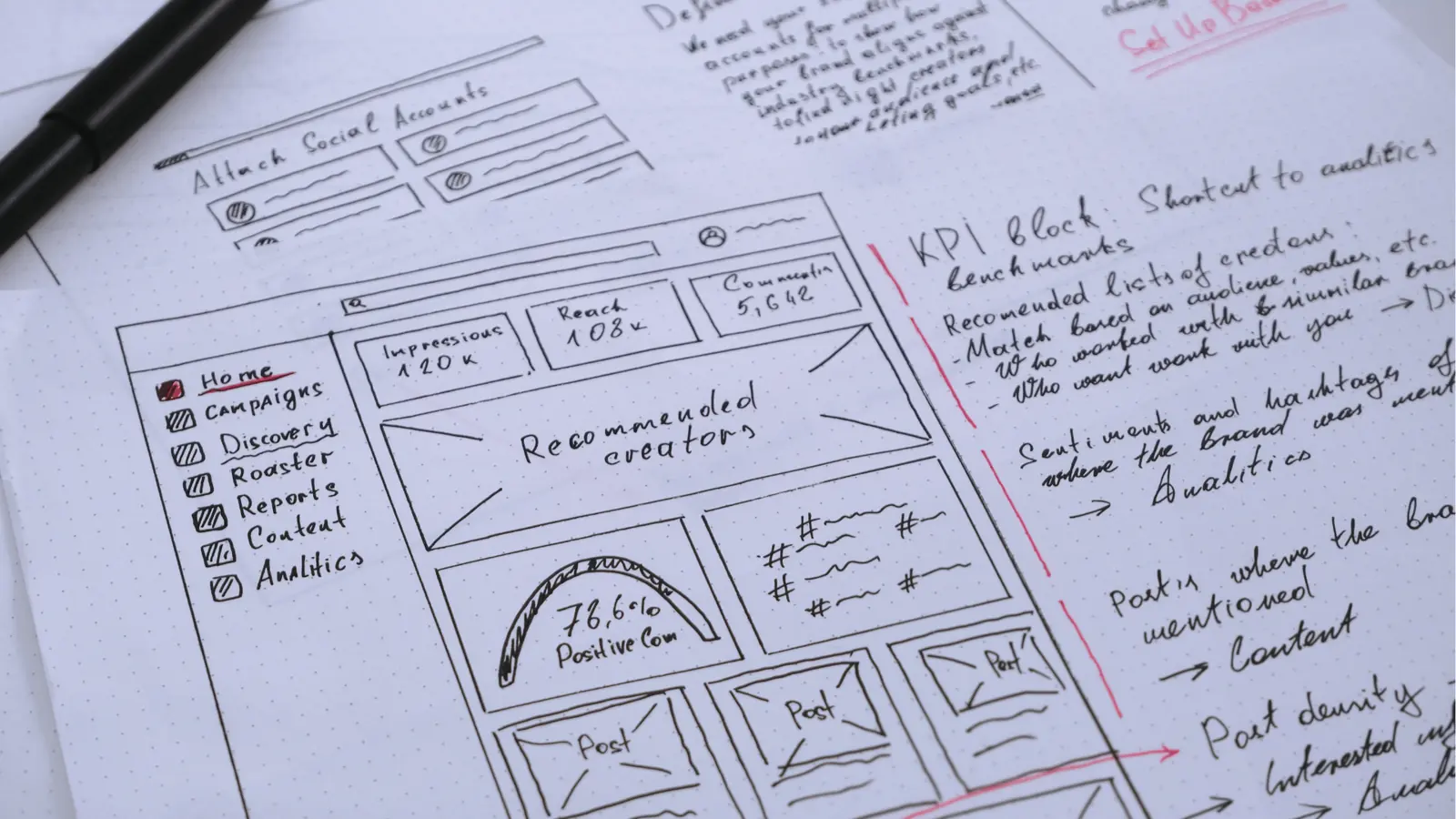
Put simply, social media operations is the operational layer between strategy and execution. Strategy answers the question "what do we want to achieve?" Operations answers "how do we do that every day without dropping the ball?"
Operations covers repeatable checklists, templates, a calendar, content storage, approval rules, publishing automation and measurement. Get these pieces in place and you can deliver consistent posts on time, keep your branding consistent and show stakeholders the impact.
A few concrete examples of what sits inside social media operations:
- A content calendar with assigned dates and file links so nothing gets lost
- Naming and asset conventions so resized images and captions are easy to find
- A lightweight approval path so edits are fast and traceable
- Templates for captions, creatives and CTAs so quality is repeatable
- A measurement routine that ties metrics to goals, not vanity numbers
Operations is not a single tool, and it is not just a schedule. It is the mix of process, people and tools that makes delivery predictable.
Why it matters for solo social managers

If you manage one to ten accounts on your own, ops is the difference between doing good work and burning out. Here are the core benefits you get from building basic social ops:
- Time back: templates and a calendar save hours each week compared with reinventing captions and assets from scratch
- Less risk: clear approval and naming rules mean fewer wrong files, missing links or off-brand posts
- Faster scaling: when new clients or accounts arrive, you have a repeatable onboarding checklist rather than improvising
- Better storytelling: a content library and clear content pillars make it easy to repurpose top-performing posts
- Faster reporting: a measurement routine gives you simple weekly signals to show progress
For a solo operator, those benefits translate to fewer late-night uploads, higher client trust and the ability to take on more work without losing quality.
The core components of social media operations

Social ops is a collection of small systems that together make publishing predictable. Focus on these core pieces first and keep them lightweight.
Content library: one folder per client with final assets, an edit-safe copy and short metadata (pillar, format, usage). Naming pattern example: 2026-05-03_ClientA_IG_Reel_v1.mp4.
Calendar: a single scheduled calendar with columns for date, platform, caption, asset link, status and approver. Move ideas to scheduled only when assets and captions are ready.
Templates: three reusable templates (short caption, carousel outline, video checklist) to speed up creation and keep your voice consistent.
Approval flow: one clear approver, a documented channel for edits and a hard cutoff (48 hours before publish) for changes.
Publishing: a scheduling tool that previews posts and supports the platforms you use, plus a manual fallback for sensitive posts.
Measurement: a weekly snapshot with three KPIs tied to the goal and one-line insights for stakeholders.
Keep each piece minimal, then iterate weekly.
How to set up social media operations: a 5-step starter plan

Start small, get a win, then expand. Follow this one-week starter plan and keep it practical.
Day 1: 30-minute audit and folder setup
- List the last 30 posts, note your top formats and save links to the top 10 examples in the client folder.
Day 2: Build a one-page calendar
- Create columns: Date, Platform, Caption, Asset link, Status, Owner. Fill two weeks of posts with draft captions or asset links.
Day 3: Create three templates and one visual master
- Short caption, carousel outline and video upload checklist. Save them in your templates folder.
Day 4: Batch content and run a dry test
- Draft five posts using templates, link assets, request one approval and preview in your scheduling tool.
Day 5: Run the weekly 15-minute review and lock the next week
- Capture three metrics, one insight and one action. Refill the calendar for the next two weeks.
This minimal cycle saves you time straight away and builds a repeatable rhythm. Add automation cautiously once the rhythm is stable.
Tools and workflows: choosing what to use and when

There is no single right toolset, but there are good trade-offs to weigh up when you choose tools. Pick the ones that reduce friction for the tasks you do most often, not the ones with the flashiest features.
A small, practical tool matrix and when to pick each option:
Folder + spreadsheet (free): great for getting started fast. Use Drive or Notion for the content library and calendar. Choose this if you are testing a process, have low volume or need zero cost.
Scheduling platforms (Buffer, Later, Hootsuite, Mydrop): use when you need reliable previews, queuing and multi-platform posting. They save time at scale but can add cost and the occasional preview quirk. Try a 14-day trial before you fully migrate.
Asset manager (Google Drive, Dropbox, Notion): use when you want a single searchable home for final files. Good metadata and strict naming make a simple drive behave like a mini DAM.
Simple approvals (Google Comments, Slack, or a dedicated tool like Filestage or Ziflow): use when stakeholders need to annotate or sign off. Dedicated tools add structured comments but cost more.
Reporting (built-in analytics, Google Sheets export or a lightweight BI tool): use when you want to track progress and prepare a short monthly narrative. Start with platform analytics and export the key numbers to a sheet.
Quick tool decision checklist:
- Do you post to more than three platforms weekly? Use a scheduling platform.
- Do you manage more than five clients? Use an organised asset manager with strict naming.
- Do you often need stakeholder annotations on assets? Consider a dedicated approval tool.
Mini comparison: Buffer vs Later vs Hootsuite vs Mydrop
- Buffer: simple queuing and a clear UX. Great for small teams who want predictable posting and fewer advanced preview quirks.
- Later: a strong visual calendar and media library. Good for visual-first brands, with easy Instagram previews.
- Hootsuite: feature-rich and enterprise ready, but it can feel heavy for solo managers. Useful when you need bulk exports and team permissions.
- Mydrop: built for repurposing and cross-posting with review steps. Good if you need automated resizing, bulk caption templates and a controlled review before you publish.
When to automate vs keep manual:
- Automate repetitive tasks that are easy to get wrong: posting, resizing, caption templating and simple cross-posting. These eat time and are predictable.
- Keep manual control on the strategic stuff: campaign launches, high-budget creative or posts that need a personal touch. Human judgement matters there.
Tool setup tips for minimal friction:
- Connect accounts gradually, not all at once. Start with one account and test previews for a week.
- Map features to your checklist. If a tool cannot export a preview or handle captions for a platform, do not force it.
- Keep one manual escape hatch for sensitive posts: publish straight from the native app when a post needs precise control.
Where Mydrop fits: for teams that publish and repurpose content daily and want safe automation, Mydrop can automate resizing, cross-posting and caption templates while keeping a final review step. Use automation to take out the grunt work and keep the final quality check in your hands.
Common mistakes and how to avoid them

Mistake 1: No single source of truth
Symptom: files are scattered across DMs and local drives, and you post the wrong version.
Fix: choose a single folder and enforce file naming. If a copy exists elsewhere, mark it archived. Quick action: pick one cloud folder now and move only the final versions into it.
Mistake 2: Overcomplicated approvals
Symptom: every stakeholder is CCed, and nothing gets approved within the window you need.
Fix: limit approvals to one or two people. Set clear deadlines and use a single channel for approvals. Example rule: "All edits must be requested in the Google Doc comments, approver responds within 48 hours." Put that line in your calendar description.
Mistake 3: Over-relying on automation without previews
Symptom: posts publish with the wrong cropping, missing captions or broken links.
Fix: always preview posts for each platform and keep a final manual check for high-visibility posts. If a tool supports staged approvals, use it. If not, keep a manual preview column in your calendar.
Mistake 4: Measuring the wrong things
Symptom: you report vanity metrics like followers every week without linking them to outcomes.
Fix: pick 3 metrics tied to your goal. For example, if your goal is leads, track visits from social to signup pages, conversion rate and top-performing post types. Quick template: Week | Clicks | CTR | Top Post | Insight | Next Step.
Mistake 5: No repurpose plan
Symptom: content is single-use and you spend time repeating similar work.
Fix: build a repurpose checklist: short video clip, caption, two image variants and a story-sized cut. Keep the originals in your library with tags. Automate resizing where it is safe, but always confirm framing by hand for video.
Extra mistakes that quietly kill your momentum
Mistake 6: Overplanning without publishing
Symptom: a calendar full of half-done drafts where nothing goes live.
Fix: use a minimum viable post rule: if a draft is not scheduled within 72 hours, either publish it as-is with minimal edits or archive it. The point is to build a habit of publishing.
Mistake 7: No rollback plan
Symptom: a post goes live with an error and you are not sure how to handle it.
Fix: keep a quick rollback and correction SOP: edit the caption, pin a correction comment if the platform allows it, notify the approver and record the incident with a one-line note in your review doc.
Checklist to avoid mistakes (copy this into your weekly review):
- Is every final asset in the single source folder? Yes/No
- Are approval deadlines clear for each scheduled post? Yes/No
- Have I previewed this post on the native platform? Yes/No
- Are this week's KPIs tracked in a sheet? Yes/No
- Is there a repurpose plan for the top 2 posts this week? Yes/No
Use this short checklist at the end of your weekly 15-minute review to stop errors before they happen.
Mini case study: From chaos to a two-week rhythm

Emma manages social for three local businesses and used to spend her evenings resizing, writing captions and chasing approvals. She tried a two-week pilot of the checklist below plus a few simple rules: batch on Wednesdays, require approvals 48 hours before publish, and keep just three templates. Within two weeks she:
- cut weekly content hours from 12 to 6
- doubled scheduled posts per month from 12 to 24
- got approval turnaround down to under 24 hours for 80 percent of posts
Key actions that worked:
- a single Drive folder with clear filenames put an end to frantic searching
- a 90-minute batch session produced 10 ready posts that lasted two weeks
- a one-line approval email cut the back-and-forth edits
Takeaway: small operational rules and one consistent batch day made room for creative work and client conversations. You do not need fancy tooling to get these wins, but the structure is non-negotiable.
A practical 15-point launch checklist for solo managers

Use this checklist to launch a minimal social ops setup. Tick each item off as you go. Every item comes with a quick tip so you can act straight away.
Create a single content folder with subfolders per client or account
- Tip: mirror your folder names in your calendar entries so paths are obvious when you attach assets.
Save links to the last 30 posts per account as a reference
- Tip: keep them in a single Google Doc with short notes on why each post worked, so patterns jump out fast.
Build a two-week calendar with dates, platforms, captions and asset links
- Tip: block a 90-minute session for batch planning and fill every slot with a draft caption or asset link.
Create three caption templates: short, educational carousel and promotional
- Tip: keep templates in a shared doc and name them clearly, for example "Short Hook" and "Carousel: Teach".
Make one visual template for a common post type (Canva, Figma or PSD)
- Tip: export a master file and an edit-safe copy so you never overwrite the original design.
Decide a naming convention and apply it to your files
- Tip: use date_client_platform_variant, e.g. 2026-05-03_ClientA_IG_Reel_v1
Choose a scheduling tool and connect your accounts
- Tip: start on a free plan to test previews. Check how each platform handles captions, tags and first-comment scheduling.
Set one approval rule and document it in the calendar
- Tip: add an "Approver" column and a hard deadline, for example "Approve by 48h before publish".
Create a weekly 15-minute review slot in your calendar
- Tip: use a simple template: 3 metrics, 1 insight, 1 action. Keep it under 15 minutes.
Pick 3 KPIs aligned to business goals and track them weekly
- Tip: example set for lead generation: clicks to website, CTA conversion rate and top post type by clicks.
Create a repurpose checklist with steps for video and image resizing
- Tip: automate resizing where you can, but keep a preview step to confirm framing and captions.
Back up final assets in a second location
- Tip: use automated sync to Google Drive or Dropbox so you never have to back up by hand.
Draft an onboarding note for new clients that explains the approval window
- Tip: keep it short and explicit: who approves, how to request changes and the turnaround you expect.
Test a full post: draft, approve, schedule, publish and report
- Tip: treat it as a dry run and document every step so you can streamline it later.
Write one short SOP PDF that documents your process for clients or future teammates
- Tip: keep it to one page. Use bullet lists and example filenames so it is genuinely actionable.
Tick these off and you have a practical ops foundation you can improve bit by bit.
Copyable templates you can paste now
Use these short templates to speed up approvals, captions and repurposing. Paste them into your calendar, Notion page or shared folder so the whole process is ready to reuse.
Caption template, short posts (paste and edit):
"Hook: [one line that grabs attention], Value: [one or two sentences with the takeaway], Proof: [short example or number], CTA: [specific action, for example Save or Link in bio]"
Approval email template, one-line signoff:
"Hi {Name}, the caption and asset for {Date} are ready: {Link}. Please reply 'OK' to approve or request one edit by {Deadline}. If no reply, we will publish as scheduled. Thanks."
Repurpose checklist, copy for every published post:
- Master asset saved in final folder
- Short clip extracted for reels, <30 seconds
- Story-sized image or video version created
- Two feed image variants exported, 1:1 and 4:5
- Caption adapted and platform tags added
SOP skeleton, one-page PDF you can finish in 20 minutes:
- Purpose: one line stating what this SOP achieves
- Owner: name and contact info
- Tools: list where assets and calendar live
- Weekly rhythm: batch day, review day, publish days
- Naming rules: example filename patterns
- Approval rule: who approves and the turnaround time
- Emergency flow: steps to correct a live post
How to use these templates: copy them into your templates folder, then run one 90-minute batch session and apply each template to five posts. That single action makes the templates feel useful rather than theoretical. When your clients see consistent, on-time posts, approvals get faster and your weekly workload drops.
Now complete the checklist, and book a 15-minute review for next Friday to measure the time you have saved and spot one improvement to the process.
Over the next month, revisit items 3, 4 and 9 and tighten them based on what actually saves you time.
Scale when you have consistent volume or multiple accounts causing context switching. Signs you need to scale:
- You miss publication dates more than once a month
- You are spending more than 20 hours a week on posting and resizing
- Clients ask for different approval levels per campaign
First changes when scaling:
- Automate repetitive tasks like resizing and queuing
- Add a content brief template to speed up creative work
- Move measurement into a single dashboard for quick comparisons
- Add a shared calendar that includes campaign deadlines and creative lead times
Hiring or outsourcing options:
- Contract a part-time designer for recurring creative templates
- Use a VA to handle scheduling and asset organisation
- Hire an analyst or use a reporting tool when you need performance narratives at scale
Conclusion

Social media operations is the practical side of good social marketing. For solo managers, the right ops setup turns chaotic daily work into a predictable weekly rhythm. Start with a small audit, a two-week calendar, three templates and a single approval rule. Automate what is repetitive, keep manual control on judgement calls, and measure what matters.
A 30/60/90 day plan you can follow
- Days 1 to 30: audit, create the single folder, launch the two-week calendar and build three templates. Run one dry-run post.
- Days 31 to 60: lock the weekly 15-minute review, tighten naming rules and test one automation (resizing or scheduling). Measure the time saved and document one SOP.
- Days 61 to 90: consider a scheduling tool trial, onboard a VA or contractor for repetitive tasks, and move reporting into a single monthly narrative slide.
SOP skeleton to save as a one-page PDF
- Purpose: why this SOP exists
- Owner: who runs it
- Tools: where assets and calendar live
- Weekly rhythm: batch day, review day, publish days
- Approvals: who, how and deadlines
- Emergency flow: how to fix issues after publish
If you want a small next step, copy the 15-point checklist into a shared folder and complete the first five items this week. That single action is often the fastest way to cut daily friction and free up time for the creative work you enjoy.
Light product note: if you publish to lots of accounts and want an option to automate resizing, cross-posting and caption templates while keeping a final review step, Mydrop is built to take out the repetitive work and keep you in control.
Final note: the most powerful part of social media operations is not the tools. It is the way you turn the same small amount of work into reliable, visible progress for your clients and accounts. When your process is solid, the daily chaos fades and you can put your energy into the posts that matter most.
A small practical habit to start today: at the end of each week, note one thing that made posting easier and one thing that still feels hard. That feedback is the fastest way to improve your ops without adding new tools.
Related reading: see our posts on building an AI-assisted workflow and on managing multiple accounts without burning out: /blog/how-to-build-an-ai-assisted-social-media-workflow and /blog/how-to-manage-multiple-social-media-accounts-without-burning-out.

 Google review
 Trustpilot review
 Product Hunt comment