When a client tells you they cannot open their report, your first instinct is likely to suspect a software glitch. Stop. In our experience, 95% of these "broken link" cases are actually simple configuration mismatches-an expired token, a forgotten password, or a link that was never toggled on in the first place. You do not need to file a support ticket; you need to audit your hand-off workflow. Every time a client hits an access error, it quietly erodes their trust in your technical competence. The goal here is simple: stop chasing "bugs" and start verifying your settings before you hit send. By the end of this, you will have a 60-second diagnostic habit that saves your team hours of unnecessary coordination debt.
What changed before the numbers moved

We have all been there: you spent hours polishing a data story, and the client experience is ruined by an "Access Denied" screen. It is the ultimate anticlimax to a reporting cycle. But links do not just spontaneously break. They are almost always revoked or misconfigured by the sender as campaign priorities shift.
When you manage social performance across dozens of markets or stakeholders, internal friction is the silent killer of visibility. A link that worked on Tuesday often fails by Thursday because of a small, well-intentioned change in the back office. Before assuming the platform is down, check for these common "operator shifts" that frequently invalidate reports:
- Rotating Team Access: A teammate may have disabled sharing on a sensitive report to "clean up" the workspace without realizing a client still needed that specific URL.
- Security Policy Updates: If your team recently standardized on password-protecting all external assets, older links might have been effectively "orphaned" by the new security layer.
- Automated Cleanup: Many workflows use expiration dates as a safeguard against long-term data leakage. If your
expiresAtsettings are too aggressive, you are accidentally revoking access while the client is still mid-review.
Most of these aren't technical failures; they are coordination gaps. When you treat every access failure as a bug, you treat the symptom while the root cause-a lack of a "verify-before-send" habit-continues to grow.
Operator rule: If a report is marked "unavailable," treat it as a deliberate security state, not a server error. The link has been revoked or never existed; it is time to check your share configuration, not the status page.
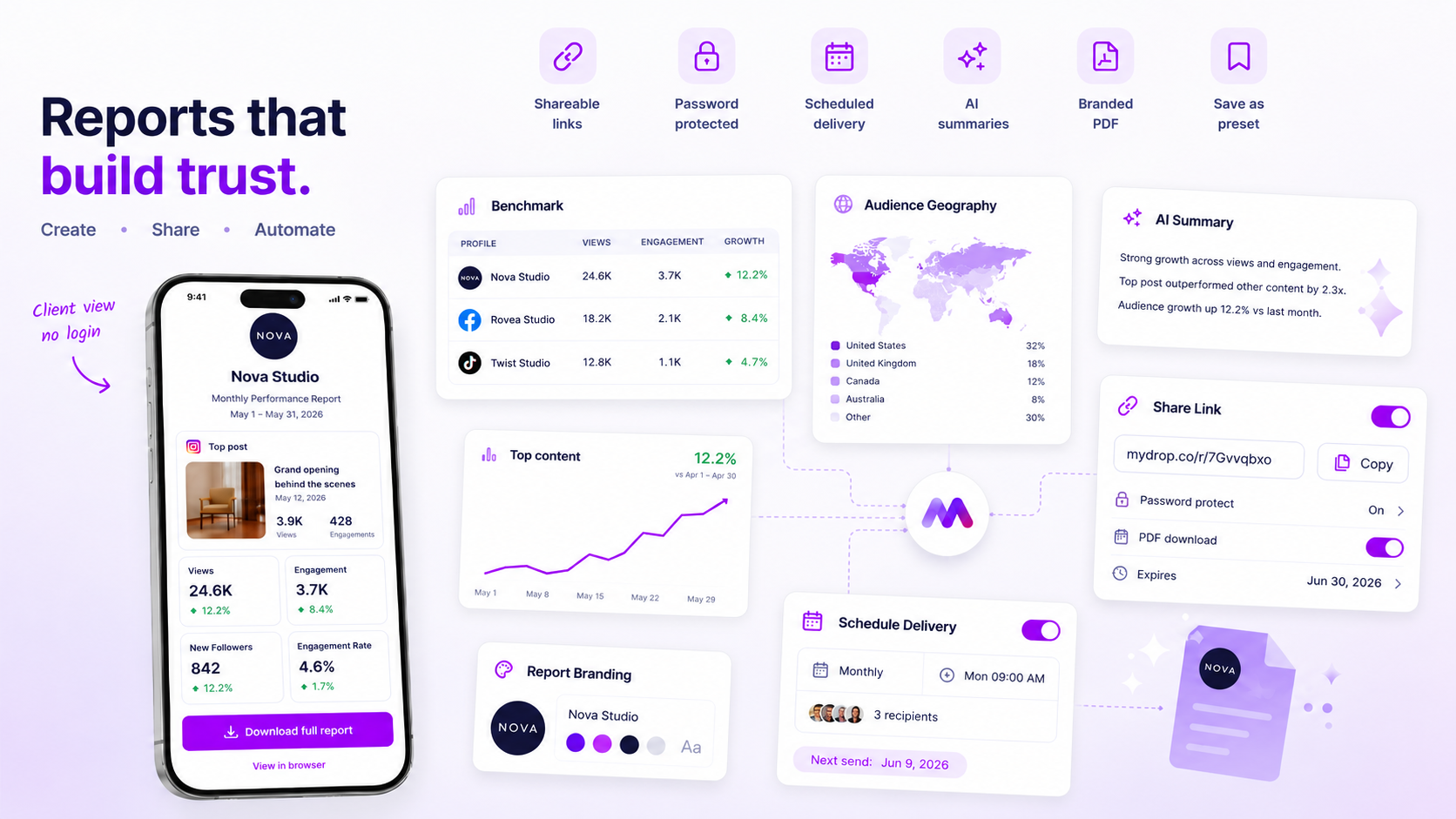
Teams managing high volumes of reports often fall into the trap of using "stable" links for too long. If you find your team constantly troubleshooting these issues, it is usually a sign that you need to shift from ad-hoc sharing to a more structured notification routine. At Mydrop, we see the most successful agencies treat the "Share Modal" as a final quality-control gate, ensuring the password status and expiration window match the current client SLA before the email delivery triggers. It takes ten seconds to verify, but it prevents the "link is broken" headache that ruins your Friday afternoon.
The failure patterns to check first

When the "link is dead" notification hits your inbox, resist the urge to immediately flag it as a technical bug. Most access failures live in the mundane space of configuration oversight. Because platforms like Mydrop use secure, tokenized URLs to keep your data private without forcing every single stakeholder to log in, those links require a stable state to function. If you tweak the settings on the backend after the link is already in the wild, you effectively sever the connection.
We see this pattern constantly across agencies and large marketing teams. A team member updates a report, inadvertently hits a different setting, or a project manager cleans up "old" share links to save space, and suddenly the client's morning review is met with a blank screen. It is rarely a system crash; it is almost always a human-orchestrated disconnect.
To stop the cycle of frantic "it worked yesterday" emails, start with the Three-Gate Verification before you even open a support ticket.
- Status Gate: Is the sharing toggle actually enabled? It sounds basic, but we have seen countless reports where the share link was disabled during a post-delivery cleanup.
- Credentials Gate: Did you add a password layer after sending the link? If a security update occurred, the old URL remains the same, but the entry requirements have shifted.
- Duration Gate: Has the
expiresAtthreshold been crossed? If your workflow relies on temporary links to maintain compliance, the link is doing exactly what it was designed to do by cutting off access.
Decision check: Never assume the link you sent yesterday is the same link that exists today. If you perform any administrative cleanup in your workspace, check your active report shares immediately.
The proof that separates signal from noise
Treating every access issue as a high-priority bug is a massive productivity sink. You have real content to ship and strategy to refine; you cannot afford to spend your time manually debugging browser caches for clients. Use this matrix to classify the incoming complaint, find the root cause in seconds, and execute the fix without needing external help.
| Symptom | Primary Suspect | Remedial Action |
|---|---|---|
| "Unavailable" Screen | Share link is toggled off | Toggle Enable Sharing in the Report Share Modal |
| Unexpected Login Prompt | Password protection mismatch | Verify if a password was added post-send; provide updated creds |
| Time-out or 404 Error | Link has reached its expiresAt limit |
Extend the expiration date in your Share settings |
| Download Button Missing | PDF access is restricted | Toggle Allow PDF Download in the Share configuration |
| Blank/White Screen | Cached browser session | Advise the client to use an Incognito window to force a fresh pull |
This matrix isn't just for your internal triage; it is a communication tool. When a client emails you, reply with the specific fix based on the symptom. It turns a "broken" experience into a professional, handled interaction.
The awkward reality is that trust is fragile. Every time a client hits a dead link, they aren't just annoyed-they are quietly reassessing your technical reliability. Moving from a reactive "is it broken?" posture to a proactive "verify the gate" habit is one of the lowest-effort, highest-impact shifts your team can make to shore up that relationship. Stop treating the link as a permanent utility and start treating it like a managed asset that needs a quick health check before, and after, you hit send.
What to fix this week
If you are currently stuck in a cycle of "link broken" emails, stop waiting for the next one to appear. Spend ten minutes this Friday implementing a pre-flight verification habit. For every analytics report you prepare for an external stakeholder, run through this verification before hitting send.
- The Toggle Check: Open the Report Share Modal. Is the status explicitly set to "Enabled"? It is easy to build a report, think you are done, and forget to flip the switch that actually generates the public token.
- The Password Reset: If you are using password protection, do not rely on your browser's auto-fill to tell you what the password is. Clear it and set it fresh to ensure you and the client are using the same key.
- The Calendar Sync: Look at the expiry date. If you are sending a monthly report, make sure the
expiresAtfield is set to at least the end of the next month. - The "Send As" Test: If you have access to a secondary device or an incognito window, open the link yourself. If it works for you, it works for them. If it doesn't, you just saved yourself an awkward email chain.
Workflow check: Treat the "Send" button as the end of the line. If you haven't validated the external access link before clicking send, you are effectively shipping a product without testing the login page.
When to stop diagnosing and change the workflow
At Mydrop, we often see teams try to solve access issues by creating more documentation-guides on how to click a link or how to copy-paste a password. This is a classic trap. You are trying to train your clients to use a broken process instead of fixing the process itself.
If you find yourself apologizing for "glitchy links" more than once a month, you don't have a technical problem. You have a coordination debt problem. You are likely treating report delivery as an afterthought, manually crafting emails, and hoping the link works, rather than building a consistent delivery routine.
Move away from the "one-off" sharing method. If your team is managing dozens of stakeholders across multiple brands, stop relying on manual, ad-hoc link generation. Use the automated email delivery feature within Mydrop to send reports directly to your recipients. When the platform handles the delivery, the link is bundled with the correct security context, the expiry is set automatically, and the recipient gets a clean, professional email that doesn't look like a stray URL pasted into a chat.
The goal is to reach a state where your clients expect a consistent, branded experience, not a manual link that might work, might be expired, or might be password-protected by someone who isn't there anymore.
Conclusion
Technical failures are rare. Operational oversights are constant. The next time a client says they cannot access their report, resist the urge to jump into developer tools or open a support ticket. Instead, look at the Share Modal. It is almost always a case of a toggled-off switch or an expired window.
Build the "Confirm and Test" habit into your Friday morning rhythm. Your clients will appreciate the reliability, and your team will spend less time chasing down permissions and more time doing the actual work of social media strategy. The link is not broken; it just needs a more disciplined hand at the helm.