
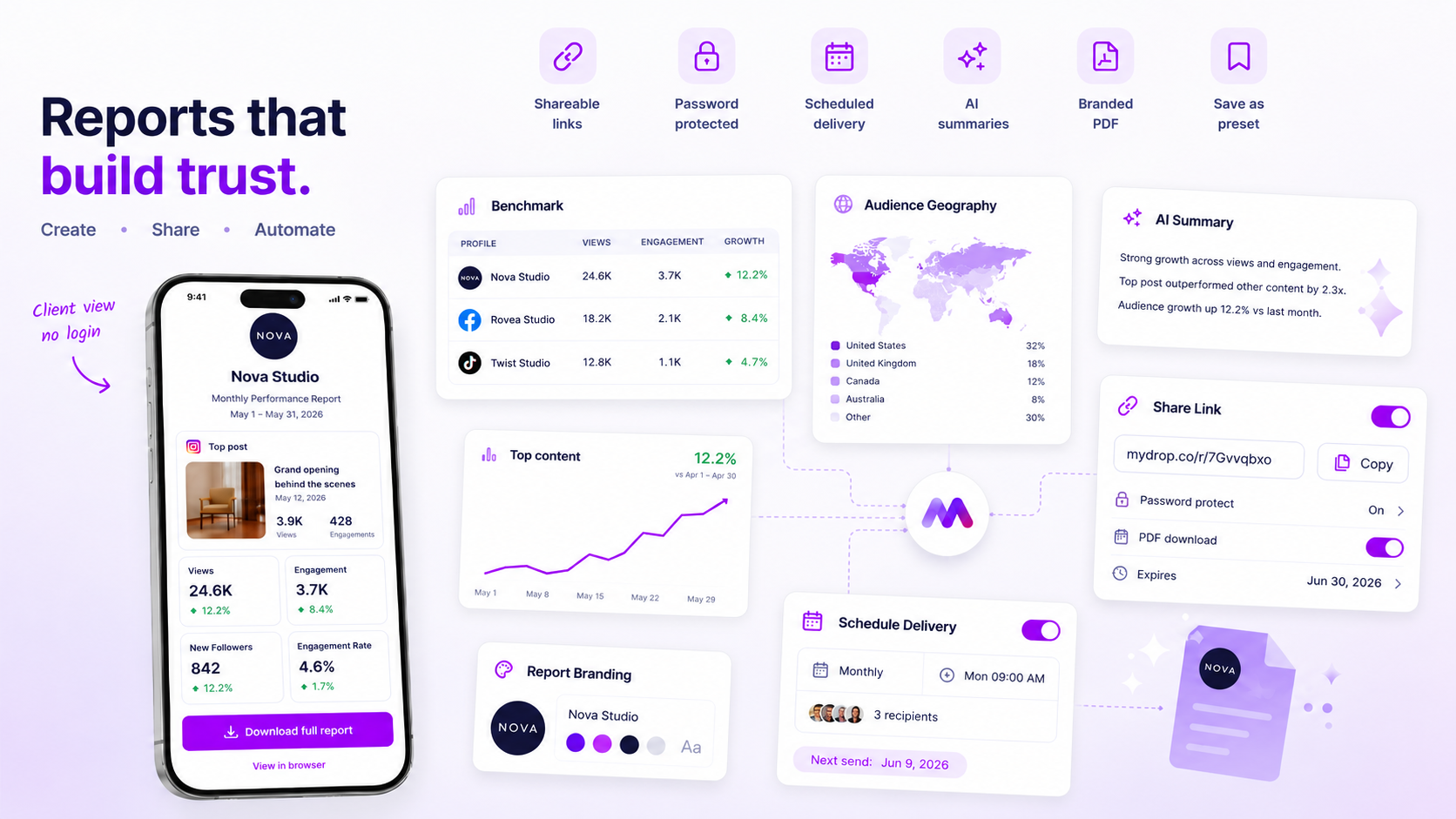
When a client pings you saying the analytics report link is dead, the instinctive reaction is to blame the tool. It feels like a platform failure, but in reality, almost every "Access Denied" ticket stems from a breakdown in your own share-link lifecycle. You are likely dealing with a stale token, an expired permission, or a password-protection conflict that happened long after you clicked send.
We get it. You have spent hours meticulously curating the insights, only for the client’s first touchpoint to be a generic error screen. It is the kind of administrative friction that makes high-level agency work feel amateur, and we know exactly how frustrating that coordination tax is. You do not need a support ticket-you need to standardize how you "seal" these reports before they leave your desk.
What changed before the numbers moved

The frustration usually starts because teams treat report sharing as a set-and-forget task. In our experience, once you move from ad-hoc emails to a more scalable model, the "dead link" error becomes a predictable symptom of permission drift.
Here is why your reports are likely failing:
- The Expiry Trap: You set a security window for a one-off report, but the client tried to open it three days after that window slammed shut.
- Token Rotation: If you or a teammate regenerated the report settings after the initial link was shared, the original unique token may have been silently invalidated.
- Credential Conflict: If the report is password-protected, the client might be pulling a cached, incorrect password from their browser autofill.
- Download Blocks: You may have toggled off the PDF download permission to be "safe," but the client now feels locked out of the data they need to copy-paste into their own internal decks.
Operator rule: Treat every shared analytics report as a mini-contract. If the access window does not match the client's internal review cycle, the report will be perceived as "broken" regardless of how accurate the data is.
This is where teams usually get stuck. They focus on the content of the report while ignoring the delivery infrastructure. When you support dozens of stakeholders across hundreds of brand profiles, manual link management becomes a massive source of coordination debt. It is not that the software is failing; it is that the administrative "rules of the road" for each report have not been aligned with the client’s actual workflow.
Most teams do not have an analytics problem. They have a reporting-access bottleneck. If you fix your share-link hygiene this week, you will stop chasing these "link down" emails entirely.
The failure patterns to check first

When that "Access Denied" ticket lands, stop looking for a system-wide outage. Nine times out of ten, you are dealing with permission drift or a stale security configuration. We have seen this across hundreds of brand profiles; the link did not break, the environment around it changed.
Start your audit with these three common traps:
- The Expiration Blindspot: We often set a short-term
expiresAtdate for a specific quarterly review, only to forget that the link will self-destruct. If the client is trying to open it a week later, it returns a generic unavailable response by design. - Password Hash Mismatch: If your team manages multiple passwords for different clients, it is easy to accidentally share the wrong hash. The endpoint rejects the input, but the error message is intentionally vague to prevent credential fishing.
- Token Rotation: If someone manually regenerated the share configuration while the client was already mid-review, that original token effectively died. Any bookmarks or saved history the client has are now useless.
The proof that separates signal from noise
The quickest way to stop the back-and-forth is to move from guessing to diagnosing. Use this decision matrix to identify whether you are looking at a user error, a configuration oversight, or a genuine technical block.
Troubleshooting Decision Matrix
| Symptom | Primary Suspect | Immediate Fix |
|---|---|---|
| Generic unavailable error | Expired expiresAt or disabled share state |
Re-enable sharing in the report modal and verify the expiry date. |
| Incorrect password alert | Stale credentials or mismatch | Reset the share password and send the new one securely. |
| PDF download button greyed out | Flag allowPdfDownload is set to false |
Check the report share settings and toggle PDF permissions to enabled. |
| Link works for you, not client | Cached browser security block | Clear client cache or send a fresh token via a new email delivery. |
Decision check: If a report fails to open, never ask the client for their password. Simply generate a new, time-bound share link with the correct permissions. It takes thirty seconds and saves everyone the headache of troubleshooting browser-side cache issues.
Most agencies treat report sharing as a "set and forget" task, but that is where the coordination debt piles up. When you move to a centralized workflow-where share links are managed within your analytics suite rather than as ad-hoc attachments-you stop sending broken links. At Mydrop, we find that the teams who treat report delivery as a formal, versioned handoff simply do not get these tickets. The system does the heavy lifting for you, ensuring that permissions are always intentional, not accidental.
What to fix this week
If you are tired of the "I can't open the report" tickets, stop treating analytics links like casual calendar invites. You need to standardize your share-link lifecycle before the next client review.
Start by auditing your current Analytics > Report > Share habits. If you are creating links on the fly, you are inviting coordination debt. Use this checklist to lock down your process:
- Standardize Expiry: Stop creating "no-expiry" links. Set them to expire 48 hours after your expected delivery date. If a client reaches out after that, you have an opportunity to confirm they actually saw the data before generating a fresh, secure token.
- Enable PDF Controls: If your client is the type to forward emails to three different VPs, ensure
allowPdfDownloadis toggled on in your share settings. It saves them the headache of logging in or navigating a browser window when they just want to drop a chart into a presentation. - Password-Protect Sensitive Data: If the report contains high-level P&L insights or sensitive market strategies, add a password. It sounds basic, but it adds a layer of professionalism that signals to your client that you treat their data with the same security rigor as their own IT team.
- Bulk Delivery: Shift from individual link sharing to batch-scheduled delivery using
Analytics Report Scheduling. Sending one clean, branded email with the report link and a summary cuts down on the "did you send the link yet?" noise.
When to stop diagnosing and change the workflow
At Mydrop, we see teams struggle most when they treat reporting as an ad-hoc cleanup task rather than a core infrastructure piece. You can troubleshoot browser caches and token rotations all afternoon, but the real issue is likely the volume of links you are manually managing.
If you find yourself spending more than 20 minutes a week just troubleshooting link access, your manual sharing workflow has hit its ceiling.
| Symptom | The "Manual" Fix (High Effort) | The "System" Fix (Scalable) |
|---|---|---|
| Recurring Access Denied | Send new link, troubleshoot browser. | Implement auto-expiry/refresh cycles. |
| Client loses the email | Resend, search history, re-copy URL. | Use centralized Brand Portal links. |
| Version confusion | Audit if link version matches data. | Use stable tokens tied to report runs. |
| Multiple Stakeholders | Manage individual email threads. | Use CC/distribution list delivery. |
The transition is simple: move from "sharing a link" to "provisioning access." When you treat the public report as a self-service asset, you stop being the middleman and start being the strategist. If the data is ready and the share-link is enabled via your workspace controls, the platform handles the handshake. If they can't get in, the problem is no longer your IT help-desk duty-it is a simple password reset or token refresh that your team can execute in seconds.
Conclusion
Most reporting friction isn't a platform bug; it is a lack of clear delivery rules. By moving away from fragile, ad-hoc sharing and adopting a standardized, lifecycle-managed approach to your analytics output, you reclaim hours of lost coordination time. The best part? Your clients get a cleaner, more reliable experience that makes you look like the expert you are, not an overworked link-support agent. Standardize your settings this week, set your expiry windows, and let the tools do the heavy lifting of authentication so you can focus on the actual strategy.