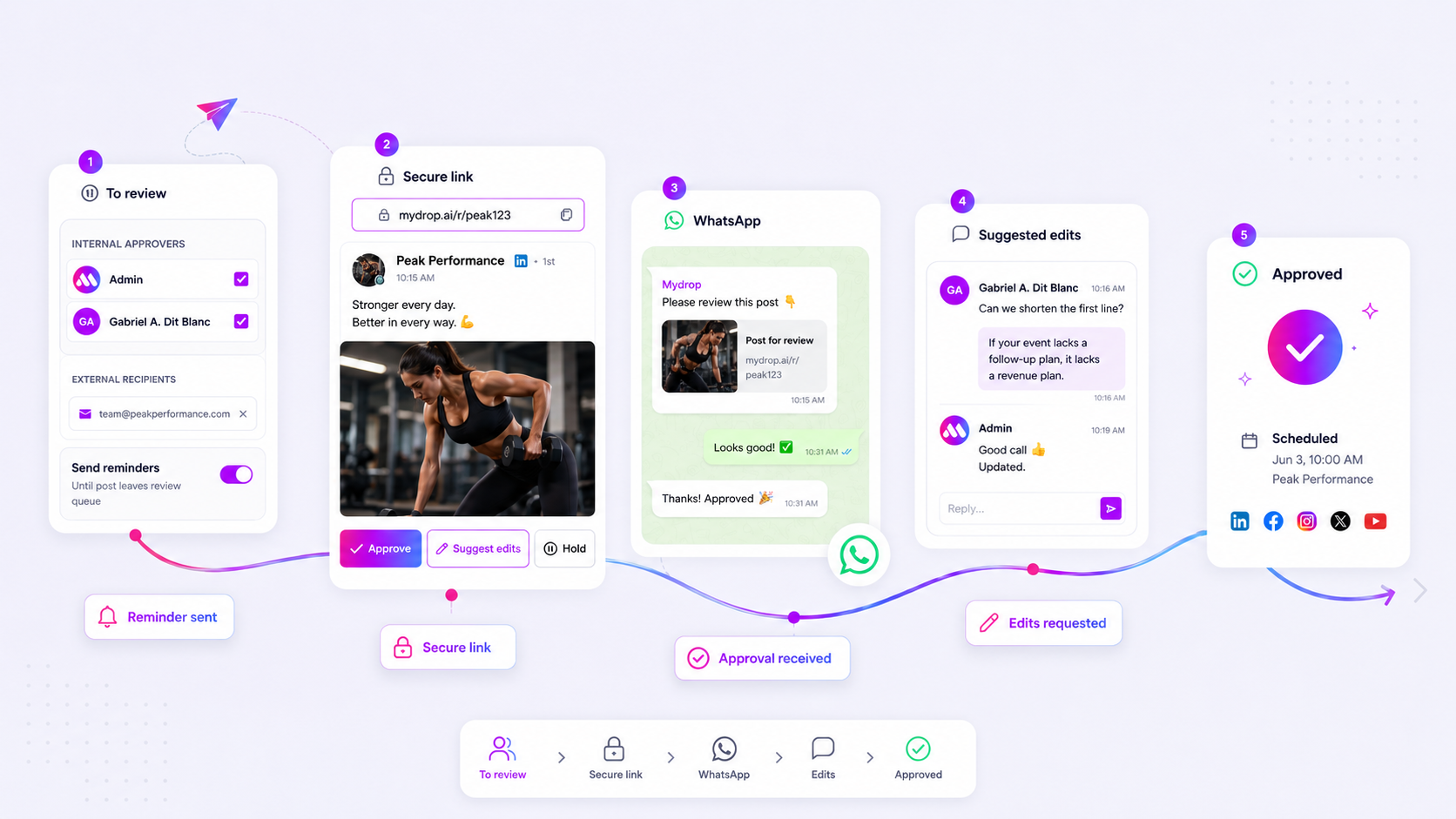
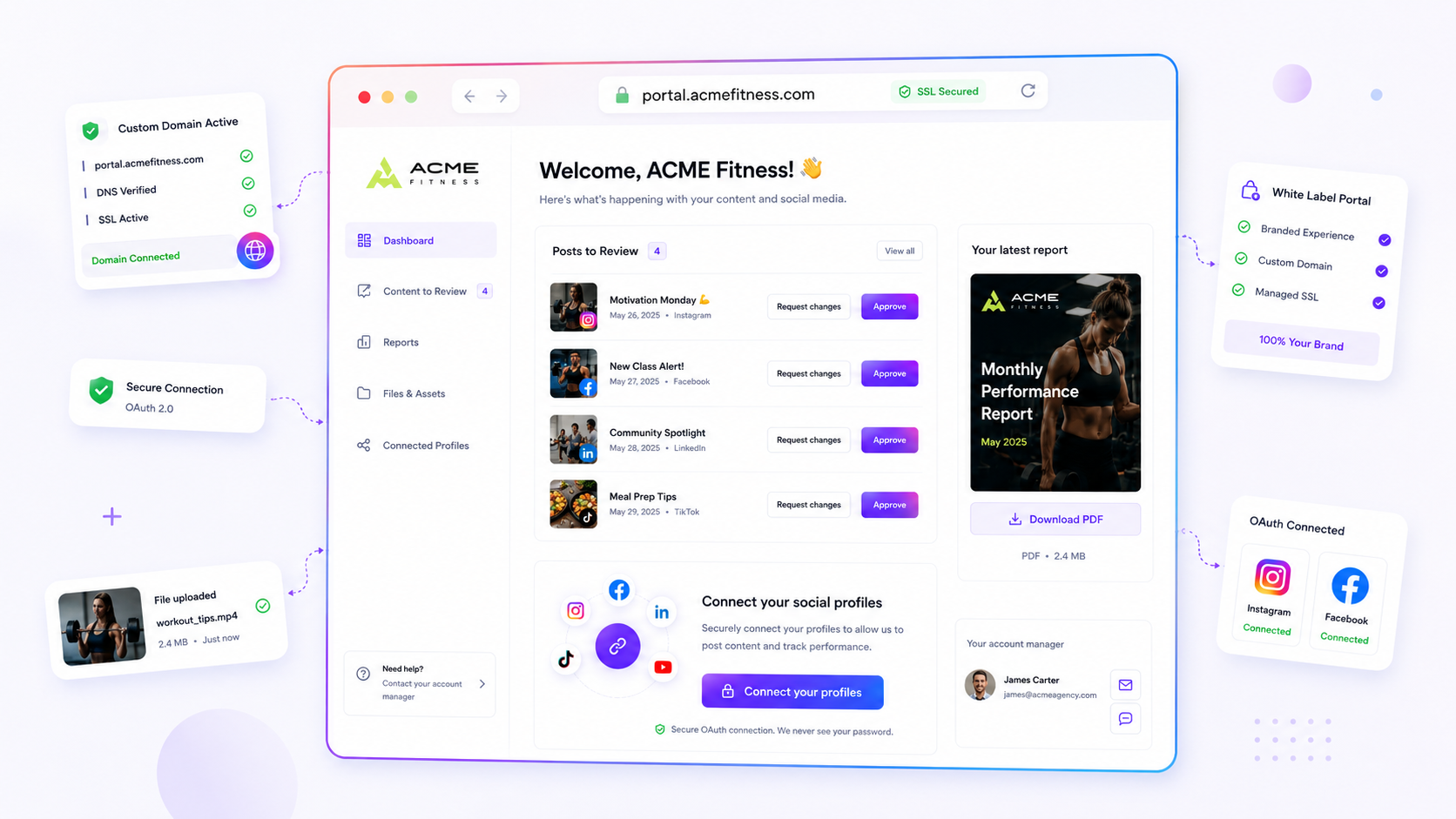
If your clients have stopped uploading assets or approving posts through your branded portal, stop blaming their bandwidth. The problem is almost certainly a mismatch between the sections they see and the work they are actually trying to finish. When a client abandons a dedicated space in favor of erratic email threads, it isn't because they prefer clutter; it is because the portal became an empty box that offered zero utility.
We get it. You built a clean, branded portal to streamline approvals and offload the constant back-and-forth. When it sits idle, it feels like a failure of process or client engagement. In reality, it is usually just a few hidden settings standing in the way of a smooth handoff. You are likely dealing with friction debt-the cumulative frustration of a client logging in, finding nothing useful, and retreating to the tools they know work, like Slack or email.
The good news is that this is rarely permanent. You can restore the flow by auditing how your portal permissions align with the actual day-to-day needs of your stakeholders.
What changed before the numbers moved
Portal abandonment is often a lagging indicator of a process drift. Teams frequently tighten security or prune dashboard views to keep things "tidy," inadvertently locking clients out of the very workflows that justify the portal's existence.
Before you overhaul your communication strategy, look at these common shifts in your operational environment:
- The "Permission Creep" Gap: You may have disabled the
postsorcampaignssection to protect sensitive drafts, leaving the client with a "Files" tab that doesn't actually let them see progress. - The Password Decay: If your portal is password-protected, a simple expiration or a miscommunicated update can stop adoption overnight. If a client can't get in, they won't tell you; they will just email the file to your account manager instead.
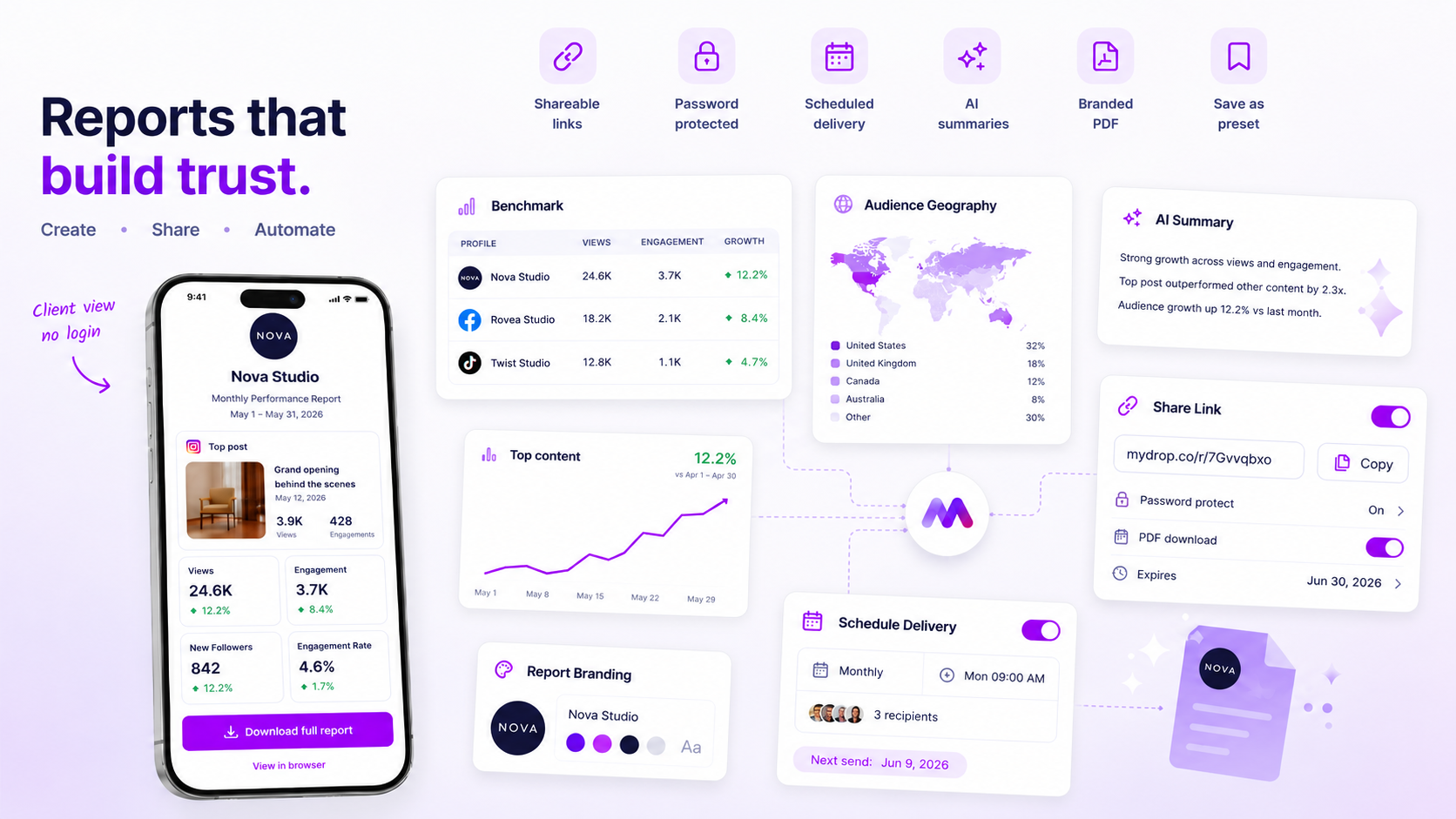
- The Reporting Void: If your client is primarily interested in performance, but your permissions don't explicitly enable
analyticsreport downloads, you have effectively turned a dynamic tool into a static gallery. - The Onboarding Mismatch: You might be treating the portal as a one-way street for delivery, while the client views it as a collaborative workspace for file uploads and feedback.
Operator rule: If a client has to ask "Where do I find this?" more than once, the portal design has already failed. Visibility must match the workflow.
Here is where most teams get stuck: they confuse security with control. By limiting access to the minimum viable data, they unintentionally strip away the context the client needs to feel empowered. The goal is to move from a "delivery portal" where you dump files, to a "coordination hub" where the client manages their own assets and reviews.
If your portal usage has stalled, run this quick diagnostic to see if your permissions are actually blocking the path of least resistance.
The failure patterns to check first
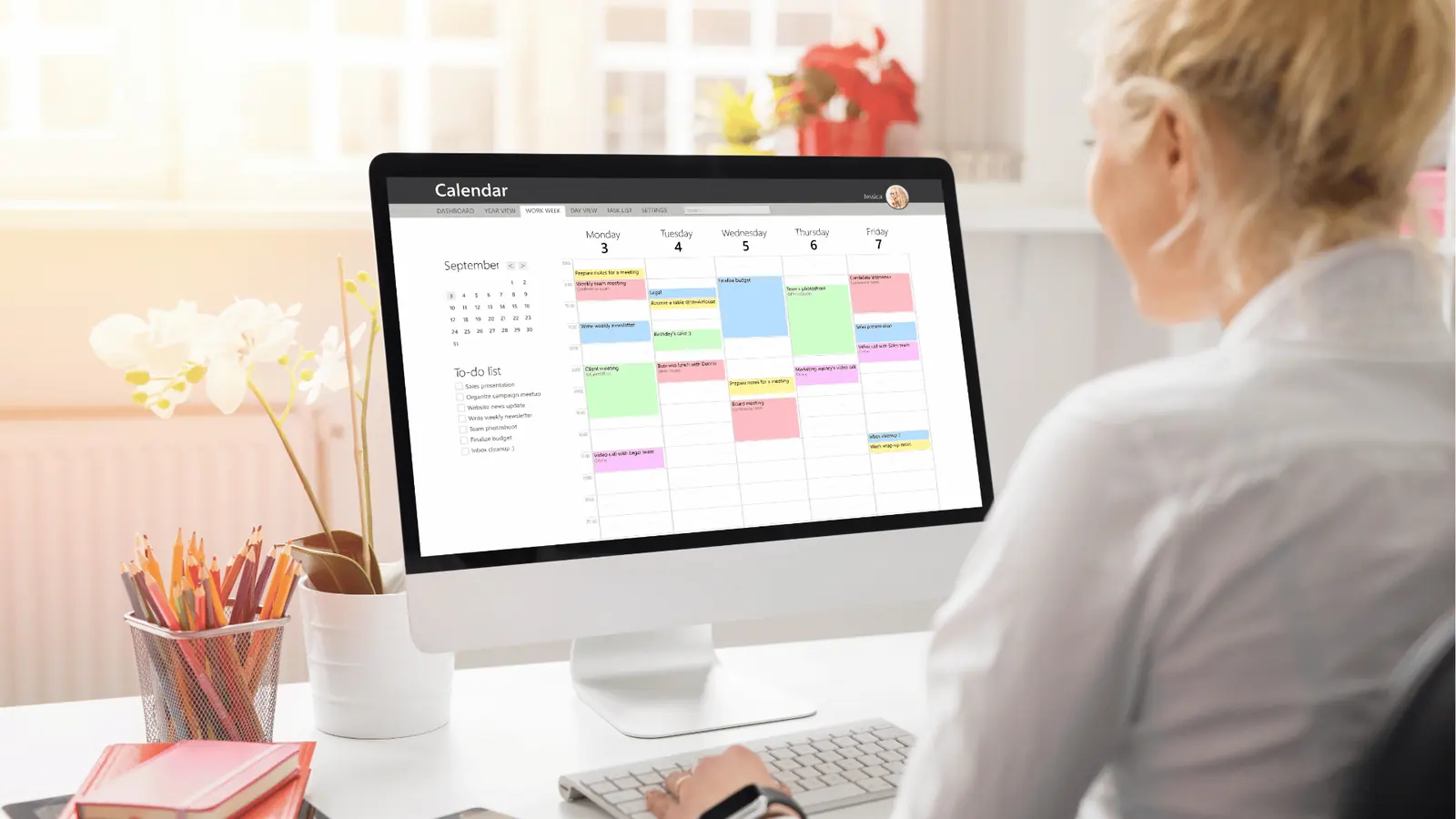
When the portal goes dark, it is rarely a technical outage. It is usually a permission mismatch where the client has been logically locked out of the very workflows they need to manage. Most teams treat the portal as a one-way street, but if the client can’t see what they’ve already approved or access the files they previously uploaded, they will stop treating the space as a primary workspace and start treating it as a digital graveyard.
Here is where teams usually get stuck:
- The "Read-Only" Trap: You enabled the
postssection but restricted approvals. The client sees the content, tries to click "Approve," fails, and assumes the portal is broken. They immediately retreat to email. - The Missing Context: You enabled
campaignsbut forgot to togglefilesorinfos. The client sees the campaign but cannot access the creative assets attached to it. They stop using the portal because it doesn't give them the whole picture. - The Stale Access Gate: You haven't updated the portal password in three months. The client gets a login error, assumes the project is paused, and moves on to their next high-priority email.
Decision check: If a client has to ask you "Is this the latest version?", your portal permissions are incomplete. Every section you enable should provide an immediate, self-service answer to a question they would otherwise have to ask you in a chat.
The proof that separates signal from noise
To diagnose the rot, stop guessing and start auditing. Use this scorecard to match your portal’s current configuration against the actual daily needs of your stakeholders.
Portal Friction Scorecard
| Workflow | If the Client Does This... | You Must Enable These Permissions | Common Failure Mode |
|---|---|---|---|
| Review & Approve | Checks social drafts | posts, profiles |
Hiding profiles prevents cross-checking channel-specific formatting. |
| Asset Handoff | Uploads new creative | files, infos |
Forgetting infos prevents them from updating campaign metadata. |
| Status Sync | Looks for reports | analytics, campaigns |
Leaving analytics off forces manual PDF emailing. |
| Brand Updates | Changes logos/fonts | branding, infos |
Restricting branding forces you to be the bottleneck for simple visual edits. |
How to use this: Take 10 minutes to sit in your brand's portal view. If you find yourself clicking "Edit" in the Mydrop app to perform an action the client should have been able to do, you have found your friction debt. Toggle that permission on, refresh the public portal link, and watch the behavior reset.
At Mydrop, we see hundreds of teams struggle with this. They want to be "secure," so they turn everything off, effectively turning a collaboration tool into a static webpage. A public brand portal is only as useful as the agency’s willingness to share the keys to the kingdom. If you aren't sure which sections to open, start with posts and files. These two represent 80 percent of the coordination debt that causes clients to wander back into email threads.
Once you open these doors, the shift is almost immediate. The client stops treating the portal as a place to visit once a month and starts using it as the central hub for their daily operations.
What to fix this week
If your portal is quiet, your first move is a quick audit of the Permission Stack. Clients rarely abandon a tool out of malice; they do it because they hit a dead end. Use this checklist to reset your portal and get them back in the flow.
- Verify Section Visibility: Log in as if you were the client. Can you actually see the
postsoranalyticstabs? If not, check your portal settings in Mydrop. If a tab is toggled off, the entire space looks broken to the end user. - Audit Password Protocol: Did you change the portal password last month without sending a follow-up email? A single login error is enough to drive a busy stakeholder back to their inbox. Refresh the credentials and share the update today.
- Streamline File Uploads: Are your upload instructions clear? If the portal is just a passive viewer, the client has no reason to live there. Enable the file upload permission and pin a "New Assets Here" note in the chat.
- Test the Reporting Handover: If you promise analytics, verify the report delivery is actually toggled on. Clients expect a self-serve experience for their own data; if they have to ask you for a PDF, you are just recreating the old email bottle-neck.
Workflow check: If a section isn't critical for the client's weekly workflow, hide it. A "clean" portal with three active sections is infinitely more useful than a "full" one that overwhelms them with noise.
When to stop diagnosing and change the workflow
Sometimes, the portal isn't the problem-it’s how you are using it. If you’ve audited your settings and usage is still lagging, you might be fighting against an ingrained behavior. Teams managing dozens of stakeholders often fall into the trap of using the portal as an "archive" rather than a "workspace."
If you are still sending status updates via email while asking clients to approve posts in the portal, you are asking them to do double the work. You cannot maintain two sources of truth.
Choose one path and force the shift:
- The "Portal-First" Model: Every request, approval, and asset hand-off must happen inside the Mydrop portal. If it happens in email, it doesn't count.
- The "Notification" Model: Use email only for notifications that something is waiting for them in the portal. Link them directly to the specific
postorreportsection.
If you don't commit to the portal as the primary system of record, your team will eventually spend more time managing "coordination debt"-chasing people across platforms-than actually managing the brand.
Conclusion
At the end of the day, a client portal should be the quietest place in your workflow. When it is configured correctly, it eliminates the back-and-forth, leaving room for actual strategy. If you find yourself manually exporting reports or emailing files again, take an hour to reset your portal permissions. Often, the difference between a high-adoption workspace and a graveyard of unused features is just one or two toggle switches. Your clients want the path of least resistance; make your portal that path.