When your team members still see unpublished drafts after you have updated their permissions, it is almost never because the server "forgot" the change. Instead, it is likely due to the browser session holding onto a stale permission state or an incomplete propagation of the new resource-action map within the member's current document object.
We get it. You are trying to move fast, manage client expectations, and keep your content calendar secure. Having a team member accidentally access or interact with a draft they should not see is the kind of friction that makes a smooth Tuesday afternoon feel like an operational disaster.
It turns out that permission latency is not a system glitch. It is a symptom of caching debt. When you change a role, your platform needs to refresh the operational context, but if the browser or local session doesn't acknowledge that update, your team keeps working from an old map.
What changed before the numbers moved

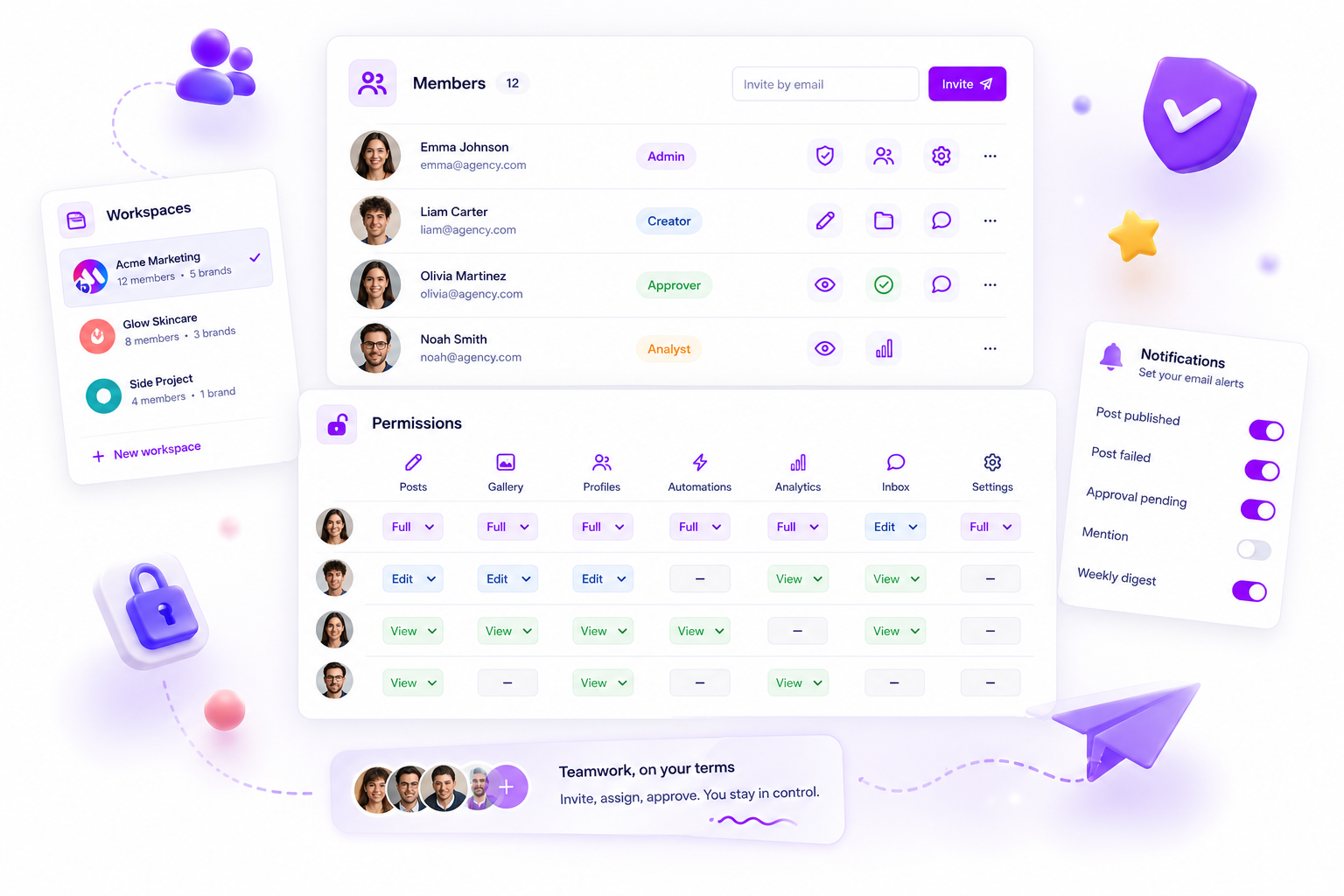
The core issue is that your permission settings and the user's active view aren't always a 1:1 real-time sync. In most enterprise environments, permissions are stored as granular maps-a set of rules defining who can create, read, update, or delete specific items like posts or galleries.
When you update a role, you are technically modifying a document in the background. However, your team's interface often relies on a cached version of that map to keep the dashboard snappy. If that cache doesn't clear, the "canPerformAction" check still returns the old result.
Here is where teams usually get stuck:
- The Browser Hang: The dashboard is still referencing the permissions loaded when the user first logged in.
- Partial Propagation: The updated role was saved, but the specific resource-action map for "Drafts" remained set to true.
- Inheritance Gaps: The user might hold a secondary role or a legacy override that takes precedence over the new workspace-wide change.
At Mydrop, we often see this when agencies try to move at light speed. You update the role, the client asks a question, and the intern-still seeing a draft they shouldn't-accidentally triggers a notification. It isn't a failure of the platform; it is a failure of the session sync.
Operator rule: Every change to a team member’s role is a "session-reset" event. If you don't refresh the browser, the team is working on yesterday's rules.
When you suspect that permissions aren't sticking, check the browser session before you go digging into the database logs. Most of the time, the fix is as simple as forcing the application to re-read the member document map.
The Audit: Mapping Roles to Visibility
To diagnose whether your permission issues are due to a misconfiguration or a display lag, use this impact table. It maps specific user actions against what that user should actually see in the interface.
| Action | Drafts Access | Live Post Access | Approval Workflow | Diagnostic Status |
|---|---|---|---|---|
| Creator | Read/Write | Read | None | If "Update" is visible, check if role maps to post:update |
| Editor | Read/Write | Read/Write | None | If "Approve" is visible, clear stale role cache |
| Manager | Full Access | Full Access | Approve/Reject | If restricted, verify workspace-wide role flag |
| Viewer | Hidden | Read | None | If drafts appear, global visibility flag is toggled on |
If you are seeing different results than the table suggests, your team's coordination debt is likely rooted in an incomplete resource-action map, not a bug in the permission engine.
The failure patterns to check first

When permission updates feel like they are floating in the ether, you are almost certainly running into one of four common operational traps. We have seen this across thousands of workspaces: you hit save, you refresh the page, but the user still sees the "forbidden" draft.
Here is the checklist of the usual suspects:
- The Cached Session State: Your browser is likely still holding onto the original
permission-mapfrom the initial login. This is a common byproduct of long-running browser sessions where the client-side state is not actively listening for real-time document patches. - Granular Override Collisions: Check if the user has a secondary role or legacy explicit permission override. In most complex systems, a broad "Editor" role is often trumped by a specific "no-access" flag on a individual category or content bucket.
- Resource-Action Mismatch: Did you toggle the high-level category but forget the specific
actionkey? If you removed "read" access for a user but left "approve" as a residual true-flag in their map, the UI logic can hang in a weird middle state. - The "Client Portal" Bypass: If you are using a dedicated client portal for external stakeholders, their permissions are often decoupled from the core workspace membership. You could be updating the wrong security layer entirely.
Decision check: Every change to a team member role is a "session-reset" event. If the UI does not immediately reflect the new reality, treat the user session as stale before you start poking the backend.
The proof that separates signal from noise
The fastest way to stop the "it-is-not-working" panic is to stop guessing about what a user should see and start auditing the specific resource-action map tied to their account.
When you suspect a permissions mismatch, map their current role against this visibility scorecard to confirm where the logic is breaking.
| Resource | Read | Create | Update | Approve | Delete |
|---|---|---|---|---|---|
| Drafts |
|
|
|
|
|
| Published |
|
|
|
|
|
| Analytics |
|
|
|
|
|
| Settings |
|
|
|
|
|
Use this table as your ground-truth reference. If a user is seeing drafts they cannot touch, check your Read column. If they are accidentally deleting assets, check your Delete flag.
At Mydrop, we suggest performing this audit at the member-document level whenever you introduce a new resource or pivot a team member to a different market. If you are managing hundreds of brand profiles, the complexity of these maps grows exponentially.
The most common point of failure is not the system failing to execute; it is the team member's operational context failing to refresh. Most teams do not have a permissions problem. They have a "stale session" bottleneck.
What to fix this week
If you are currently staring at a screen where a team member is seeing drafts they shouldn't, stop digging into backend logs. That is a rabbit hole you do not need to enter. Instead, start your fix with this rapid-fire audit to clear the cache and reset the effective scope.
- The Hard Refresh: Before changing any settings, have the user perform a cache-clearing reload (Cmd+Shift+R or Ctrl+F5). This forces the browser to drop the stale session data that might still be showing old menu items or "view" permissions.
- The Map Review: Go to your Settings > Members and permissions area. Select the user and look specifically for the resource-action map. Ensure that the
postsresource is set to an explicitfalsefor thereadaction if they should no longer see drafts. In Mydrop, an unset key can sometimes default to an permissive state depending on the workspace-wide inheritance settings. - The Overlap Check: Check if the user is attached to multiple groups or secondary profiles. Sometimes a user’s primary workspace role is restrictive, but a legacy group membership is acting as a "backdoor" permission override.
- The Sync Wait: After saving, wait 30 seconds. In large-scale setups with hundreds of active threads, it can take a heartbeat for the updated member document to propagate through the operational dashboard.
Workflow check: Never assume a permission change is instantaneous for a user who is currently logged in. A role update is a session-reset event. If they don't log out and back in, they are essentially driving with an expired map.
When to stop diagnosing and change the workflow
If you find yourself manually auditing user permissions more than twice a month, you have a structural problem, not a technical one. You are fighting against coordination debt.
When your team is constantly changing roles, you need to stop treating permissions as static assignments and start treating them as transient "state" objects. Move your team to a role-based template model. Instead of tweaking individual users, create standard templates like "Agency Freelancer" or "Client Reviewer." When a scope changes, you simply swap the template. It eliminates the "did I click the right box?" anxiety and makes your governance predictable.
If the "promoted intern" scenario-where someone keeps their old access because you forgot one checkbox-happens repeatedly, your current manual entry process is the bottleneck. It is not an issue with your platform, it is a sign that your governance habit is outgrowing your team size.
Conclusion
Permission latency is rarely a sign that your platform is broken. It is usually just the system telling you that your browser, your session, or your manual mapping has become disconnected from your current reality.
The next time a team member sees a draft they shouldn't, don't panic. Check the session, audit the map, and then look for the broader pattern. Your goal is to move from reacting to these "operational disasters" to a state where permissions are assigned by role, audited by exception, and refreshed by habit. Keep it simple, keep it audited, and keep moving.