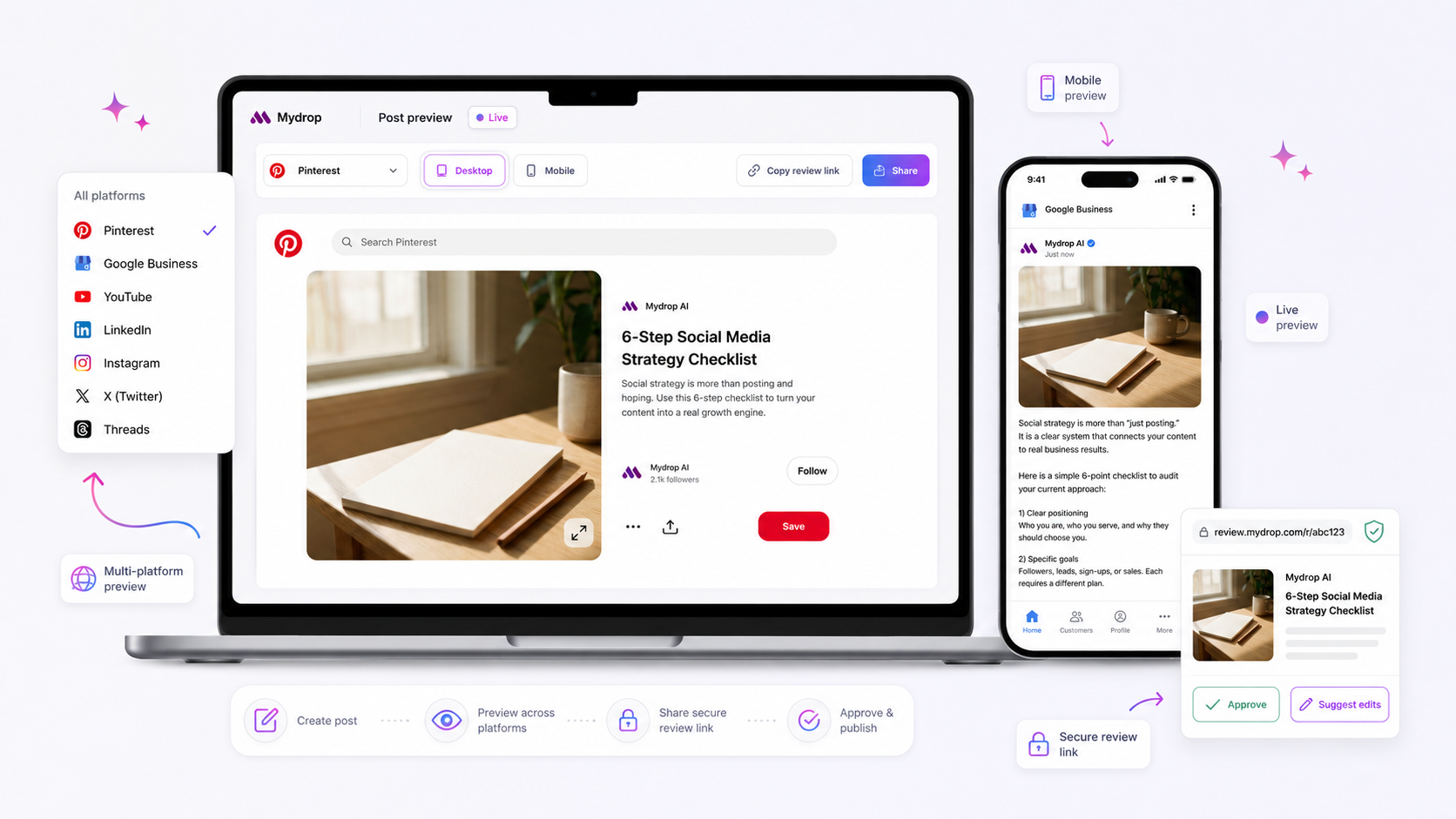
Preview divergence is almost never a platform bug. It is a sign that the schema requirements of your chosen social platforms are actively rejecting the asset configuration you have provided in your Post Composer. When your preview looks perfect but your published post appears cropped or broken, you are likely hitting an undocumented collision between your media file and the specific metadata requirements of one or more selected profiles.
We have all been there. You have spent an hour refining a campaign, the internal team has signed off, and you hit publish-only to see the Instagram feed post chop the top off your hero image or LinkedIn strip your carefully crafted link thumbnail. That sinking feeling is the cost of managing across brands and markets. It is not just frustrating; it is a breakdown in your publishing governance that eats away at the polish you work so hard to maintain.
What changed before the numbers moved
The divergence usually occurs at the exact moment you transition from "creative mode" to "configuration mode." When you are in the composer, you are likely focused on the caption, the mood, and the overall narrative. However, the system is concurrently calculating the compatibility of your media against the constraints defined by your selected profiles.
This is where teams usually get stuck: they view a "Post" as a universal container. In reality, every platform treated by a modern composer is actually a separate set of data requirements. When you select multiple profiles, Mydrop renders specific controls based on the intersection of those platforms' needs. If you add a high-resolution, landscape-oriented image but simultaneously select an Instagram-heavy profile, the composer is trying to force a non-compliant asset into a rigid schema slot.
Common mistake: Treating a 16:9 graphic as a universal asset without checking the platform-specific aspect ratio requirements for the selected profile set.
If your numbers-like engagement or click-through rates-dip or if you notice a spike in "post correction" tasks, look back at the composer session. Did you add a third platform after uploading the media? That is the most common trigger. By adding a platform, you might have implicitly activated a new set of schema requirements (like thumbnail cropping or visibility settings) that your existing media does not support.
At Mydrop, we see this across hundreds of brands: the preview is a "best guess" based on your primary selection, but once the API handshake happens, the specific platform rules take over. You are not fighting a glitch; you are fighting the platform's refusal to accept an asset that does not fit its specific dimensions or field limitations. The goal is to catch that refusal in the composer, not in the feed.
The failure patterns to check first

When your preview looks like a masterpiece but the post hits the feed looking like a crop-fail, you are usually fighting one of three structural disconnects. We see these across thousands of posts, and they almost always boil down to a mismatch between your asset and the platform's specific schema demands.
- Aspect Ratio Misalignment: This is the classic trap. You have a beautiful 16:9 hero image, but you are cross-posting to an Instagram feed that is screaming for a 4:5 vertical crop. The composer might show you the full image, but the platform will brutally truncate it because your
postSchema.jsonconfiguration isn't enforcing the platform's specific crop rules before the handshake. - Platform-Specific "Required" Conflicts: You select five different profiles, but one platform needs a thumbnail while another forbids it, and a third requires a specific video duration. If you ignore the validation warnings the composer generates, you are asking the platform to "guess" how to handle your missing fields. It won't guess well.
- The "One-Size-Fits-All" Caption Trap: You have a perfectly witty caption with a long-form link, but you forgot to toggle the "First Comment" field for the Instagram-specific variant. The post goes live with a broken, unclickable URL, and your engagement takes a dive.
Operator rule: Never assume the Post Composer preview is the final rendering if you have ignored a yellow or red validation indicator for a specific platform.
The proof that separates signal from noise
Stop guessing. The most reliable way to verify your layout is to toggle the platform-specific preview inside the Mydrop Post Composer before you even think about hitting schedule. If the preview tool shows a conflict-like a truncated title or a missing thumbnail-the live post will show that same conflict.
Use this Preview Confidence Scorecard to audit your post before it leaves your desk. If you cannot check every box, your layout is at risk.
| Audit Step | Why it matters | Decision Threshold |
|---|---|---|
| Ratio Check | Ensures media matches the primary slot | 1:1, 4:5, or 16:9 target per platform |
| Schema Validation | Clears platform-specific required fields | 0 active red validation flags |
| Variant Toggle | Verifies unique tweaks per platform | All selected platforms reviewed |
| Character Bounds | Confirms text doesn't overflow UI | Under limit for LinkedIn/Threads/TikTok |
| Thumbnail Sync | Checks if cover image is set | Manually assigned if not auto-detected |
If you catch an error here, the fix is usually trivial: resize the asset in your media library or use the platform-specific override in the composer. It is far better to spend two minutes adjusting your thumbnail now than to spend two hours chasing a correction after the post goes live.
Most teams assume the system will "just work" once the API call is sent. But in our experience, the social platforms are not playing fair; they are playing by rigid, unforgiving rules. If your post doesn't fit their container, they won't complain-they will just break your layout. Always trust the composer's validation signals over your own eyes.
What to fix this week
Stop trying to fix broken previews in the middle of a frantic publish window. If your team is regularly fighting layout mismatches, you are likely missing a pre-flight media audit. You can stop the cycle of last-minute stress by forcing a standardized check before the Post Composer even gets involved.
Here is a simple, three-step workflow to implement this week to catch these issues at the source:
- Centralize Asset Specifications: Build a one-page "Source Specs" sheet for your creative team. If an image doesn't fit the 4:5 (Instagram) or 16:9 (LinkedIn/Facebook) ratio requirement, it gets flagged before it leaves the design folder.
- Run the "Platform Preview" Test: In Mydrop, use the platform-specific preview toggles for every profile you have selected. Do not trust the main view; specifically toggle the "Instagram Story" or "Threads" view to see if your media gets forced into a weird crop or if a caption gets cut off.
- Validate Required Fields First: If you are publishing to multiple platforms, use the composer to select all profiles before uploading media. The system will immediately flag missing required fields (like a GMB thumbnail or TikTok visibility setting) before you waste time polishing a caption that will eventually fail the API handshake.
Decision check: If you cannot verify the preview in at least three distinct platform modes within Mydrop, assume the post is not ready for publication.
When to stop diagnosing and change the workflow
There is a point where technical diagnosis stops helping and starts hiding a deeper process failure. If you find your team spending more than 20 minutes per post troubleshooting why previews look "weird," stop auditing the tool and audit your media sourcing pipeline.
Across hundreds of brands we support, the root cause of "bad previews" is almost always the same: someone is trying to force a generic, one-size-fits-all asset into platforms that have fundamentally different layout requirements. You are essentially trying to put a square peg in a round hole and blaming the hammer when it doesn't fit.
If you are stuck in this loop, you need a hard rule for your agency or marketing team: One asset, one intent.
Instead of creating one "master graphic" for every channel, shift your workflow to create platform-optimized variations before they reach the composer. Yes, this adds a step to your creative phase, but it removes the entire category of "preview mismatch" headaches from your publishing phase. Your goal is to move the work from "emergency crisis management at 6 p.m." to "intentional design at 9 a.m."
Conclusion
Preview divergence is a signal, not a glitch. When the Mydrop Post Composer shows a conflict, it is simply telling you that your media or configuration doesn't meet the strict schema requirements of the platform. By moving your verification to the start of the editing process and enforcing standard asset ratios, you turn a frustrating guessing game into a predictable, high-confidence publishing habit. Your team has enough real challenges-don't let inconsistent previews be one of them.