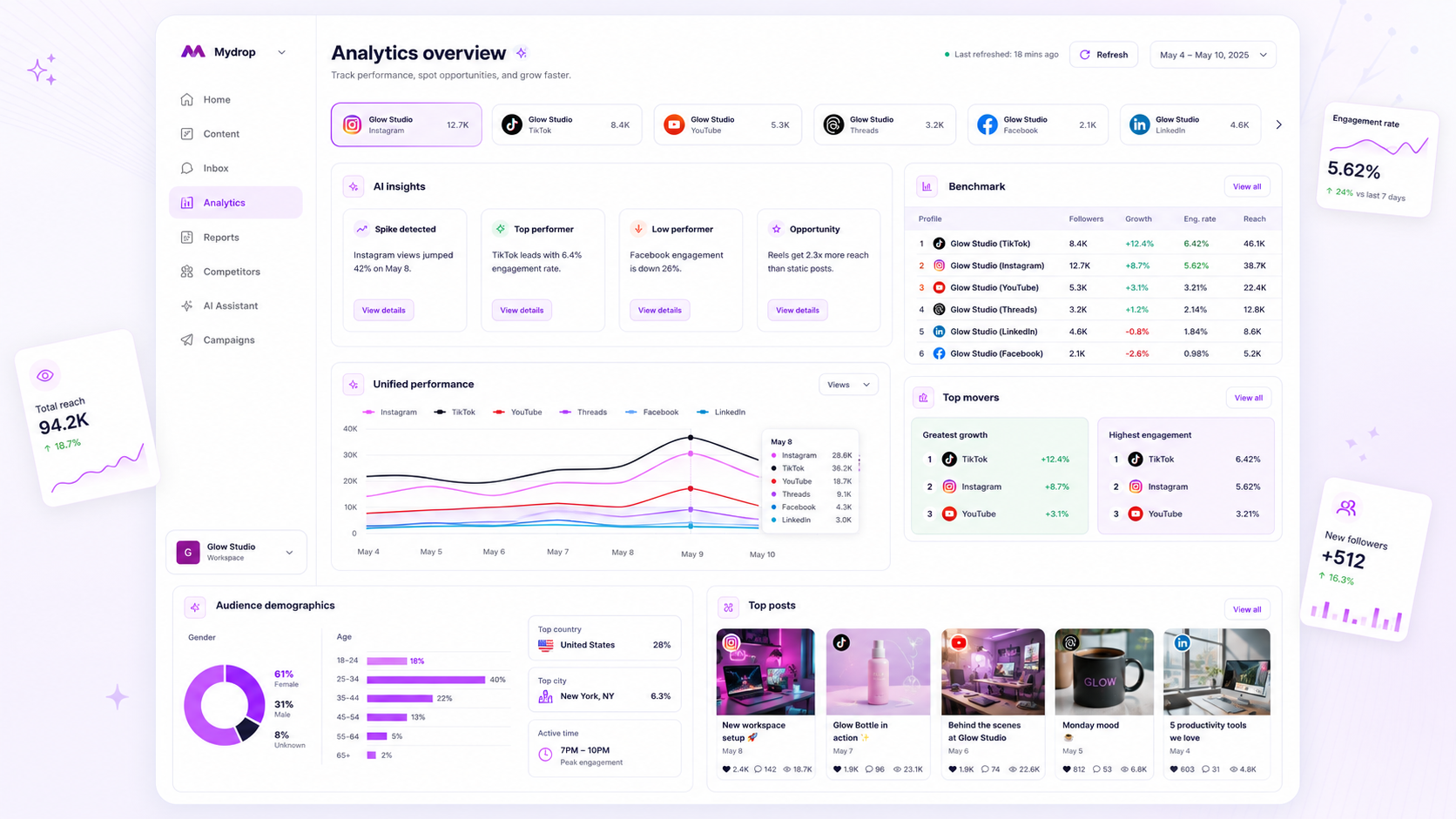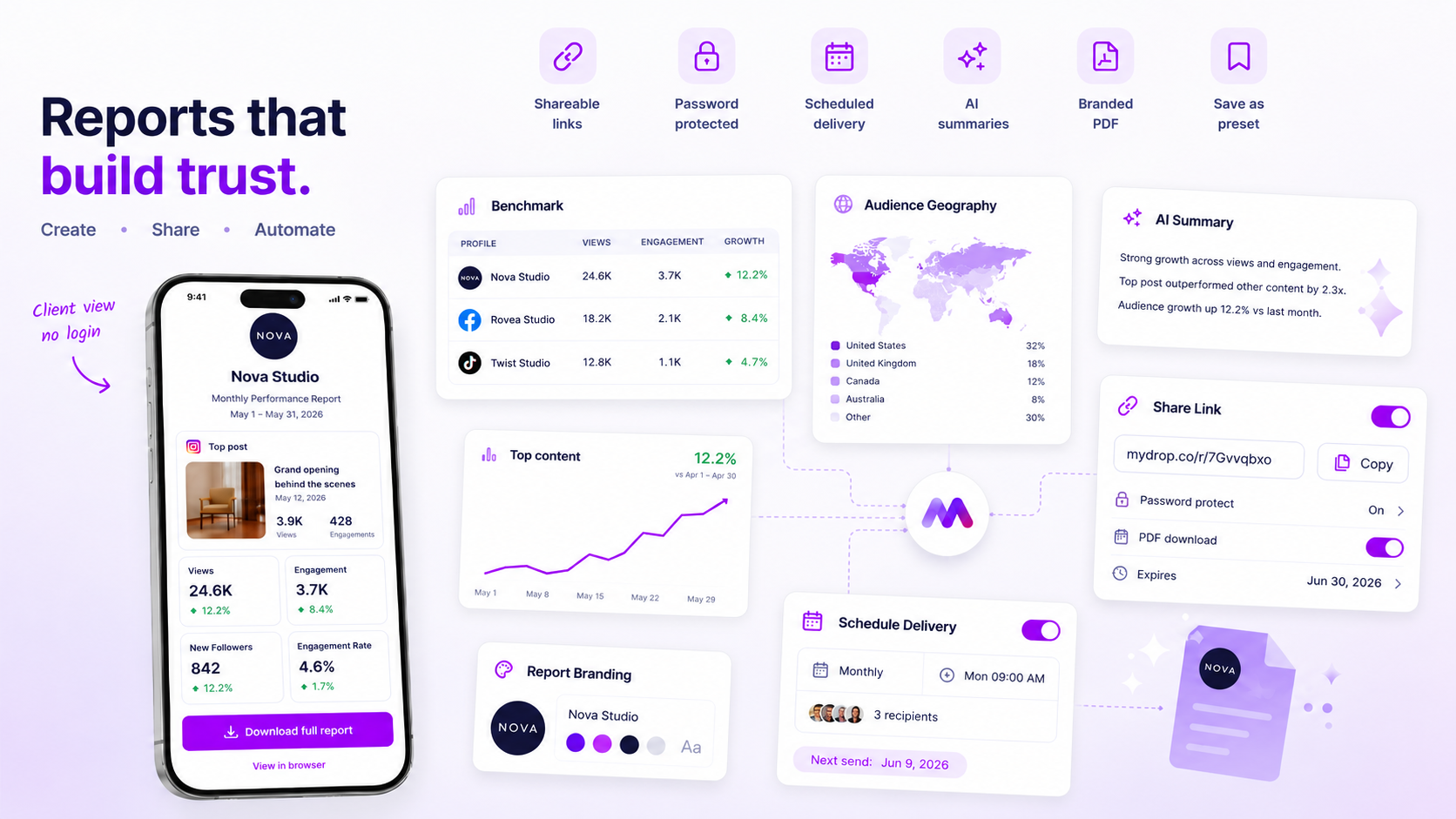
When a client asks, "Where is my report?" the problem is rarely that the analytics platform stopped working. It is almost always that your scheduling engine has lost sync with reality. You have built the perfect, data-rich report and set the recurring schedule, but background changes-like removing a social profile or tweaking a brand name-have silently invalidated the snapshot the system relies on. Automated reporting is not a "set and forget" feature. It is a live, client-facing product that demands a proactive maintenance habit, not just a frantic scramble when the inbox stays empty.
The operating problem this solves

The awkward truth is that reporting failures happen after you have set the schedule. We see this across hundreds of agencies and multi-brand teams: a small operational update ripples through the system, and suddenly, the automated conduit is broken. The "failure" you see in your dashboard is often just the final downstream symptom of upstream coordination debt.
Most teams treat automated reporting as a background utility, but when the reports stop, the trust hits a wall. If your client stops receiving that weekly cadence, they do not assume a server timed out or a database record moved; they assume you stopped paying attention to their business.
This creates a high-pressure loop. You are forced to manually regenerate data, apologize for the technical gap, and scramble to fix a configuration you haven't touched in months. It turns a low-touch, high-value delivery into a manual bottleneck that eats your team's time.
To stop this, you need to treat your schedule like a living asset. At Mydrop, we suggest moving away from the "fire and forget" mentality. Instead, adopt a "Verify and Sync" workflow. Before the client expects the file, you should already know if the pipeline is clear.
Here is how to audit your current state before the next cycle:
| Symptom | Hidden Cause | Audit Action |
|---|---|---|
| Missing Email | Status Lock | Check the "Analytics > Schedules" dashboard for paused jobs. |
| Empty PDF/Link | Scope Decay | Verify the underlying social profiles or brands still exist. |
| Auth Error | Metadata Drift | Check if the report template was renamed or moved. |
| Delivery Failure | Recipient Stale-Data | Confirm team member access and client contact emails. |
Operator rule: Never wait for the clock to strike to see if a report sent. Use the "Run Now" function immediately after any change to your reporting template or brand access to force a live check of the schedule.
The minimum system that works

The secret to reliable reporting is simple: you must treat the schedule like a live application, not a set-and-forget timer. Most of us fall into the trap of setting up a weekly email, closing the laptop, and assuming the wires are connected forever. When the inbox stays empty, the chaos begins.
In our experience, teams that don't suffer from "missing report" panics share one common trait: they use a validation-first habit. Before the client ever sees a report, the account manager runs it internally. If the data is broken, you find out at 10 a.m. on Tuesday, not when an angry stakeholder pings you at 4 p.m. on Friday.
Here is the operational checklist we recommend for every recurring delivery:
| Checkpoint | Why it fails | The "Minimum" Fix |
|---|---|---|
| Data Integrity | Deleted social profiles break the query. | Run a manual "Run Now" preview before the week ends. |
| Recipient Sync | Team turnover drops names from the list. | Audit the recipient list monthly against your team directory. |
| Delivery Gate | PDF size exceeds email attachment caps. | Check if the report has grown too large; use a public link instead. |
| Status Health | Accidental pause during an edit. | Verify the status is "Active" in the Analytics dashboard. |
Decision check: Never rely on the first automated run of a new schedule to reach a client. Always perform a
Run Nowtest to verify the snapshot configuration before you lock in the delivery.
If the test report looks like a ghost town-empty charts or missing metrics-stop. You have likely experienced snapshot rot. This happens when you’ve updated your workspace, removed a brand, or shifted your focus, but the "config snapshot" saved within the schedule is still trying to look for a ghost of the account that no longer exists.
Where teams overbuild the process
There is an urge, especially in agencies handling dozens of brands, to build a unique schedule for every possible variation of a report. Please, resist this. The more schedules you have, the higher your coordination debt. When you need to update a delivery cadence or change the summary format, you are forced to hunt down twenty different jobs instead of fixing one.
Instead, build a "Golden Template" for each client type-say, one for "E-commerce Retail" and one for "B2B SaaS." Use the Duplicate function in Mydrop to spin up new schedules from those templates rather than building from scratch. This keeps your configuration consistent. If you need to change a core metric or a delivery address, you are editing a single, known configuration.
Common mistake: Creating "Test-Report-1", "Test-Report-2", and "Final-Report-Copy" schedules. This is how you end up sending three different versions of the truth to the same client.
If you find yourself manually adjusting reports every week, your process is over-engineered. Use the automation to handle the distribution, but lean on a standardized template for the content. A report should be a product, not a custom craft project every time. When you standardize your delivery, you stop fighting the tool and start focusing on the actual insights you are handing to the client.
How to run the cadence
The secret to reliable reporting is shifting from a passive "wait and see" approach to an active "verify and confirm" ritual. If you wait for the automated email to hit your inbox, you have already lost the chance to fix a failure before the client notices.
At Mydrop, we see the most successful agency teams treat their report scheduling dashboard as a morning news feed. They don't just set it and forget it; they incorporate a brief Pre-Flight Check into their weekly rhythm.
Here is the simple 3-step ritual to keep your delivery uptime high:
- The Monday Health Check: Before the busy week kicks off, open your Analytics > Schedules view. Scan for any "Failure" flags on recent runs. If you see a red icon, that is your signal to stop and audit the profile connections before the next automated blast.
- The "Run Now" Validation: Never rely on the cron job alone for high-stakes reports. If you make a configuration change-like updating a report template-use the Run Now action immediately. It generates the report on-demand, allowing you to see the output exactly as the client will. If it breaks, it breaks on your screen, not theirs.
- The Audit Log Scan: Once a month, review your Run History. If a schedule consistently reports "Partial Data" or "Export Failed," it is time to look at the config snapshot. Usually, this means a brand profile has been archived or a data source is no longer authorized.
Workflow check: If a schedule fails twice in a row, do not just restart it. Assume the underlying data connection has been revoked or the profile was deleted, and re-save the schedule to refresh the snapshot.
The proof that the habit is working
To keep this manageable across hundreds of brand profiles, we use a simple scorecard. This isn't just about technical uptime; it is about keeping your team's reputation as a "reliable partner" intact.
Weekly Reporting Reliability Scorecard
| Checkpoint | Frequency | Action | Threshold |
|---|---|---|---|
| Scheduler Status | Weekly | Inspect Mydrop Dashboard | 0 paused schedules |
| Delivery Logs | Weekly | Check "Run History" | 0 failure flags |
| Snapshot Audit | Monthly | Re-save config | 100% active profiles |
| Template Drift | Quarterly | Review output vs. client goal | Matches brand KPIs |
This scorecard helps you move away from the frantic, "why didn't the email go out?" panic. When you treat the scheduling engine as a product-not a utility-you stop chasing fires and start delivering value.
Conclusion
At the end of the day, a missing analytics report is not just a technical glitch. It is a moment where client trust quietly leaks out of the relationship.
You have enough on your plate without manually playing courier for PDF attachments and data links. The goal is to build a "fire-and-forget" machine that actually stays lit, giving you back the hours you used to spend debugging delivery failures. Take the time to audit your schedules today, set that weekly pre-flight ritual, and stop apologizing for empty inboxes. Your clients hired you for your strategy, not your ability to hand-deliver spreadsheets.