Your AI assistant is slow not because it is pondering deep insights, but because you have turned its operational memory into a digital junk drawer. When you force an agent to ingest every document, stale brand guideline, and archived strategy deck in your workspace just to draft a simple caption, you aren't creating a genius-you are creating a bottleneck. The sluggishness you experience is the sound of an agent struggling to filter irrelevant noise from the few data points that actually matter to the current task.
We get it. You wanted a workspace co-pilot that could see everything, but you ended up with an intern who insists on reading every file in the office before answering a simple question. It is frustrating when the tool meant to save time starts consuming it, turning every prompt into a thirty-second spinning cursor of missed deadlines and quiet resentment. The awkward truth is that more data makes your AI dumber and slower. By dumping everything into your workspace without structure, you have broken the agent's ability to prioritize relevant artifacts.
What changed before the numbers moved

In the early days of a new workflow, AI feels like magic because your workspace is clean. You have two brand personas, a handful of current assets, and a clear strategy document. The agent finds the needle in the haystack almost instantly because there isn't much hay.
But scale changes the physics of your workspace. As teams manage hundreds of brand profiles, thousands of posts, and dozens of stakeholders, the "context surface area" expands exponentially. Organic growth inevitably leads to Context Bloat. You stop archiving old campaign docs, keep legacy brand guidelines alongside new ones, and pile up draft iterations that never saw the light of day.
When you trigger a draft request today, the agent attempts to map your entire historical footprint to find a match. It isn't a technical bug; it is an architectural collision between your messy, accumulated data and the agent's need for focus.
Operator rule: If your assistant takes more than five seconds to start drafting, your context load is too high. Stop asking the agent to "search everything" and start forcing it to interact with specific, current artifacts.
Teams that solve this transition from "Generalist Mode" to "Targeted Execution" by treating their workspace like a library with a strict check-out policy. They understand that AI performance is a direct reflection of information hygiene. If you haven't audited your active knowledge documents or pruned your brand assets in the last quarter, you aren't just dealing with a slow tool-you are carrying Coordination Debt that manifests as a literal pause every time you hit Enter.
The failure patterns to check first

When your AI assistant slows to a crawl, you are likely witnessing a classic case of context collision. The agent is not struggling to write; it is struggling to ignore the noise you have accidentally prioritized. After watching teams manage hundreds of brand profiles across thousands of posts, we have identified the four patterns that trigger this sluggishness.
First, look for Stale Entity Accumulation. If your workspace contains years of legacy brand guidelines, archived media, and abandoned strategy drafts that aren't marked as inactive, the agent is forced to ingest this junk drawer every time you ask for a simple social update. It doesn't know what is "live" unless you keep your workspace as clean as your production environment.
Second, check for Knowledge Vacuum Debt. If you haven't defined specific Knowledge Documents for tone, brand messaging, or high-performing LinkedIn hooks, the agent will attempt to infer your brand's voice from raw, inconsistent historical posts. Forcing the agent to "guess" your style from thousands of messy past artifacts is a computation-heavy trap.
Third, confirm you aren't skipping the Verification phase. When you treat AI output as a finished product rather than a draft, you invite iterative, inefficient re-prompting. We see teams loop three or four times to "fix" a post that should have been caught in a single verification pass.
Finally, watch for Scope Creep on Permissions. If you are asking an agent to manipulate objects it doesn't have the current workspace access to modify, you create a backend friction loop that feels like a slow internet connection but is actually a logic timeout.
The proof that separates signal from noise
We find that teams often mistake generic chat latency for an platform limitation, when the reality is simply a lack of operational discipline. The following audit helps you distinguish between a technical bug and a self-inflicted coordination bottleneck.
Agent Health Checklist: The 5-Point Audit
Run this assessment when a drafting request takes more than 10 seconds to generate an artifact.
| Audit Point | Signal for Success | Failure Symptom |
|---|---|---|
| Entity State | Only active brand guidelines are loaded. | Agent references stale or archived strategy. |
| Document Relevance | Knowledge Docs are tagged by specific use-case. | Agent mimics generic web-tone rather than brand voice. |
| Artifact Structure | User requests a concrete "Post" or "Campaign" object. | User asks for "an idea" in plain text. |
| Verification Loop | Drafts are passed through a validation check. | User manually re-prompts for minor tweaks. |
| Context Loading | Agent loads only the specific campaign/brand context. | Agent "scans" the entire workspace history. |
Decision check: If you fail more than two points on this audit, your slowness is architectural, not technical. Stop prompting and start pruning your workspace entities.
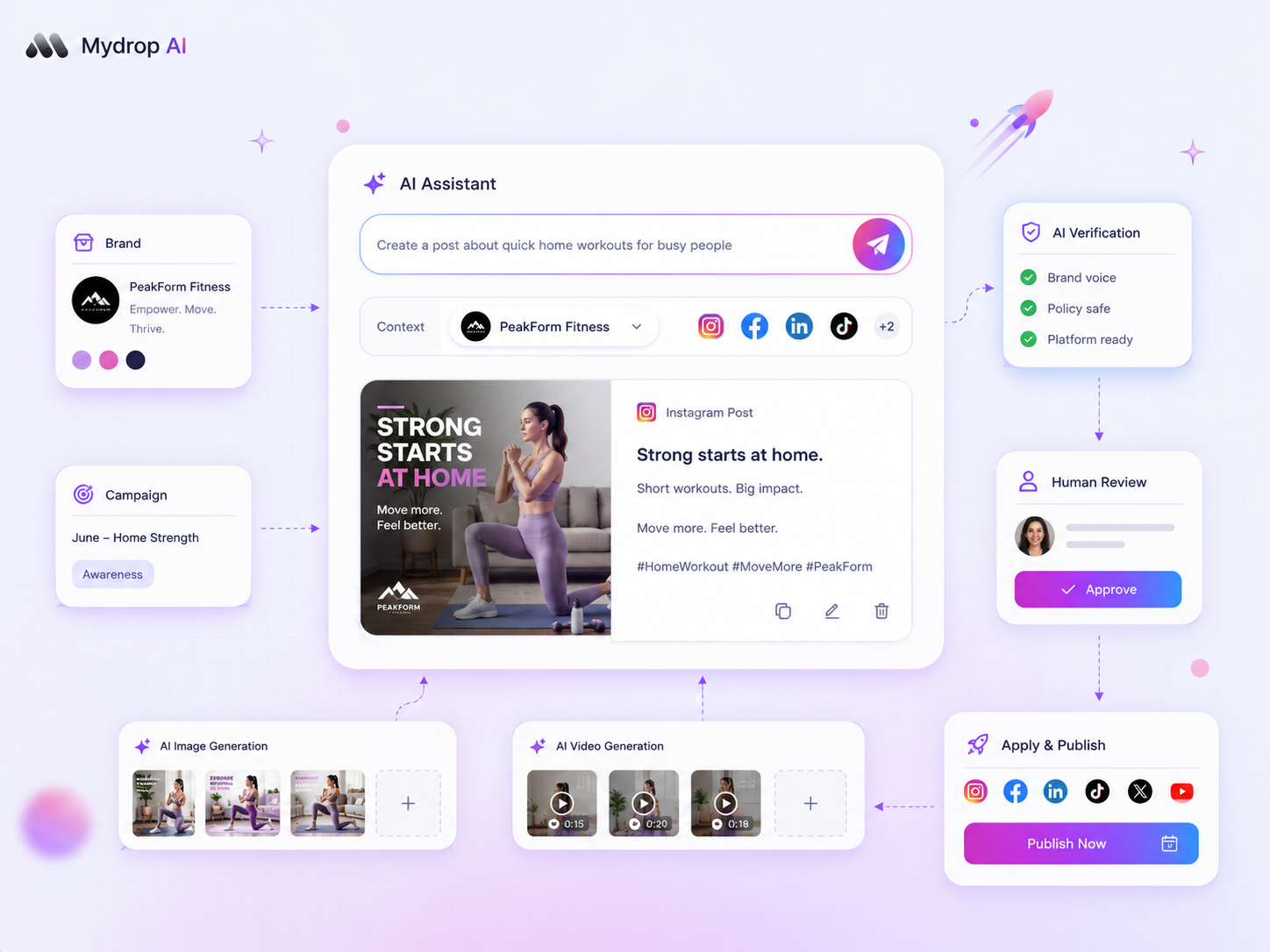
At Mydrop, we often see that the difference between an instant artifact and a spinning cursor is the explicit use of our Load Context workflow. Instead of asking for a general post, you select the specific brand assets and strategy docs relevant to the current launch. This limits the agent's "search space," letting it bypass the mountain of historical data that is otherwise slowing your team down.
When you treat your AI assistant like an intern who has to read your entire file cabinet before every task, you get the performance of an intern who has to read your entire file cabinet. Give it the specific folder instead.
What to fix this week
If your AI assistant is currently chugging through a 30-second spinning cursor before giving you a mediocre draft, stop trying to write better prompts. Instead, spend 60 minutes cleaning your house. The bottleneck is almost certainly that your agent is currently trying to parse an outdated, massive, or unformatted repository of "knowledge."
Here is your actionable, five-step maintenance sprint for this week:
- Audit your Knowledge Docs: Go through every file attached to your assistant's knowledge base. Delete anything over six months old, any "experimental" strategies, and any redundant brand guidelines. If you have five different PDFs labeled
Brand_Voice_FINAL, you have already lost. - Define your "Active Set": When you start a new campaign, do not just open a chat. If your platform supports a "Load Context" workflow, manually select only the two or three brand assets (logos, current campaign strategy, target audience notes) required for that specific task.
- Standardize your tone definitions: Replace long, narrative style guides with short, structured bullet points. The AI reads bulleted constraints faster and more accurately than prose-heavy manuals.
- Enforce Verification: If you are not already using a Verify Draft step before you even think about copy-pasting, start now. Using an AI to generate a draft and then manually fixing it is a broken feedback loop.
- Prune stale entities: Remove inactive social channels or legacy brand profiles from your agent's immediate awareness.
Workflow check: If your assistant needs more than 5 seconds to initiate a response, your context payload is too heavy. You are feeding it the library when it only needs the specific book on the desk.
When to stop diagnosing and change the workflow
There is a point where no amount of "hygiene" will fix your speed issues. If you have cleaned your data, limited your context to the essentials, and the tool is still sluggish, you are likely hitting a platform architectural limit-not a user error.
At Mydrop, we often see teams try to force a single, generic agent to handle everything from legal-heavy brand announcements to casual community replies. This is a mistake.
If your workflow involves complex compliance checks, high-volume multi-brand output, and granular stakeholder approval, a single "everything" agent will always hit a performance wall. Instead of fighting the lag, split the workload:
- Use a specialized agent for high-velocity, low-risk content (like community replies).
- Use a structured drafting workflow for high-risk, high-approval content (like product launches).
If the tool cannot distinguish between these two speeds, your team is suffering from coordination debt. You are paying for a "do-it-all" AI when what you really need is a "do-this-well" operating model.
Conclusion
The secret to a fast AI assistant isn't a faster processor or a more clever prompt engineer. It is the ruthless discipline of restricting what the agent "sees."
When you treat your AI assistant like an intern who has to read your entire company history before answering a simple question, you get the performance you deserve: slow, confused, and frustrating. When you treat it like a partner who is provided with exactly the right documents, the right constraints, and a clear verification path, the spinning cursor goes away.
Most teams do not have an AI problem. They have a decision bottleneck. Once you tighten your context, the quality of your output will improve-and you will finally get your afternoon back.