
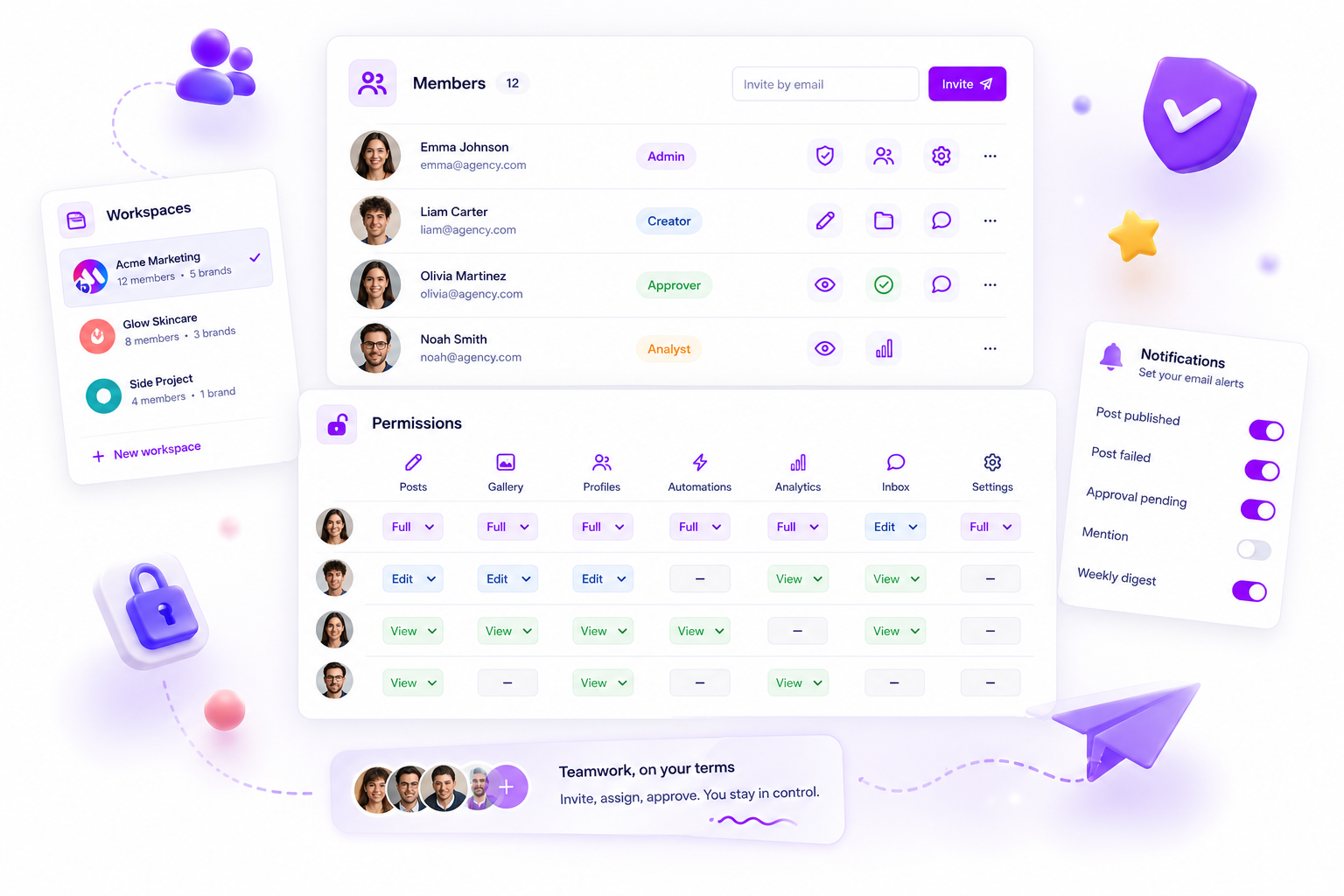
When a teammate misses a critical social media alert, the problem is rarely a technical glitch. It is almost always a mismatch between what that person is allowed to do and what they have asked to hear about. We call this the Permission Ghost: if a member does not have the specific posts:approve key in their permission map, the system will never send them an approval request notification, even if their "email alerts" toggle is set to ON. You cannot be notified about a world you do not have the keys to. Aligning these two settings is the fastest way to kill coordination debt and stop the "I never got the email" cycle that stalls high-stakes campaigns.
We have all felt that spike of adrenaline when a client asks why a post is not live, only for a teammate to say, "I never saw the ping." It is messy, it erodes trust, and it leads to "double-notifying" on Slack, which just adds more noise to an already loud day. We get it; managing a large team's inbox is a high-wire act. When the safety net fails, the work grinds to a halt and everyone starts pointing fingers at the software. This article is your 10-minute diagnostic audit to align permissions with alerts and stop chasing ghost bugs.
What changed before the numbers moved

Most notification "bugs" do not appear out of thin air. They usually show up right after a workspace grows, a new brand is onboarded, or a manager decides to "clean up" the permission roles. In our experience at Mydrop, seeing thousands of workflows, we have found that notification silence is often the side effect of a successful security update.
When you tighten a role to ensure a junior member cannot accidentally delete a gallery, you might inadvertently strip the posts:read permission that triggers their daily digest. The system is doing exactly what you told it to do: it is protecting the data by keeping the unauthorized user in the dark.
Here is where it gets messy: many teams treat "Permissions" and "Notifications" as two different planets. One is for the IT-minded admin; the other is for the user's personal preference. In reality, they are two halves of the same bridge. If one side is out, no message gets across.
Operator rule: Never troubleshoot a delivery failure until you have verified the member can actually perform the action they are being notified about.
To stop the "I missed it" excuse, you need to cross-reference the Member Settings screen. Use this matrix to see if your team is set up for success or silence.
The Operational Alert Matrix
| Desired Team Alert | Required Permission Key | Required Toggle (Settings > Members) |
|---|---|---|
| "Post Needs Approval" | posts:approve |
notificationsSettings.email.posts = true |
| "New Inbox Message" | inboxActivity:read |
notificationsSettings.email.inbox = true |
| "Gallery Item Added" | gallery:read |
notificationsSettings.email.gallery = true |
| "Report is Ready" | analytics:read |
notificationsSettings.email.reports = true |
If your "Approve" toggle is ON but your permission map lacks the posts:approve key, you are waiting for an email that the system is literally forbidden from sending you. This misalignment is the most common reason high-stakes content gets stuck in the "Draft" graveyard while everyone waits for a signal that will never come.
The failure patterns to check first

Notification failure is rarely a mystery; it is usually a math problem where two settings fail to add up. When a teammate says they "didn't get the memo" on a high-priority post, we have seen that the silence typically follows one of two distinct patterns.
The first is the Silent Approval syndrome. This is a classic permission gap. In Mydrop, the system checks if a user is actually authorized to perform an action before it bothers sending them an alert about it. If a new manager has their notification toggles turned on but their member document map is missing the posts:approve key, they are effectively invisible to the approval workflow. They are waiting for an email that the system is literally forbidden from sending them because, on paper, they don't have the "keys" to that room.
The second is the Missing Mention syndrome. This is the toggle filter in action. We've all been there: a workspace gets noisy, the inbox is overflowing, and a teammate goes into Settings > Members and permissions to "clean things up." They flip the email or WhatsApp switch to "Off" for a specific category, like Inbox Activity, planning to check it manually later. Then a crisis hits, a customer mention goes unanswered for six hours, and everyone realizes "later" never happened.
There is also a third, sneakier pattern: Role Template Drift. This happens when we add new capabilities to Mydrop, like our newer Intelligence or Forms modules. If your team is using an older, custom "Agency Partner" role template created six months ago, it might not include the permissions for these new resources. Even if the notification toggles are on, the permission map is empty for those specific tools, creating a silent dead zone in your team's workflow.
The proof that separates signal from noise
To fix this without losing your mind, you need to stop checking "the system" and start checking the bridge between rights and requests. Every operational alert in a professional social media environment relies on a two-step handshake. If either side of the handshake is missing, the alert dies in transit.
Use the Operational Alert Matrix below to audit your team's setup. This table shows the exact alignment required for the most common "missed" notifications we see across large agencies and enterprise brands.
| Event / Alert Type | Required Permission Key | Notification Toggle | The "Ghost" Outcome |
|---|---|---|---|
| Post Needs Approval | posts:approve |
email.posts |
Post stalls; manager is never alerted to the queue. |
| Inbox Customer Fire | inbox:read |
email.inboxActivity |
High-risk comments sit unanswered for hours. |
| New Resource Added | workspace:update |
email.workspace |
Stakeholders miss critical changes to brand profiles. |
| Analytics Report Ready | analytics:read |
email.analytics |
The client or VP thinks the report was never sent. |
| Profile Expiry Alert | profiles:update |
email.profileExpiry |
A channel disconnects, and no one knows until a post fails. |
Decision check: If a member can't see the "Approve" button in their UI, they will never receive an "Approval Needed" email. Always fix the permission map first, then the toggle.
When you're managing dozens of brand profiles and a rotating cast of stakeholders, coordination debt builds up fast. We've seen teams spend hours on support calls trying to find a "server bug" when the reality was simply a manager who had been accidentally stripped of their inbox:read rights during a role migration.
Think of your member settings as a map of your team's world. If the map doesn't show the road, the notification engine can't drive down it. Before you assume the plumbing is broken, check the valves in Settings > Members and permissions to ensure the signal actually has a path to travel.
If you want to stop the notification guessing game by Friday, start with the permission map rather than the email server. Fixing a broken notification loop is almost always about closing the gap between "I can" and "I heard." When a teammate says they missed a critical alert, it is rarely a technical glitch; it is usually a structural mismatch in their settings.
We get it: nobody actually enjoys auditing permission maps on a Tuesday afternoon. It feels like digital housekeeping. But when a $50k campaign launch stalls because a senior director's "Approve" button didn't trigger an email, that housekeeping suddenly becomes the most important task on your plate. You're not alone in this frustration -- we have seen this across hundreds of teams where the "ghost bug" turned out to be a simple missing toggle.
What to fix this week
Run this three-step cleanup to ensure your notifications are actually reaching the people who need to act on them.
- Audit Role Template Drift. When platforms evolve, older member roles often don't inherit new permissions automatically. If a member isn't explicitly granted
forms:readorintelligence:viewin their permission map, they will never receive alerts for those categories, even if their global email toggle is set to "On." - Reset Crucial Manager Toggles. For anyone in a "Sign-off" role, do a manual sync. Ensure their operational email settings are specifically enabled for
posts:approveandinbox:activity. Sometimes, in a fit of "inbox zero" ambition, a busy manager might have disabled alerts they now desperately need for high-stakes oversight. - The "Can I Click It" Test. Log in as the user or have them screen share. If they cannot see the "Approve" or "Reply" button in the UI, the system will never send them a notification for that action. At Mydrop, we treat permissions as the gatekeeper: if you don't have the "Key" (Permission) to the room, the "Bell" (Notification) will never ring for you.
Workflow check: A notification is a bridge between an event and an authorization. If either side is missing, the bridge collapses.
| Diagnostic Check | What it reveals | Fix Action |
|---|---|---|
| The Resource Gap | Member has posts:create but is missing posts:approve. |
Update the member document map to include the missing action key. |
| The Global Filter | notificationsSettings.email is set to false for the category. |
Toggle the specific category back to true in Settings > Members. |
| Template Stagnation | New workspace resources aren't in the custom "Client" role. | Sync the custom role template with the latest workspace resource list. |
When to stop diagnosing and change the workflow
There comes a point where the settings are perfect, the permissions are aligned, and the emails are definitely hitting the inbox -- yet things are still being missed. This is the "Notification Fatigue" threshold. When you support dozens of brands and hundreds of profiles, the sheer volume of alerts can become its own type of silence.
If your team is buried under 200+ operational emails a day, you don't have a technical bug; you have a process bottleneck. At this stage, stop trying to fix the "ping" and start changing the "queue." You need to move from a Passive Notification Model (waiting for an email to tell you to work) to an Active Queue Model (checking a dedicated dashboard).
- Designate a Traffic Controller. Instead of everyone getting every alert, have one person manage the inbox and assign tasks to specific teammates.
- Batch the Review. Set two specific times a day for "Approval Windows." This turns notifications into secondary safety nets rather than primary triggers that disrupt deep work.
- Kill the Noise. If a notification doesn't require a click, a reply, or a decision, turn it off for everyone except the person directly responsible for that specific channel.
Conclusion
Notification silence is almost always a structural misalignment, not a server failure. By aligning your member permission maps with their notification toggles, you remove the "Permission Ghost" that haunts so many enterprise workflows.
The real win isn't just getting the email to show up; it is building a system where your team trusts the signal. When the right person gets the right alert at the right time, the coordination debt that slows down large agencies starts to evaporate. Social media management at scale is a game of logistics. Master the settings, and you master the machine.