
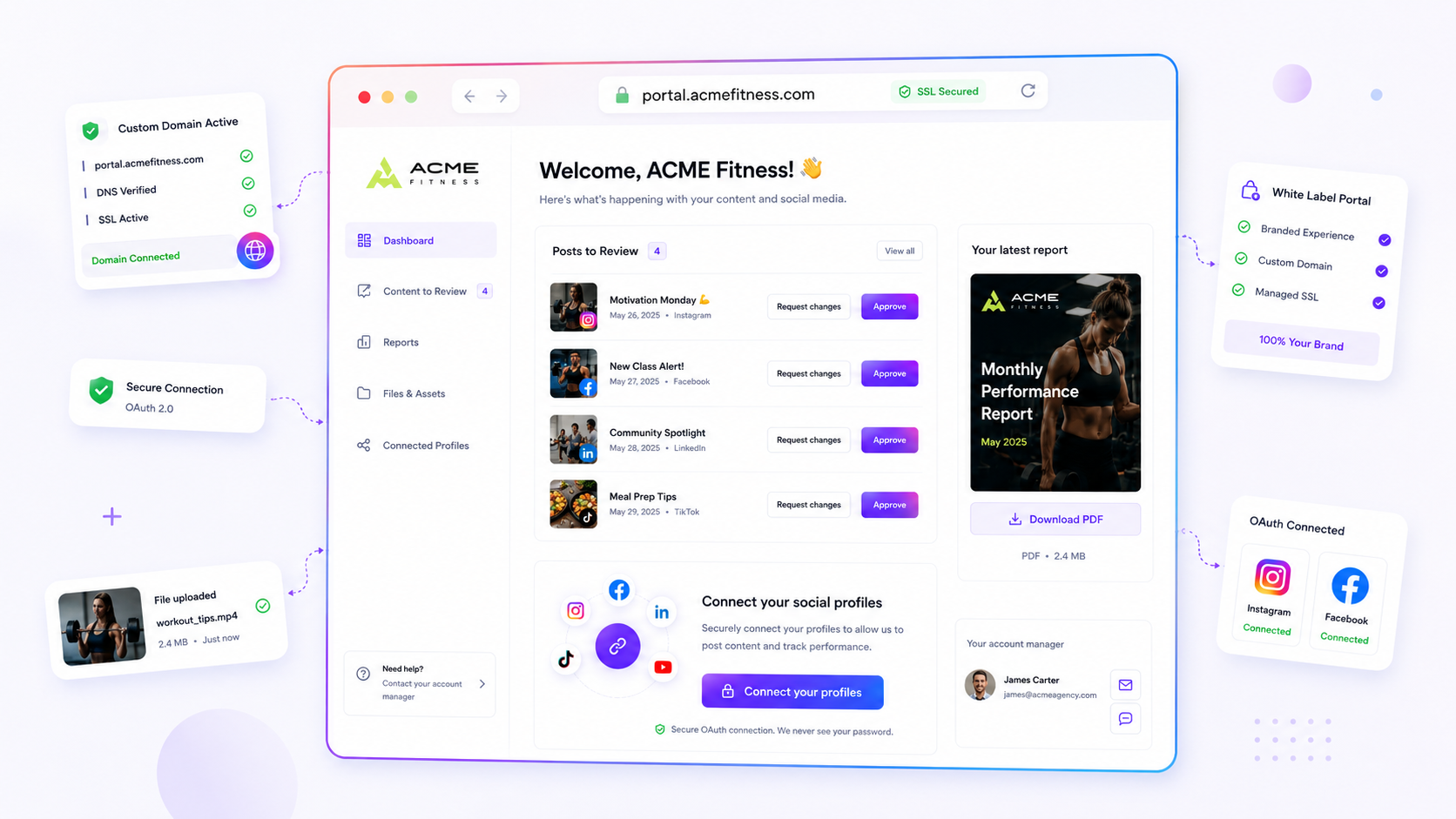
If your custom domain shows a "Not Secure" warning after you have pointed your DNS to the platform, your DNS records are likely correct, but the handshake between your host and the certificate authority is stalled. Most agencies assume this is a platform bug, but it is almost always a configuration race condition where your domain is technically pointing to the right place, but Mydrop host dispatch settings are still looking for a previous target assignment.
We get it. You have a client waiting, a brand portal to launch, and now the URL is throwing a security error. It is exactly the kind of bottleneck that turns a smooth campaign rollout into a high-stakes technical standoff with the IT department. You are not alone here; we have seen this across hundreds of brand deployments. It is rarely the platform itself, but rather a "ghost" record or a lingering assignment that needs to be cleared before the managed SSL can finalize.
What changed before the numbers moved

Most SSL provisioning delays start with a small, innocent change in your DNS control panel. You might have updated a CNAME record to point to the Mydrop host, but if a stale A record remains, or if your TTL (Time to Live) settings are high, the global DNS cache will continue to serve old routing instructions for hours.
The real trouble begins when you try to force a fix. Many teams start hitting the "Refresh SSL" button repeatedly, thinking they are waking up the system. Instead, you are often interrupting an automated background job that was already halfway through the provisioning process.
To stop the cycle of error messages, perform this quick audit of your current DNS state. This checklist identifies the most common gaps between a "configured" domain and a "provisioned" one.
5-Point DNS/SSL Health Checklist
- Propagation Check: Are your
CNAMErecords fully propagated across global nameservers? (Use a tool like DNSChecker to verify).- Record Cleanliness: Have you purged all legacy
Arecords that point the domain to your old server?- Assignment Lock: Is the domain currently assigned to a different active surface in Mydrop?
- Host Conflict: Is the domain currently being claimed by another workspace or a reserved public host?
- Provisioning Window: Have you allowed at least 15 minutes for the automated cron job to detect the new DNS status before manual intervention?
If your DNS status is verified but your sslState is still flagging an error, you are likely looking at a target assignment conflict. This happens when the platform is trying to provision a certificate for a domain that is simultaneously being pointed at a link-in-bio surface and a brand-portal surface.
Clear the conflict by unassigning the domain entirely within your Domain Settings, confirming the "DNS Verified" status again, and then re-assigning it to the specific target you need. Think of it as a hard reset for the host dispatch layer; it clears the routing cache and lets the managed SSL lifecycle start fresh.
Most teams do not have a technical failure; they have a coordination debt where the domain configuration and the platform routing are simply out of sync. Once you verify the record, let the system handle the handshake-patience is your best diagnostic tool.
The failure patterns to check first

When your domain is stuck in a "Not Secure" state, the issue almost always boils down to a race condition between your DNS record and our provisioning service. We see this trip up agencies constantly. You update the DNS, hit the button in your dashboard, and expect an instant handshake. But DNS is a fickle beast; it often partially propagates, leaving some servers seeing your new CNAME while others are still looking at your old infrastructure or an empty void.
The most common culprit is a lingering, invisible stale record. You might have updated your CNAME for portal.clientbrand.com, but forgot to delete an old A record pointing to a legacy server. This creates a split-brain scenario. When our managed SSL service tries to verify ownership, it occasionally hits the old server instead of our routing layer, causing the provisioning to time out.
Common mistake: Relying on your browser's refresh button. Your browser caches DNS responses aggressively. Clear your cache or, better yet, use a server-side check before assuming the record is actually live globally.
Another frequent blocker is a conflicting target assignment. If that domain was previously pointed to a different workspace or was reserved as a system-level host, the internal routing logic will block the SSL process as a safety measure. It won't let you attach a certificate to a host that isn't fully claimed by your current workspace. You end up in a "pending" state that never clears because the underlying dispatch service is essentially saying, "I don't recognize this as yours yet."
The proof that separates signal from noise
Stop guessing if the platform is "just slow" and start auditing the actual signal. We built our internal DNS check tool to serve as the single source of truth for exactly this reason. If it returns a "pending" or "conflict" status, no amount of clicking "Refresh SSL" will change the outcome.
Use this 5-point DNS/SSL Health Checklist to run a quick audit before you open a support ticket or ping your dev team.
| Step | Audit Item | Action if Fail |
|---|---|---|
| 1 | Propagated CNAME |
Use dig or nslookup to confirm the record points to our host, not your old server. |
| 2 | No Conflicting A Records |
Remove any A records for the same subdomain. These are the #1 cause of handshake timeouts. |
| 3 | Host Availability | Ensure the host isn't already assigned to another workspace in your settings. |
| 4 | SSL State Signal | Check the dashboard for specific sslError codes; DNS_PENDING means wait, AUTH_FAILURE means fix records. |
| 5 | Cron Sync | Wait at least 15 minutes. Our background workers pulse the domain status; manual refreshes can sometimes reset that timer. |
The golden rule of SSL: If the DNS check fails, the SSL provisioning is effectively paused. The platform will not attempt to fetch a certificate for a domain that it cannot definitively prove belongs to you. Treat the DNS check as the gatekeeper. Once that returns green, the managed SSL lifecycle kicks in automatically. If you see a DNS_PENDING error, it is almost certainly a propagation delay-walk away, grab that coffee, and let the network catch up. If you see an AUTH_FAILURE, you have a configuration ghost that needs to be hunted down in your DNS provider's console.
What to fix this week
If you are currently staring at a failed SSL status, stop retrying the button and start with your DNS records. The most common fix is surprisingly simple: ensure your CNAME or A records are not conflicting with a ghost host. Often, an old A record pointing to a legacy server or a root-level redirect is still active at your DNS provider, causing our provisioning service to hit a wall.
Clear the path by auditing your DNS settings. If you are using Mydrop to manage your custom domain, confirm that the CNAME points exactly to the public custom domain target provided in your workspace settings. If it points anywhere else, our managed SSL lifecycle cannot verify ownership, and provisioning will stall indefinitely.
5-Step DNS and SSL Recovery Checklist
- Check for duplicate records: Delete any conflicting
AorAAAArecords that might compete with yourCNAMEfor the same host. - Verify target alignment: Confirm your
CNAMEpoints to the exact public target specified in your domain settings. - Wait for propagation: Give the internet time to catch up. DNS changes can take a few minutes or, in rare cases with stubborn global resolvers, up to an hour.
- Clear host conflicts: Ensure no other workspace or inactive portal is currently claiming that same host.
- Manual refresh: Once you are sure the records are clean, trigger a manual refresh in your Mydrop Domain Settings.
If you have cleared your records and it still fails, check if the host is a reserved public host or already assigned to another workspace. This is a frequent issue in large teams where one department might have "borrowed" a domain for a landing page six months ago and forgotten to release it.
When to stop diagnosing and change the workflow
If you find yourself troubleshooting SSL certificates more than once a month, you have a coordination problem, not a technical one. The best teams do not wait for the "Not Secure" warning to realize their domain is misconfigured. They build a "verify-first" culture that treats domain provisioning as a distinct, gated phase of the project lifecycle.
Most agencies make the mistake of handing a branded URL to a client before the DNS is fully propagated and the SSL is active. This creates a high-stakes bottleneck when the client visits the link and sees a browser warning right at launch time. Instead, adjust your internal operating habit: treat "Domain Ready" as a mandatory checkbox before any link-in-bio page or client portal is included in a campaign deck.
Operator rule: Never include a custom domain in a client-facing communication or launch schedule until the Mydrop DNS check returns a confirmed "Verified" status signal.
By moving the verification earlier in your project workflow, you remove the last-minute stress of chasing DNS updates. It transforms SSL provisioning from a technical standoff into a routine, automated background process. When you standardize the "verify-first" rule, you stop being an IT troubleshooter for your own marketing surfaces and start being the team that launches on time, every time.
Conclusion
SSL failures in a multi-tenant environment like Mydrop are almost never about the platform failing. They are artifacts of a DNS record that does not quite match the expected host dispatch, or a configuration race condition where a domain is being pulled in two directions. Once you understand that SSL is just the final handshake in a long chain of DNS verification, the "error state" stops being a mystery. Audit your records, clear the ghosts, and enforce a verify-first policy for every new brand portal. Your team, and your clients, will appreciate the seamless experience of a site that is secure, branded, and ready to work the moment they land on the page.