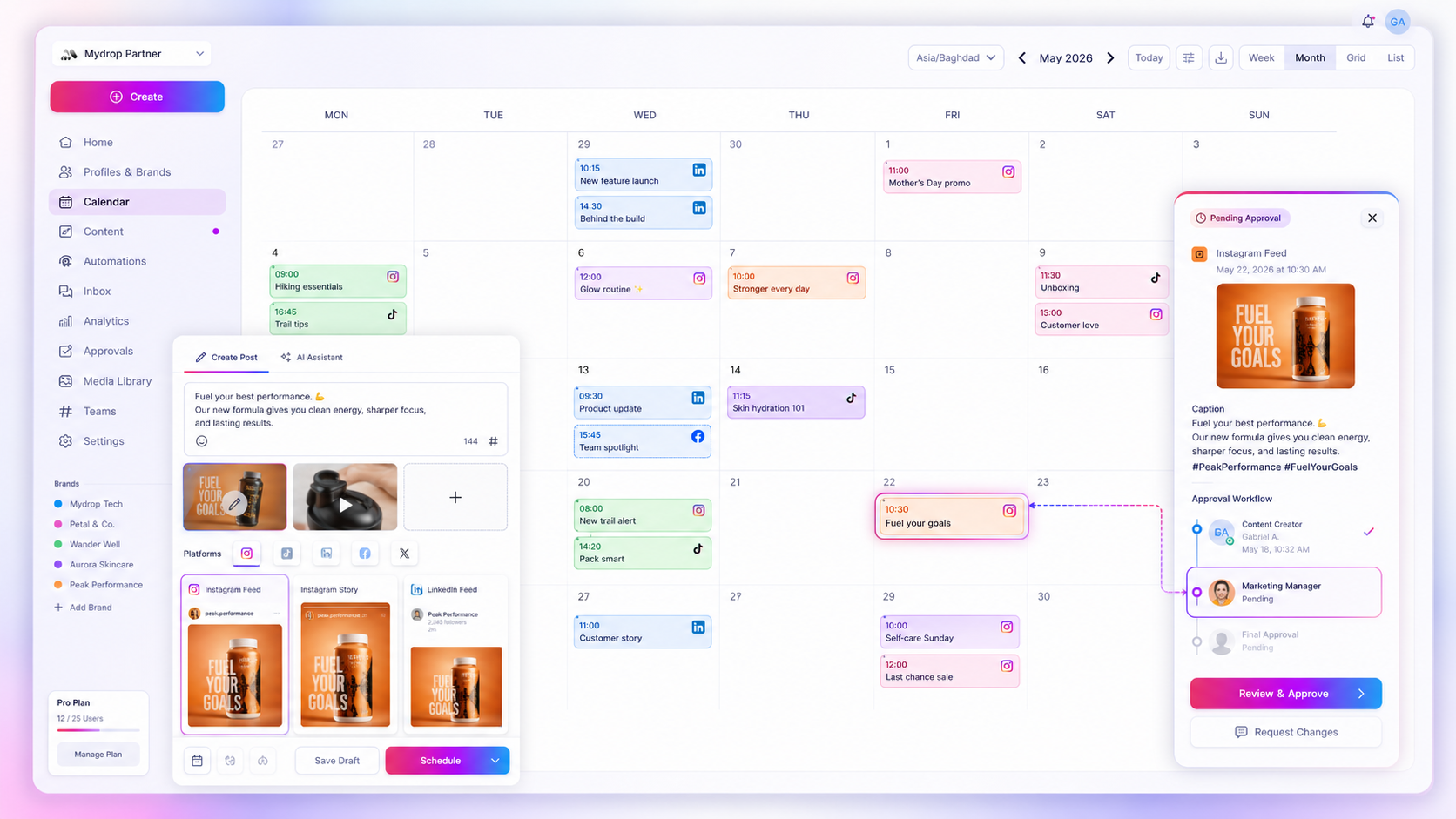
When your social calendar goes dark, the issue is almost never a platform glitch; it is a breakdown in coordination debt caused by stale service tokens, misaligned sync modes, or unmonitored webhook silent-failures. Your team is ready to execute a high-stakes campaign, but the Google Calendar view is empty. You do not need a frantic manual update. You need a systematic audit of the planning bridge between your CMS and your team’s shared calendars.
We have all been there. You have spent hours perfecting a content strategy, only to watch it vanish from the shared team view. It is that specific kind of invisible friction that stalls momentum and forces everyone back into messy, spreadsheet-sharing chaos just to keep the team aligned. The hidden cost of a broken sync is not just an empty calendar-it is the operational tax of your team manually checking multiple tools for "what is next" when they should be focused on execution.
Operator rule: Calendar-native visibility is an infrastructure requirement, not a convenience. Treat your calendar sync with the same operational scrutiny as your publishing API.
What changed before the numbers moved

Sync gaps rarely appear out of thin air. They usually trail behind a change in your infrastructure or a shift in team permissions. When you are managing dozens of brand profiles across multiple markets, it is easy to assume the "plumbing" is permanent. In our experience, these failures start with a single, unmonitored change to the system state.
Before you start digging into the technical logs, run through this quick audit to see if a recent operational pivot caused the disconnect.
The Diagnostic Trigger List
| Trigger Event | Why it causes a sync gap |
|---|---|
| Google Admin Revoked Access | Service tokens for your calendar service expire or lose authorization, silently blocking write-access for all future posts. |
| New Profile Added | You added 5 new channels this morning, but your selected_profiles sync mode is still only looking at the original 10. |
| Team Permission Shift | A lead marketer removed a shared calendar from their view, inadvertently causing the entire team's visibility to drop. |
| Webhook Watch Expiry | Your system’s link to the Google API for real-time updates hit a renewal wall, and the "watch channel" is now effectively dead. |
Most teams don't have a content problem; they have a decision bottleneck. If your sync mode is set to selected_profiles but your team is constantly adding new brands or channels, you will eventually hit a visibility wall where half your content plan is visible and the other half is a ghost.
Ask your team these three questions immediately:
- Did we change the primary Google account authorized for Mydrop recently?
- Are we using
all_postsorselected_profilesmode, and did we add new profiles since that toggle was last checked? - Is this a total sync outage, or are we just missing updates for specific recurring reminders or tasks?
Answering these narrows your search from "everything is broken" to "the sync mode configuration is misaligned with our current portfolio."
The failure patterns to check first
When the calendar is blank, stop looking for a platform-wide outage and start looking for a local disconnect. Across teams managing hundreds of profiles, we see three recurring culprits that account for almost every sync failure.
First, check for Token Stale-mate. If you recently updated your Google security settings or changed a password, your service token is likely invalid. Mydrop cannot write to your calendar if the authentication bridge has been severed.
Second, verify your Sync Mode. This is the classic "I added a profile, why is it not showing up?" trap. If your service is set to selected_profiles mode, any new brand or channel you add to your workspace is ignored until you manually tick its box in your service settings.
Third, look for Webhook Silence. If events are occasionally dropping, the real-time communication between Google and your planning tool might be stale. This usually happens when the "watch channel" responsible for pushing updates has expired.
Decision check: If a calendar update is delayed by more than 15 minutes, never wait for an auto-refresh. The system is likely stuck in a retry loop.
The proof that separates signal from noise
Do not guess which of the three patterns is hitting your team. Use this Sync Failure Scorecard to quickly isolate the technical trigger. It turns an hour of troubleshooting into a five-minute diagnostic session.
| Symptom | Primary Suspect | Diagnostic Action | Priority Fix |
|---|---|---|---|
| Zero events appearing | Token Expiration | Force a sync; check auth status. | Re-authenticate Google service. |
| Partial updates | Sync Mode | Compare active profiles vs. selected list. | Update selection in settings. |
| Random gaps/delays | Webhook Watch | Check for event sync refresh errors. | Disable and re-enable sync. |
| Reminders not firing | Calendar Selection | Verify reminder target calendar. | Ensure calendar service is linked. |
If you run the Force Sync action from your service settings and the calendar stays empty, stop diagnosing. A manual refresh isn't just a temporary patch; it is your best evidence that the underlying pipe is blocked.
If the force sync succeeds, you know the connection is healthy, and the problem is likely a configuration mismatch. If it fails or returns an error, the bridge is down. At that point, you don't need more "troubleshooting" time-you need a hard reset of the service connection to clear the old cache and re-establish the webhook watch.
Most teams do not have a sync problem; they have an unmonitored infrastructure problem. Treat your calendar sync as a critical production tool, not a background utility, and you will stop losing hours to manual spreadsheet updates.
What to fix this week
To stop the calendar from becoming a "black hole" of missing content, you need to turn your reactive troubleshooting into a predictable routine. If you spend more than fifteen minutes a week chasing sync gaps, your infrastructure is likely under-managed.
Here is the 5-minute Calendar Health Check your team should run every Monday morning:
| Audit Step | Target Outcome | Why it matters |
|---|---|---|
| Check service token | Active/Green status | An expired token is the #1 silent killer of sync. |
| Verify Sync Mode | Confirm all_posts or selected |
New brand profiles often default to "off," leaving gaps. |
| Force Sync | Refresh event metadata | This clears any "stuck" post state in seconds. |
| Cross-check | Verify 2-3 events in Calendar | Confirms the bridge is live and readable. |
Workflow check: Never assume a sync is working just because it worked last month. If you’ve added a new market or brand, verify the sync configuration at the moment of onboarding.
If you find a gap, don't try to "fix" individual events. Instead, toggle the service setting off and back on. This forces a clean handshake between your planning tool and the calendar service, which is almost always faster than manual correction.
When to stop diagnosing and change the workflow
There is a point where technical troubleshooting becomes a distraction from your actual job. If your team is spending more time managing the "bridge" than managing the content, the problem isn't the sync; it is the reliance on a general-purpose calendar for enterprise-scale planning.
We see this frequently with high-growth teams. You start with a shared calendar because it feels accessible, but as you hit dozens of stakeholders and hundreds of assets, the "calendar-native" approach breaks under its own weight.
You have likely outgrown your current setup if:
- The "Calendar View" is a lie: Your team uses the calendar to verify work, but then has to log into the social platform to check if the asset is actually approved.
- Visibility panic: You are manually tagging people in calendar events to "notify" them of updates, essentially using the calendar as a chat app.
- Approval drift: You have reminders for reminders, creating an endless cycle of maintenance that keeps no one actually informed.
When the calendar requires constant babysitting, it is no longer a tool; it is an operational burden. Most teams don't have a sync problem-they have a decision bottleneck. If your workflow requires the calendar to act as the single source of truth for assets, approvals, and scheduling, you are forcing a scheduling tool to act as a project management platform.
Conclusion
A broken sync is rarely a mystery. It is almost always a signal that your operational "plumbing" needs a quick scrub. By treating your calendar connection as a critical piece of infrastructure rather than a "set it and forget it" feature, you remove the friction that stalls teams.
Remember, the goal of calendar-native planning is to get out of the way. If your team has to constantly double-check if the calendar matches reality, the system has failed. Audit your tokens, confirm your sync modes, and if the overhead is still too high, give yourself permission to move away from the manual maintenance loop. Your team’s focus is better spent on the content itself, not on babysitting the calendar events.