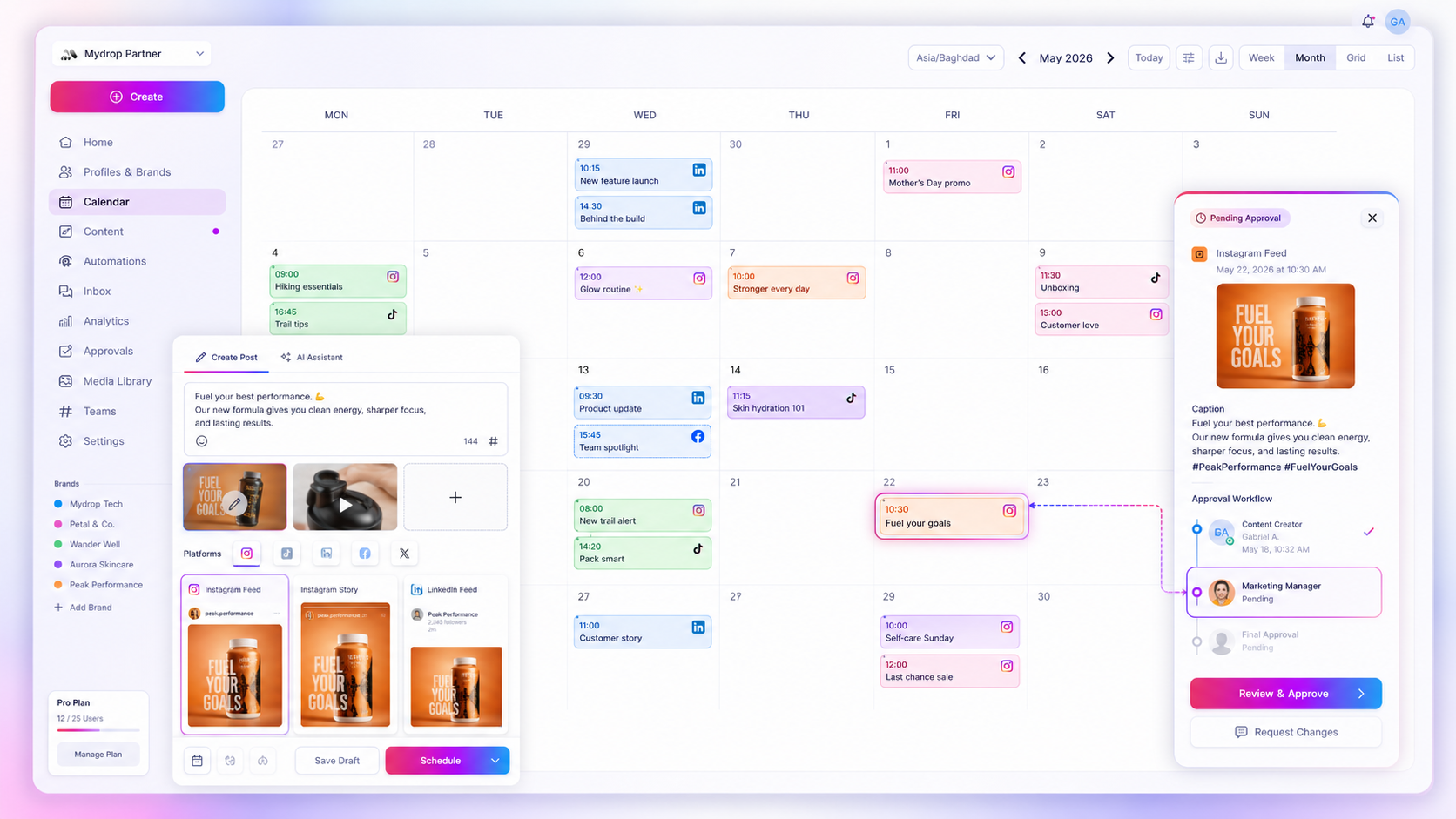
When your scheduled posts stop appearing in your Google Calendar, it is rarely a platform-wide outage. It is almost always a localized disconnect: either your authentication token has expired, or the "watch channel" responsible for pushing updates to your calendar has timed out.
We know that syncing your content calendar isn't just about convenience-it is about team sanity. When that link breaks, the coordination debt piles up instantly. Your shared calendar becomes a ghost town, and you are suddenly stuck in a stressful, manual game of "did I update the shared calendar?" while your stakeholders ping you for status updates. You are not just missing events; you are losing the single source of truth that keeps your team and clients aligned.
Most sync issues are solved by a simple re-authorization, but you need to know where to look before you start clicking buttons.
What changed before the numbers moved
Before you start poking around your settings, stop and think about the last 48 hours. Enterprise environments are complex, and the "Invisible Sync" fallacy-assuming that because it worked yesterday, the connection is permanent-often blinds us to simple permission shifts.
In our experience, most synchronization stalls are caused by one of these three common events:
- Account Permissions: Did someone in your organization update the password for the primary Google account associated with Mydrop? If the credentials changed, the "handshake" between the platforms was severed.
- Workspace Policies: Did your IT or security team push a new Google Workspace policy? Sometimes a tightened security scope can inadvertently block third-party webhooks or restrict external API access.
- Calendar Deletions: Was the specific calendar shared with Mydrop renamed, hidden, or deleted? If the calendar ID is gone, the sync path has nowhere to land.
Here is a quick way to audit your current state before digging into the technical logs.
| Signal Type | Observation | Likely Cause |
|---|---|---|
| Silent Failure | No new events appear in GCal. | Webhook watch channel expired. |
| Auth Error | Settings show a yellow "Re-auth required" flag. | Expired OAuth token. |
| Partial Sync | Some posts show up, others don't. | Sync Mode configuration mismatch. |
| Total Wipe | Events disappeared from GCal. | Calendar unlinked or access revoked. |
Operator rule: If you suspect an authentication issue, do not waste time checking individual post logs. Go straight to the Google Calendar service settings in Mydrop. If the connection is greyed out or flagged, you have found your root cause.
At Mydrop, we designed the service settings page to show you your current Sync Mode and watch channel status in real-time. If you see the status hovering on "Watch Channel Lost," the system is simply waiting for a heartbeat to re-establish the connection.
The failure patterns to check first
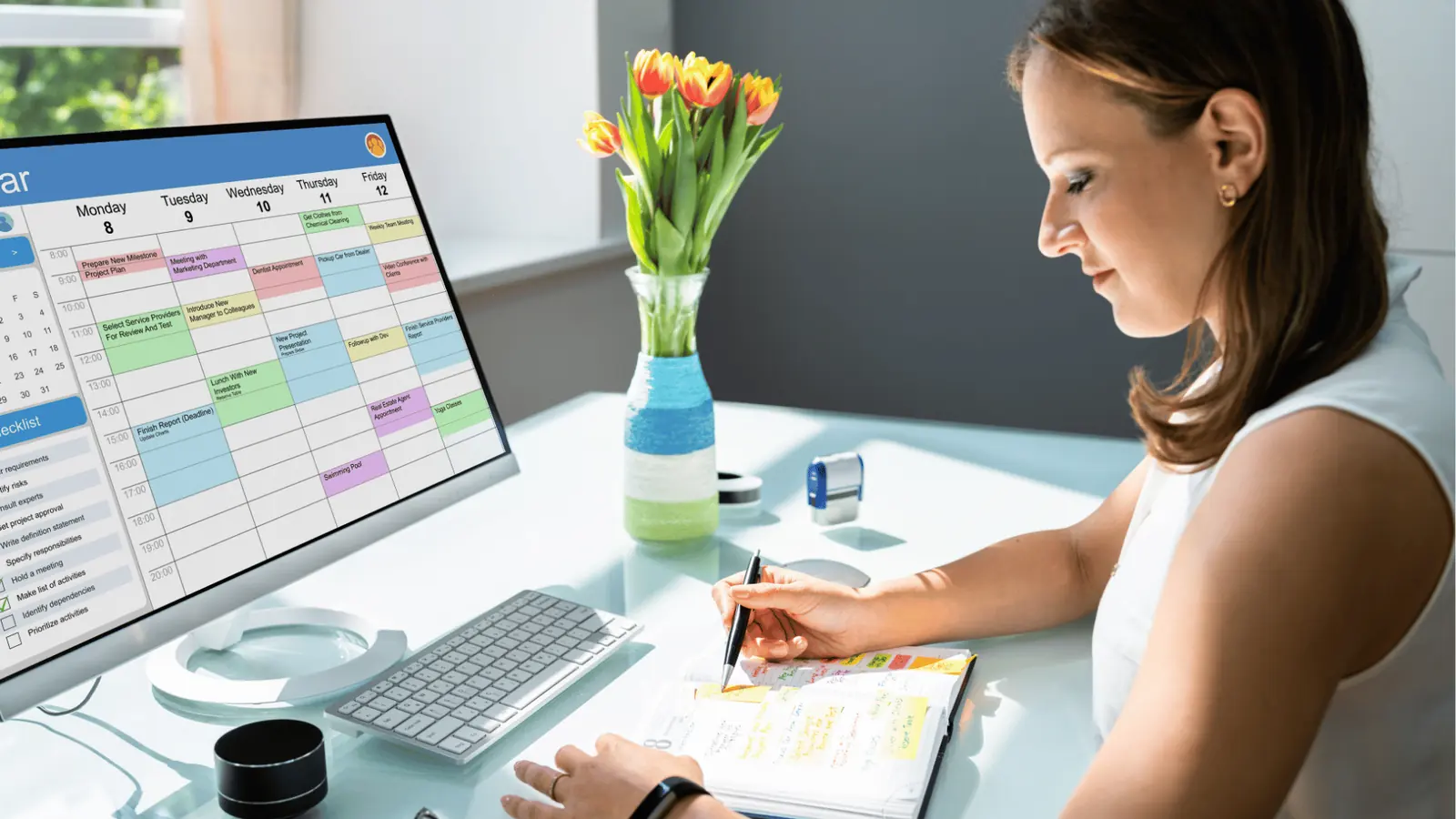
When your calendar stops updating, start your audit in the Google Calendar Settings screen. This is the nervous system of your sync, and it usually tells you exactly where the breakdown happened. Most of the time, the issue isn't a complex code error; it's a simple configuration drift that occurred when someone updated a password, shuffled team roles, or tweaked permissions in your Google Workspace.
Start by checking your current syncMode. If a teammate recently toggled your settings from "All Profiles" to "Selected Profiles" to declutter a view, the system will naturally stop pushing posts from any profile that is no longer on that list. It sounds obvious, but we have seen dozens of teams lose an hour of troubleshooting time simply because a colleague cleaned up the sidebar without realizing they were silencing the feed.
Next, look for any persistent warning flags or error states next to your connected service. If the status indicator shows as "Disconnected" or "Token Expired," you are looking at a classic authentication lapse. Google requires that handshake to be re-verified periodically, especially if you have strict security policies that rotate access tokens every 30 or 90 days.
Decision check: If your calendar sync fails, check the
syncModeand service status first. Nine out of ten times, the fix is as simple as re-selecting your target profiles or hitting the re-authorize button to refresh your access grant.
The proof that separates signal from noise
It is easy to panic when you see a blank calendar, but you need to distinguish between a genuine API failure and standard propagation lag. Google Calendar, for all its utility, is not always instantaneous. Sometimes, what looks like a broken connection is just the system catching its breath.
To get an immediate, definitive answer, use the Force Sync button. This acts as your diagnostic trigger. If the sync is healthy, the system will immediately initiate a fresh request to Google, and you should see the status update or new events populate within a minute. If the manual trigger fails, you have confirmed that the bridge itself is down.
Use this triage scorecard to help your team decide whether to wait it out or open an support ticket.
Sync Health Scorecard: Signal vs. Noise
| Symptom | Diagnosis | Action |
|---|---|---|
| Events missing for < 15 mins | Expected Latency | Monitor; do not intervene. |
| Force Sync returns "Success" | Propagation Delay | Wait; data is in transit. |
| Force Sync returns "Error" | Active Failure | Re-authorize the service. |
| Settings panel shows "Expired" | Authentication Lapse | Reset Google Calendar link. |
| Missing select events only | Sync Mode Filter | Audit "Selected Profiles" list. |
At Mydrop, we designed the service settings page to be your first line of defense, not just a configuration panel. When you trigger a forced sync, you are checking the integrity of the entire web-hook connection. If that handshake fails, you know exactly where to point your energy. Don't waste time auditing your individual posts until you have confirmed the connection is open.
Most teams do not have a technical failure; they have a maintenance habit gap. Treat your calendar integration like any other piece of critical infrastructure-it needs a monthly check-in, not just a frantic fix when the board report is due.
What to fix this week
If you are currently wrestling with a sync error, your best move is to audit your service settings with a critical eye. We often see teams assume their sync settings are static, but in reality, they drift the moment a new brand account is added or a team member changes their profile access.
Here is the quick-start audit checklist you should run right now to clear the air:
- Audit your sync scope: Are you using
All ProfilesorSelected Profiles? If you switched toSelected Profilesto clean up your view, did you remember to add the specific profiles you actually need visible in your calendar? - Verify the link: Check the
Event Linkstatus in your calendar service settings. If the connection string shows as broken or unauthenticated, no amount of button-clicking will push new data through. - Check for "ghost" calendars: If your team recently reorganized Google Workspace permissions, the specific calendar linked to your service might have been archived or hidden.
- Refresh the grant: If all else fails, a simple disconnect-and-reconnect of the service refreshes your OAuth token lifecycle entirely. It takes sixty seconds and solves about 90% of recurring sync friction.
Workflow check: Never assume a sync failure is a system bug. In our experience across thousands of daily sync events, it is almost always a credential handshake that lost its grip or a filter setting that became too aggressive.
When to stop diagnosing and change the workflow
There comes a point where troubleshooting becomes more expensive than the fix. If you find your team spending more than an hour a month babysitting these calendar connections, you are dealing with a deeper structural issue: you are relying on a "push" sync model for a process that actually requires a more robust "planning bridge."
If the connection drops repeatedly despite your best efforts, stop treating it as a technical failure. Instead, consider these three signs that it is time to change your operating rhythm:
| Symptom | Diagnostic Result | Workflow Pivot |
|---|---|---|
| High Latency | API propagation delays | Stop relying on real-time sync for urgent changes. Use a "Source of Truth" lock where calendar events are read-only. |
| Permission Drift | Google Workspace policy shifts | Move from individual user authentication to a dedicated Service Account or shared service profile. |
| Metadata Bloat | Syncing every minor edit | Disable "all-posts" mode. Sync only high-priority milestones to keep the signal-to-noise ratio manageable. |
When the friction is constant, the problem isn't the calendar; it's the reliance on fragile automation for critical team coordination. At Mydrop, we designed our Google Calendar sync to handle these edge cases by allowing you to isolate specific profiles-this way, your team isn't flooded with the noise of every single post edit, just the milestones that actually impact your operational timeline.
Conclusion
At the end of the day, your social media calendar is the pulse of your team's coordination. When it stops beating, you feel it immediately. The goal of any sync tool isn't to be invisible-it's to be reliable enough that you stop thinking about it entirely.
Most teams do not have a synchronization problem; they have a coordination debt that has finally come due. By taking ten minutes today to audit your tokens and reset your watch channels, you aren't just fixing a tech glitch. You are protecting your team's most valuable asset: the confidence that when someone checks the shared calendar, they are seeing the actual, live plan.
Keep your handshake fresh, your filters tight, and your focus on the content that matters. The rest is just plumbing.