
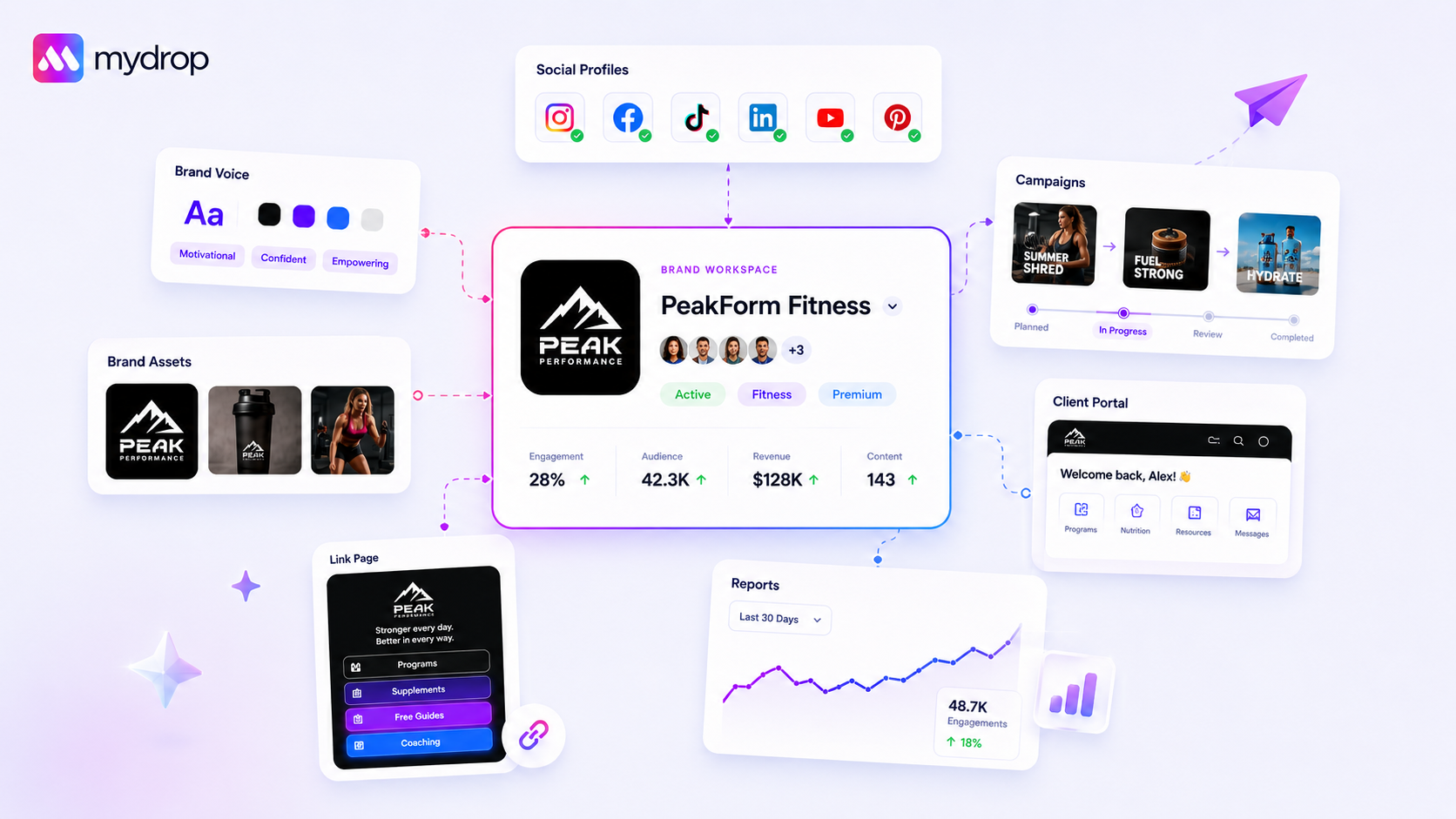
The most scalable way to organize your media is to stop sorting by topic and start sorting by intent. If your team cannot tell whether an asset is a "Brand Element," "Campaign Creative," or "User-Generated Content" just by looking at a folder path, your storage isn't a library-it is a graveyard. You do not need a more complex folder structure; you need a more rigid definition of what goes into those folders.
We get it. You are likely drowning in tens of thousands of files, juggling three versions of the same logo, and suffering through a team that still names assets final_final_v2_use_this.png. This mess is not just an aesthetic annoyance; it is a hidden tax on every post you schedule. When your designers, copywriters, and social managers spend fifteen minutes hunting for the right asset, the cost isn't just time-it is the momentum lost during your peak publishing hours.
The operating problem this solves

The "Folder Trap" is the quiet killer of agency speed. Most teams try to build a hierarchy that perfectly mirrors their corporate org chart or an abstract content strategy. But the moment a fast-moving campaign launches, that perfect map breaks down. The result is coordination debt: those constant, frantic Slack pings asking, "Hey, where is that last social crop for the summer sale?"
When your assets are scattered or inconsistently named, you are manually forcing your team to perform a scavenger hunt before they can even begin the creative work of composing a post.
At Mydrop, we see this across hundreds of brands and agencies. The teams that scale aren't the ones with the most rigid, exhaustive file structures; they are the ones who treat their media library as an operational conduit. They move assets through defined states, cleaning up the clutter as they go.
If you are currently struggling to keep your library sane, look at where your system is likely failing:
| Symptom | The Hidden Cost | Operational Root Cause |
|---|---|---|
| Search Fatigue | Teams re-create assets that already exist. | No standardized naming (e.g., YYYY-MM-DD_Asset-Name_Format). |
| Asset Rot | Your gallery is 60% outdated campaign debris. | Lack of a "Working" vs. "Archive" storage workflow. |
| Permission Bloat | Files get deleted or moved by mistake. | Over-provisioned edit access to shared workspaces. |
| Format Mismatch | Designers fix files at 5 p.m. for a 6 p.m. post. | Assets aren't normalized before hitting the library. |
Operator rule: A folder structure should never exceed three levels of depth. If you need a fourth level, your folder strategy is serving as a poor substitute for actual metadata or search tags.
Most teams overbuild. They create sub-folders for "Social," then "Instagram," then "Stories," then "Campaign X." By the time someone tries to find a file, they have to click six layers deep. Instead, rely on your library's search and filter capabilities to do the heavy lifting, keeping your folder structure flat and intent-driven. This forces your team to classify the asset correctly at the moment of upload, which is the only time they will ever actually do it.
The minimum system that works
The secret to a functional media library is limiting your folder hierarchy to three levels. Anything deeper and you aren’t managing assets; you are performing digital archaeology. In our experience, teams managing hundreds of brand profiles across multiple markets get lost the moment they try to mirror their entire organizational chart in a folder tree.
Instead, anchor your library in the Intent-Based Hierarchy:
- Brand: The top-level container for all assets belonging to a specific entity or sub-brand.
- Year/Campaign: The temporal or thematic bucket that identifies why this asset exists.
- Asset Type: The functional format (e.g., Raw Footage, Social Crops, Graphics, Brand Elements).
This structure turns your storage into a decision map. If you are looking for a video for a summer promo, you don't hunt through a folder named "Marketing-Final-V3." You navigate to [Brand] > [2026-Summer-Campaign] > [Social-Crops].
Decision check: If a file has to travel through more than three clicks to find its home, it will eventually end up in a "Miscellaneous" or "General" folder, and you have officially lost control of that asset.
To keep this system from becoming a graveyard, use a strict naming convention for every file uploaded: YYYY-MM-DD_Asset-Name_Format.ext. When you combine this structure with a tool like the Mydrop Media Library, you gain the ability to search by folder context rather than guessing at cryptic file titles.
Where teams overbuild the process
Most teams fall into the trap of "Granular Over-engineering." They create folders for [Brand] > [Campaign] > [Phase] > [Channel] > [Approval-Status] > [Language]. It sounds organized on paper, but it is a workflow killer. Every time a designer needs to upload a new asset, they have to navigate through six layers of empty folders.
The result? The human cost of "coordination debt." You start seeing duplicates in every folder because no one is sure where the "official" version lives, and the legal reviewer gets buried under a pile of Slack requests asking, "Which folder is the right one?"
| The "Overbuild" Trap | The Scalable Alternative |
|---|---|
| Hierarchy: 5+ levels deep | Hierarchy: 3 levels fixed |
| Logic: Sorted by channel/status | Logic: Sorted by brand/intent |
| Naming: "Final-v2-use-this" | Naming: YYYY-MM-DD_Name_Format |
| Retrieval: Search through Slack history | Retrieval: Browse by folder path |
If you find yourself creating a new folder for every single social post, you are overbuilding. Use your folder structure for broad categorization (like Campaigns) and rely on the platform’s metadata or search capabilities for specific identification.
If an asset is truly a "work in progress," keep it in a designated [Working] folder. Only once it is approved and ready for the wild should it be moved into the permanent [Archive] or [Library] structure. This simple "move-once" cadence saves your team hours of searching and ensures that your live brand assets are never confused with raw, unpolished drafts.
Most teams do not have a content problem; they have a decision bottleneck. By narrowing your folder structure, you force your team to categorize assets by their actual business intent, making the entire library feel like a tool rather than a digital junk drawer.
How to run the cadence
Getting your folders organized is the easy part. The hard part is keeping them that way when your team is pushing out fifty posts a week. Most teams try to "clean up" at the end of every quarter, which is effectively just moving a mountain of trash from one corner of the room to another.
Instead, build a weekly 15-minute "media scrub" into your team's Friday routine. If you don't enforce a regular cadence, your folder structure will inevitably revert to the default state of entropy.
At Mydrop, we see the most successful teams treat their media library like an inbox. They don't just dump files; they process them. Here is a simple workflow you can copy for your team:
- Clear the Intake: Move everything from the root "Working" folder into the appropriate Brand/Campaign folder.
- Tag and Prune: Delete the "oops" files-those half-baked crops or accidental screenshots that clutter your search results.
- Validate Assets: Ensure every asset in your "Brand Elements" folder actually has the right metadata (title, description, source).
- Archive the Dead: If a campaign wrapped three weeks ago, move those assets to an "Archive" folder and clear them from your active workspace view.
Workflow check: If an asset hasn't been referenced in a post for 90 days, it moves to cold storage or gets deleted. No exceptions.
The proof that the habit is working
How do you know if you are actually winning? You stop hearing the noise. When your team stops asking "Where is the file?" and starts asking "Which version is best?", you have moved from chaos to management.
Use this Scorecard to measure your retrieval speed-the ultimate metric for coordination debt. If your team spends more than 60 seconds finding a single approved asset, you have work to do.
| Metric | Struggling Team | High-Velocity Team |
|---|---|---|
| Search Time | 3+ minutes (digging) | < 30 seconds (path-driven) |
| Asset Versions | 5+ duplicates per file | 1 "Golden" version |
| Naming Logic | Random strings (IMG_992) |
YYYY-MM-DD_Project_Type |
| Permissions | Everyone touches everything | Admin-governed folders |
| Retrieval Success | 40% (guesswork) | 95% (verified) |
If you are currently at the "Struggling" stage, don't try to fix everything at once. Pick one brand and apply the 3-level folder structure this week. You will notice the friction drop almost immediately.
Conclusion
Standardizing your media taxonomy isn't about being a neat freak; it's about buying your team back their most expensive resource: focus. When you stop playing digital hide-and-seek, you stop the constant context-switching that kills creative momentum.
Your library should be a clean, high-performance engine, not a digital attic. By adopting a "context-first" hierarchy and enforcing a strict weekly scrub, you turn your assets from a liability into a repeatable advantage. The best time to start was yesterday, but the second best time is the next time you go to upload a file. Stop, pick a folder, and make it part of a system-your future self will thank you when the next campaign crisis hits and you find the file in three clicks.