

Publishing to multiple social media accounts at once sounds like a dream, but it can quickly turn into a nightmare of tabs, logins, and copy-paste chaos. If you’re managing several brands, clients, or even just your own presence across platforms, you know the pain: inconsistent posts, missed deadlines, and the creeping sense that you’re always behind.
The reality is, most social media managers and freelancers start with good intentions. You want to keep every account active, but the manual work piles up fast. One day you’re on top of your calendar, the next you’re scrambling to remember which client’s post is due where, and when. It’s easy to feel like you’re always playing catch-up, never quite in control.
Here’s the good news: you can publish to multiple accounts at once without losing your mind. With the right workflow, tools, and a few smart habits, you’ll save hours every week, keep your messaging consistent, and finally get ahead of the content treadmill. This guide will show you exactly how, with practical steps and real-world examples from people who’ve been in your shoes.
Why Multi-Account Publishing Matters

If you’re running more than one social media account, whether for clients, brands, or your own projects, publishing efficiently isn’t just a nice-to-have. It’s the difference between scaling your impact and burning out.
Let’s break down why this matters:
- Brand consistency: Your audience expects a unified voice and message, no matter where they find you. If your Instagram is lively but your LinkedIn is a ghost town, you’re missing out on trust and reach.
- Audience reach: Different platforms attract different demographics. Publishing everywhere means you’re not leaving potential fans or customers on the table.
- Time savings: Batching and automating posts frees you up for strategy, engagement, and creative work, the stuff that actually moves the needle.
- Error reduction: Manual copy-pasting is a recipe for mistakes. Automation helps you avoid embarrassing mix-ups, like posting a client’s promo to your personal feed.
- Agility: When you can publish everywhere at once, you’re ready to jump on trends, respond to news, or launch campaigns without delay.
Case study:
Maya, a freelance content creator, used to post manually to five platforms for three clients. After switching to a unified workflow and scheduling tool, she cut her weekly posting time from 10 hours to 3, doubled her engagement rates, and landed two new clients thanks to her improved consistency. The difference wasn’t working harder, it was working smarter.
For agencies, freelancers, and solo operators, this is the only way to stay competitive. The alternative? Scrambling between platforms, missing posts, and letting opportunities slip through the cracks. The best in the business don’t work harder, they work smarter, with systems that scale.
The Challenges of Managing Multiple Accounts

Let’s be real: posting to multiple accounts is hard. Here’s what usually goes wrong:
- Platform overload: Each network has its own quirks, image sizes, and best practices. Instagram loves square images, LinkedIn prefers horizontal, and TikTok wants vertical videos. Keeping track of specs is a job in itself.
- Password fatigue: Logging in and out of accounts is a recipe for mistakes. Many managers keep a spreadsheet of passwords or use browser autofill, but both can lead to security risks and accidental logins to the wrong account.
- Copy-paste errors: It’s easy to post the wrong content to the wrong place. One slip and you’ve published a client’s confidential announcement to your personal feed.
- Inconsistent branding: Without a system, your messaging gets scattered. You might use different logos, colors, or tones by accident, which confuses your audience and weakens your brand.
- Time drain: Manual posting eats up hours you could spend on strategy or creative work. The more accounts you manage, the more your day becomes a blur of repetitive tasks.
Real-world scenario:
Alex manages social media for three local businesses. On Mondays, she spends two hours just logging into each account, checking DMs, and posting updates. By the time she’s done, she’s too drained to brainstorm new content or engage with followers. She knows there’s a better way, but hasn’t found the right system yet.
If you’ve ever posted a TikTok caption to LinkedIn by accident, you know the struggle. But these problems aren’t inevitable, they’re symptoms of a workflow that hasn’t scaled with your needs. The good news? With a few changes, you can turn chaos into control.
Step 1: Audit Your Accounts and Platforms
Deep Dive: What to Look For
- Inactive accounts: Are there pages you haven’t posted to in months? Decide whether to revive or close them.
- Brand consistency: Check bios, profile images, and links. Are they up to date and on-brand?
- Access risks: Who has admin rights? Remove ex-employees or freelancers who no longer need access.
- Approval bottlenecks: Are posts getting stuck waiting for someone’s sign-off?
Example:
When Sam audited his agency’s accounts, he found two old Facebook pages with outdated branding and a former intern who still had admin access. Cleaning this up prevented confusion and potential security issues.

Before you can streamline, you need to know what you’re dealing with. Here’s how to start:
- List every account: Include all brands, clients, and personal projects. Don’t forget secondary pages, test accounts, or legacy profiles that might still be live.
- Note the platforms: Instagram, Facebook, LinkedIn, TikTok, Pinterest, YouTube, Twitter/X, and any niche networks. Each platform has its own audience and content style.
- Identify owners and access: Who has the passwords? Who needs to approve posts? If you’re working with a team, clarify who is responsible for what.
- Check for overlap: Are you posting the same content everywhere, or tailoring for each platform? Sometimes, a post that works on Instagram flops on LinkedIn.
- Spot gaps: Are there dormant accounts or platforms you’re neglecting? Inactive accounts can hurt your brand’s credibility.
Pro tip: Use a simple spreadsheet to track all this info. Columns might include: Account Name, Platform, Login Owner, Last Post Date, Approval Needed, Notes.
This audit gives you a bird’s-eye view. It’s also a great time to clean house, close unused accounts, update bios, and make sure you have the right permissions everywhere. Many managers discover “ghost” accounts they forgot about, or realize a former employee still has admin access. Better to fix it now than during a crisis.
Step 2: Build a Unified Content Calendar
Deep Dive: Calendar Tools and Templates
- Google Sheets/Excel: Great for beginners. Use tabs for each month and color-code by platform.
- Notion: Flexible for teams. Add checklists, approval columns, and campaign notes.
- Mydrop: Built-in calendar, drag-and-drop scheduling, and direct publishing.
Template Example:
| Date | Platform | Account | Content | Status | Owner |
|---|---|---|---|---|---|
| 2026-04-18 | @brandA | Spring Sale Carousel | Draft | Jules | |
| 2026-04-18 | @brandA | Sale Announcement | Approved | Jules | |
| 2026-04-19 | TikTok | @brandB | Behind-the-scenes Reel | Scheduled | Sam |
Pro tip: Review your calendar every Friday. Move unscheduled posts to next week and fill gaps with curated content.

A single, unified content calendar is your secret weapon. Here’s why it matters:
- See everything at a glance: No more guessing what’s going live where. You can spot gaps, overlaps, and opportunities instantly.
- Batch your work: Plan, create, and schedule posts for all accounts in one go. This is the secret to working less while posting more.
- Spot conflicts and gaps: Avoid duplicate content or awkward silences. If you see three promos in a row for one client, you can adjust before it’s too late.
- Coordinate campaigns: Launches, promos, and announcements stay in sync. Everyone on your team knows what’s happening, and when.
Real-world workflow:
Jules manages social for a small agency. She uses a Notion board with columns for each week, color-coded by client. Every Monday, she reviews the board, checks for missing posts, and assigns tasks. The result? Fewer last-minute scrambles and a much happier team.
How to build it:
- Use a spreadsheet, Notion, or a dedicated tool like Mydrop.
- Color-code by account or platform.
- Include post copy, images, links, and approval status.
- Review weekly and adjust as needed.
- Add a “Notes” column for campaign goals, hashtags, or special instructions.
A good calendar is more than a schedule, it’s your command center for multi-account publishing. It’s also a living document, don’t be afraid to tweak it as your needs evolve.
Step 3: Choose the Right Tools for Multi-Account Scheduling
Deep Dive: How to Test Tools
- Start with a free trial: Connect all your accounts and test posting to each platform.
- Check mobile apps: Can you approve or reschedule posts from your phone?
- Test support: Reach out with a question, fast, helpful support is a lifesaver.
- Bulk actions: Try uploading multiple posts at once. Does the tool handle it smoothly?
Example:
When Jules switched from Buffer to Mydrop, she found the approval workflow much faster and loved the AI-powered caption suggestions. The switch saved her team 5+ hours a week.
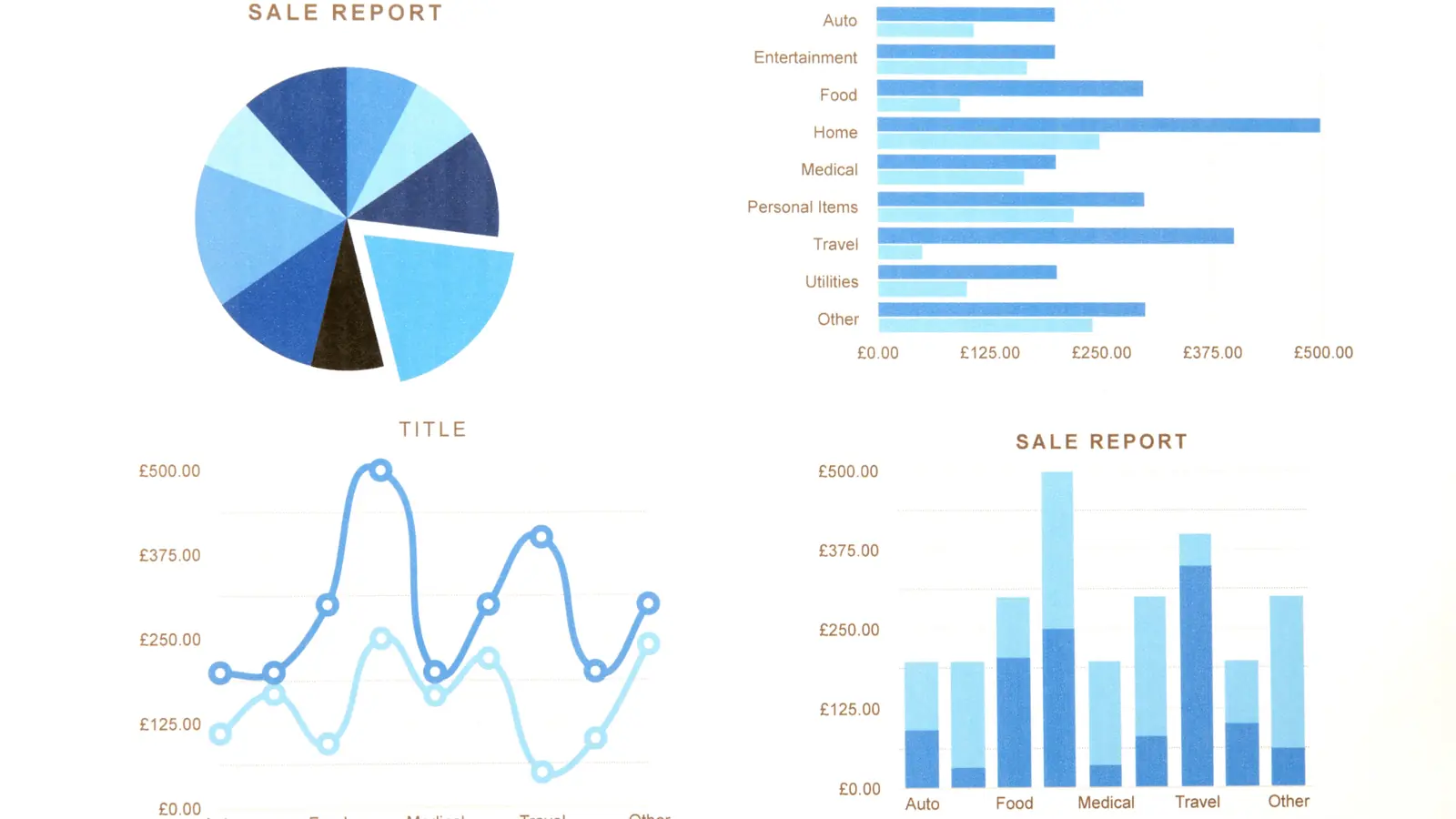
Manual posting is a dead end. The right scheduling tool will:
- Let you connect all your accounts in one dashboard
- Schedule posts across platforms with a single click
- Preview how posts will look on each network
- Handle approvals and team collaboration
- Track analytics for every account
- Offer mobile apps for on-the-go changes
- Provide bulk upload features for large campaigns
Comparison table:
| Tool | Best For | Key Features | Price Range |
|---|---|---|---|
| Mydrop | Solo/Agencies | Multi-account, approvals, analytics, AI ideas | $$ |
| Hootsuite | Enterprises/Teams | Streams, monitoring, integrations | $$$ |
| Buffer | Simplicity/Solo | Clean UI, basic scheduling | $ |
| Later | Visual planning | Instagram grid, media library | $ |
When choosing, consider:
- Supported platforms (not all tools cover every network)
- Pricing and account limits
- Approval workflows (especially for teams or clients)
- Analytics and reporting features
- Ease of use and support
- Integrations with other tools (Canva, Google Drive, etc.)
Pro tip: Try free trials before committing. The best tool is the one you’ll actually use.
Mydrop, for example, is built for solo operators and agencies juggling many accounts. It lets you schedule, approve, and analyze posts for all your brands in one place, no more tab overload. Many users say the AI-powered content suggestions are a game-changer for beating creative block.
Step 4: Create Platform-Specific Content (Without Extra Work)
Deep Dive: Repurposing Content Like a Pro
- Video to clips: Turn a long YouTube video into Instagram Reels, TikTok snippets, and LinkedIn teasers.
- Blog to graphics: Pull quotes or stats from a blog post and turn them into shareable images.
- Carousel to stories: Break down a carousel post into a series of Instagram Stories.
Pro tip: Keep a “content bank” in Notion or Google Drive with evergreen assets you can remix for different platforms.

You don’t have to write a brand-new post for every account. Instead:
- Start with a core message or asset (like a blog post, video, or announcement)
- Adjust the copy, image size, and hashtags for each platform. For example, use shorter captions and trending sounds for TikTok, longer-form posts for LinkedIn, and carousel images for Instagram.
- Use templates to speed up the process. Many tools let you save caption formulas, hashtag sets, and image layouts.
- Preview posts before scheduling to catch formatting issues.
- Repurpose content: Turn a single video into a series of clips, or a blog post into quote graphics for different platforms.
Example workflow:
Let’s say you’re launching a new product. You write one announcement, then:
- Instagram: Carousel with product photos, short caption, branded hashtags
- LinkedIn: Longer post with story, link to case study
- TikTok: 15-second demo video with trending audio
- Facebook: Event post with RSVP link
Most scheduling tools let you customize each post for every network in the same workflow. This keeps your content fresh and relevant, without multiplying your workload. The goal isn’t to do more work, it’s to make every piece of content go further.
Step 5: Automate Approvals and Collaboration
Deep Dive: Approval Workflows
- Single-person teams: Use scheduled drafts and set a “review” reminder before posts go live.
- Small teams: Assign roles in your tool, creator, reviewer, publisher. Use comments for feedback.
- Agencies/clients: Batch all posts for weekly review. Use video calls to walk through content and get instant sign-off.
Example:
Sam’s agency used to send posts for approval via email. Switching to Mydrop’s built-in workflow cut approval time in half and reduced missed posts to zero.
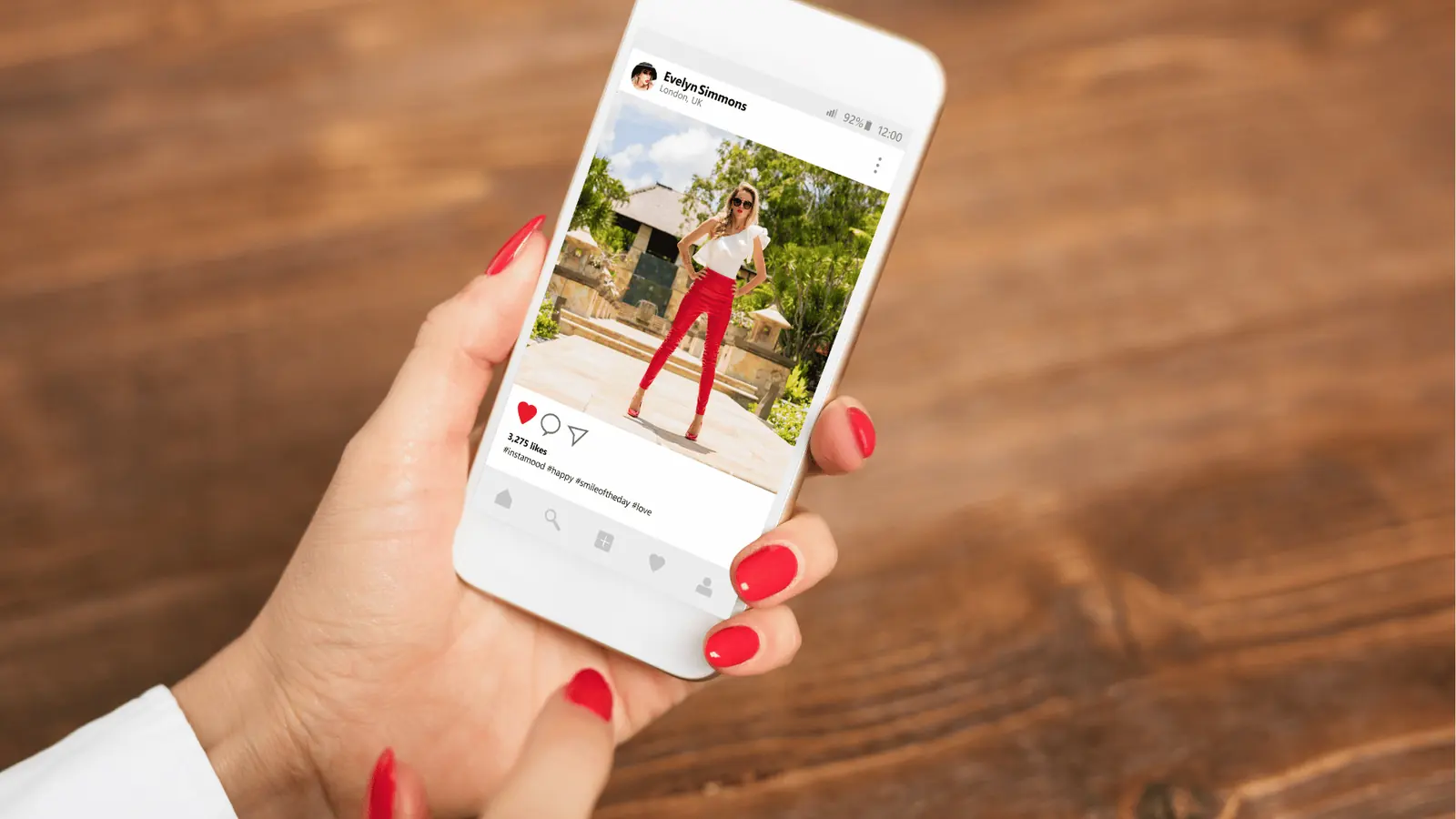
If you work with clients or a team, approvals can be a bottleneck. Here’s how to fix it:
- Use a tool with built-in approval workflows (like Mydrop, Hootsuite, or Sprout Social)
- Assign roles: who creates, who reviews, who publishes. Make sure everyone knows their responsibility.
- Set deadlines for feedback. If a post isn’t approved by a certain date, it doesn’t go live.
- Keep all comments and changes in one place. Most tools let you tag teammates, leave notes, and track revisions.
- Use version history to roll back changes if needed.
Real-world tip:
When working with a picky client, set up a recurring “approval day” each week. Batch all pending posts for review, walk through them together on a call, and get sign-off in one go. This saves endless back-and-forth and keeps projects moving.
This cuts down on endless email threads and last-minute changes. Everyone knows what’s happening, and nothing slips through the cracks. The result? Fewer mistakes, happier clients, and a calmer workflow.
Step 6: Monitor, Analyze, and Adjust
Deep Dive: What Metrics Matter Most?
- Engagement rate: (Likes + Comments + Shares) / Followers. Shows true audience interest.
- Reach vs. impressions: Reach = unique viewers, Impressions = total views. Both matter for growth.
- Click-through rate (CTR): How many people click your links? Essential for campaigns.
- Saves and shares: Often more valuable than likes, indicate content people want to revisit or share.
Example:
Jules noticed her TikTok posts had high reach but low engagement. By tweaking her call-to-action and posting time, she boosted comments by 40% in a month.

Once your posts are live, the real work begins. Track:
- Engagement rates for each account (likes, comments, shares, saves)
- Top-performing content by platform. What works on TikTok might flop on LinkedIn.
- Posting times that drive the most results. Use analytics to find your “power hours.”
- Follower growth and audience overlap. Are you reaching new people, or just the same crowd?
- Click-through rates and conversions if you’re running campaigns.
Example workflow:
Every Friday, block 30 minutes to review analytics. Look for patterns: Did a certain type of post outperform? Did engagement drop on a specific platform? Use these insights to adjust your calendar for next week.
Most scheduling tools offer built-in analytics, but you can also use native platform insights for deeper dives. The key is to act on the data, don’t just collect it. Small tweaks add up to big results over time.
Common Mistakes (and How to Avoid Them)

- Posting identical content everywhere: Audiences notice when you phone it in. Tailor your message for each platform, even small tweaks make a difference.
- Ignoring platform updates: Algorithms and features change fast. Stay current by following official blogs and creator communities.
- Skipping approvals: One missed review can lead to embarrassing mistakes. Always get a second set of eyes on important posts.
- Neglecting analytics: If you’re not measuring, you’re guessing. Set a recurring reminder to check your numbers.
- Overcomplicating your workflow: More tools isn’t always better. Simplicity wins. If a tool isn’t saving you time, cut it.
- Not documenting your process: Write down your workflow. If you get sick or go on vacation, someone else can step in without chaos.
Pro tip:
Every quarter, do a “workflow audit.” Ask: What’s working? What’s a pain? Where do mistakes happen? Small improvements compound over time.
Step 7: Create a final pre-publish quality check
Before you push dozens of posts live, run one last five-minute quality check across the batch. This is where you catch the small mistakes that become big headaches later: the wrong account tagged in a caption, an outdated link, a hashtag that makes sense on Instagram but looks clumsy on LinkedIn, or a post scheduled in the wrong time zone.
The cleanest way to do this is to use a short checklist:
- right account selected
- right asset attached
- right caption version for that platform
- right link and tracking tags
- right publish date and time
That one final sweep is boring, but it saves you from the kind of errors that make multi-account publishing feel risky in the first place.
Conclusion
Publishing to multiple social media accounts at once doesn’t have to be a headache. With a clear system, the right tools, and a few smart habits, you can keep every account active, on-brand, and growing, without burning out.
Next steps:
- Audit your accounts and platforms this week. List everything, spot gaps, and clean house.
- Set up a unified content calendar. Even a simple spreadsheet is a huge upgrade.
- Test at least one scheduling tool (Mydrop, Buffer, Hootsuite, etc.) and connect all your accounts.
- Batch-create content for the next week, customizing for each platform.
- Schedule a recurring analytics review, Friday afternoons work well for most managers.
If you’re ready to make multi-account publishing effortless, try a tool like Mydrop. You’ll spend less time juggling tabs and more time creating content that actually moves the needle.
Want more tips? Check out our guide on how to manage multiple social media accounts without burning out or explore the top scheduling tools for social media.